How to screen record on a Mac with sound

To screen record on a Mac with sound on macOS 27 Golden Gate or later, press ⌘⇧5 (Shift-Command-5), click Options and choose Include System Audio. That records the sound your Mac plays, which people also call internal audio or computer audio. Choose a microphone in the same menu if you want your voice too.
On macOS Tahoe 26 and earlier, Apple's page lists a microphone for the sound in a recording and nothing for your Mac's own sound. The steps for each are below, and so is a way to get your Mac's sound on those versions.
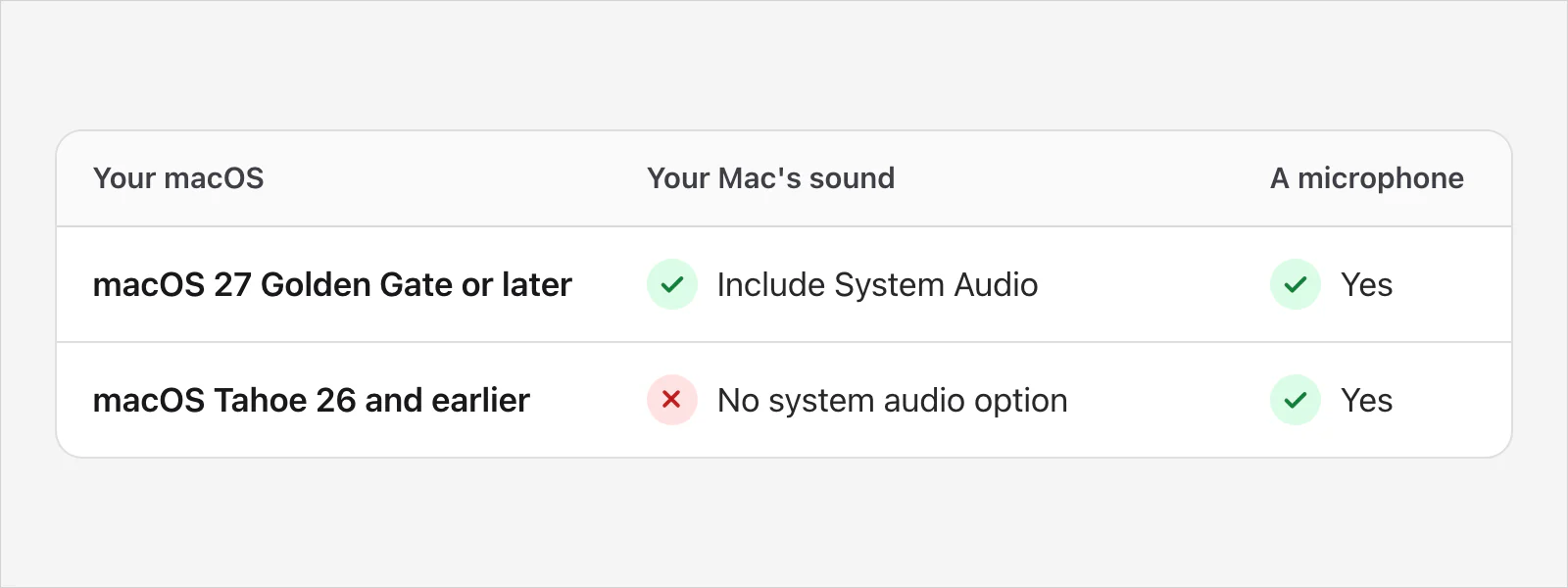
Which macOS do you have?
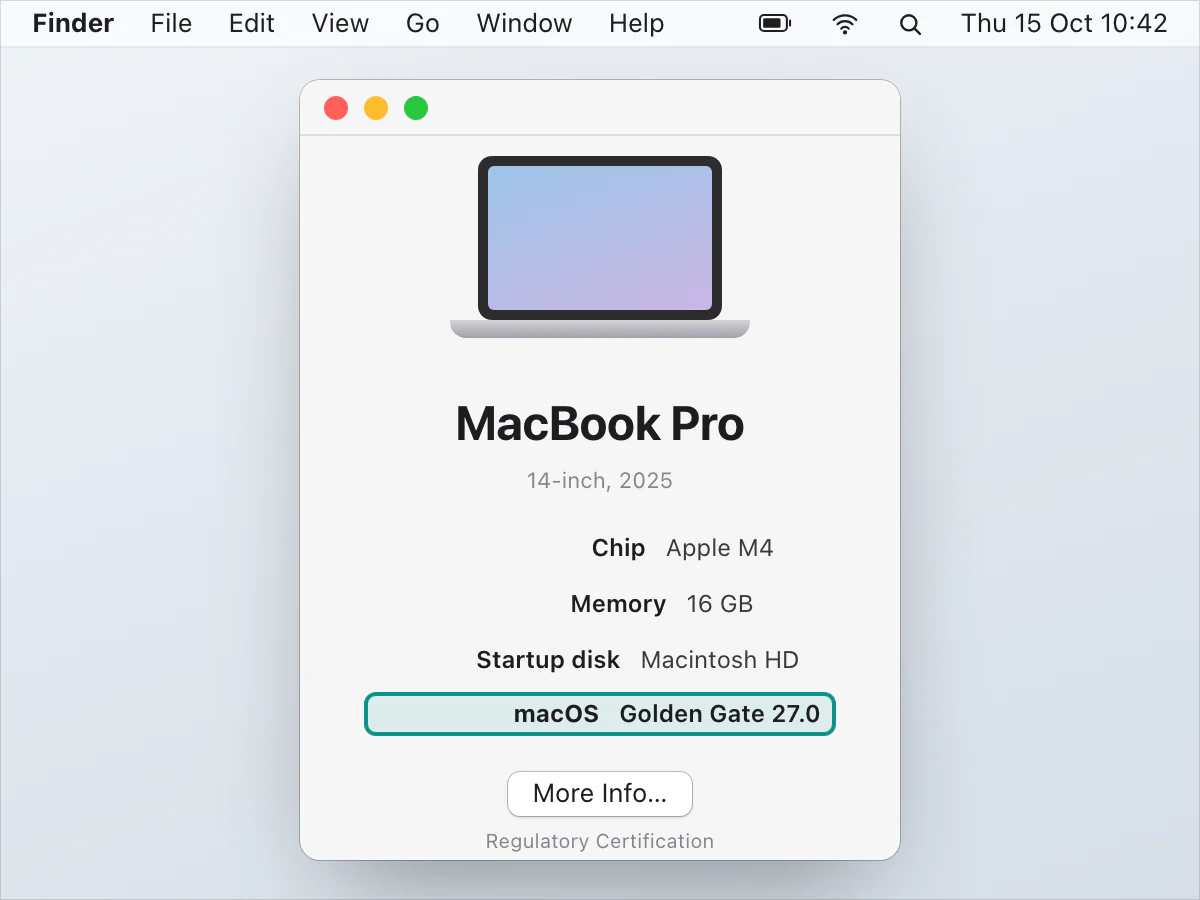
Click the Apple menu in the top-left corner and choose About This Mac. The window shows the name and version number of your macOS. Apple's page on finding your macOS also links to which Macs each recent version runs on, and to how to upgrade if yours can.
macOS 27 Golden Gate or later: your Mac's sound and your voice
Apple's page on recording the screen on a Mac, published on 14 September 2026, lists Include System Audio for macOS 27 Golden Gate or later. If you don't see it in Options, check your macOS version first. The steps:
Press ShiftCommand5. The Screenshot toolbar opens.
Choose Record Entire Screen, Record Selected Window or Record Selected Portion. For a portion, drag its borders until it fits.
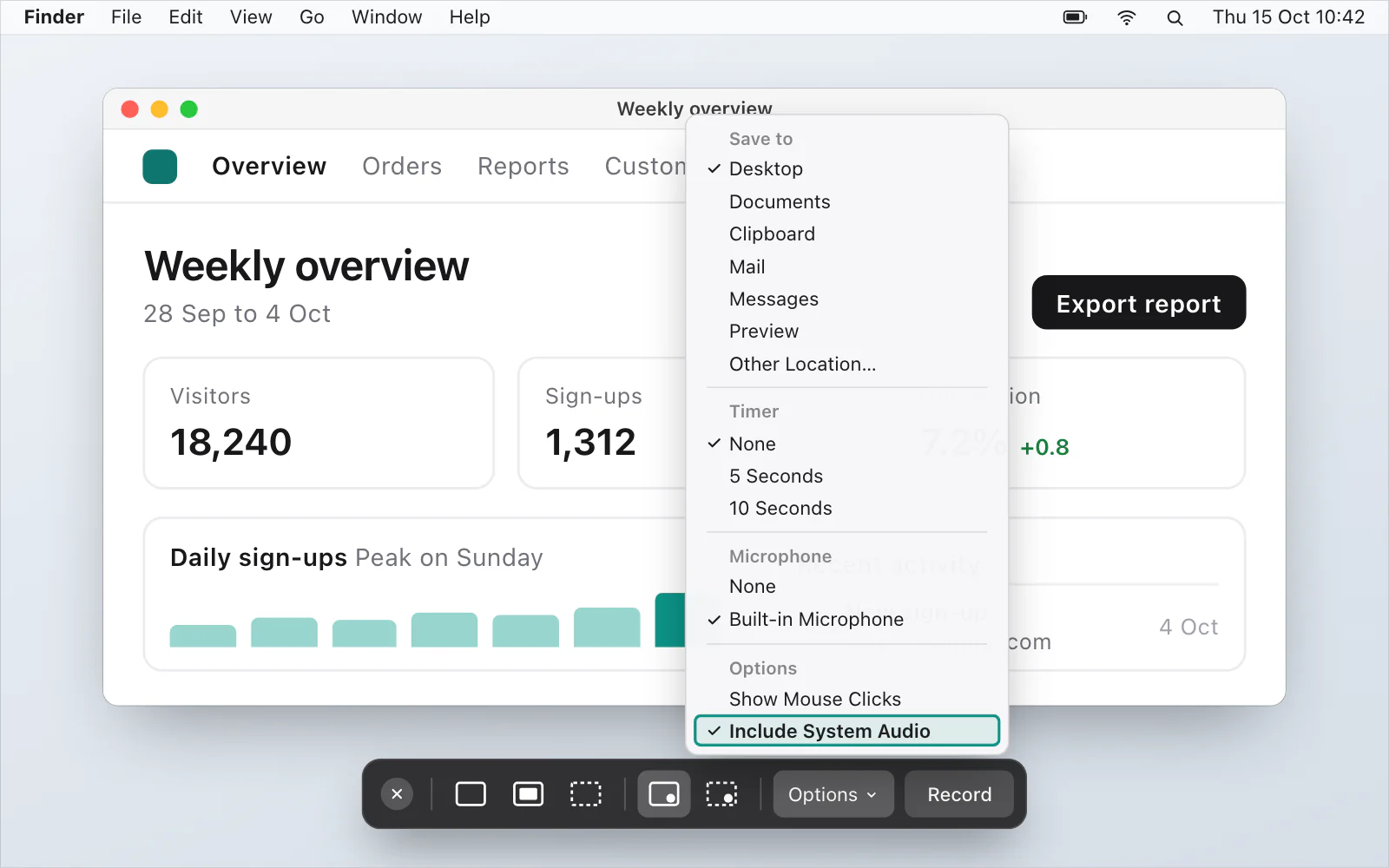
Click Options, then choose Include System Audio. That records the sound your Mac plays.
If you want your voice too, choose a microphone in the same menu. Choose None to leave it out.
Click Record.
To stop, click the Stop button in the menu bar, or press CommandControlEsc.
A thumbnail shows in the corner of your screen. Click it to edit the recording, or wait and the recording saves to your desktop.
macOS Tahoe 26 and earlier: your voice
Follow the steps above without step 3. Press ShiftCommand5, click Options, choose a microphone, then click Record. Apple describes the microphone choice as the way to record "your voice or other audio with the screen recording".
QuickTime Player works too. Choose File › New Screen Recording, or press ControlCommandN. You'll see either the Screenshot toolbar, so the steps above apply, or QuickTime Player's own Screen Recording window, where the arrow next to Record opens the microphone choice and a volume slider.
What else is in Options
Before you press Record, Options also has a few things you may want:
Show Mouse Clicks puts a black circle round the pointer when you click.
Timer waits the number of seconds you choose after you click Record, so you can get ready.
Save to changes where the recording goes. The default is your desktop.
On supported Macs with macOS Tahoe 26 or later, you can also choose the capture format. SDR (Most Compatible) uses H.264, and HDR uses HEVC.
How do I record my Mac's sound on macOS Tahoe 26 or earlier?
You can update macOS, or you can add a virtual audio driver.
Update to macOS 27, if your Mac can run it. The Apple page above, on finding your macOS, links to the compatible Macs and to how to upgrade.
Add a virtual audio driver. BlackHole is one. It's made by Existential Audio, not by Apple. Its own pages call it a macOS virtual audio loopback driver that allows applications to pass audio to other applications, and list the route for your Mac's sound in three steps: set up a Multi-Output Device, set it as the system output device, and set BlackHole as the input in the app that records. For Apple's Screenshot toolbar, that goes like this:
Install BlackHole. Its page offers it through its Discord server or with Homebrew.
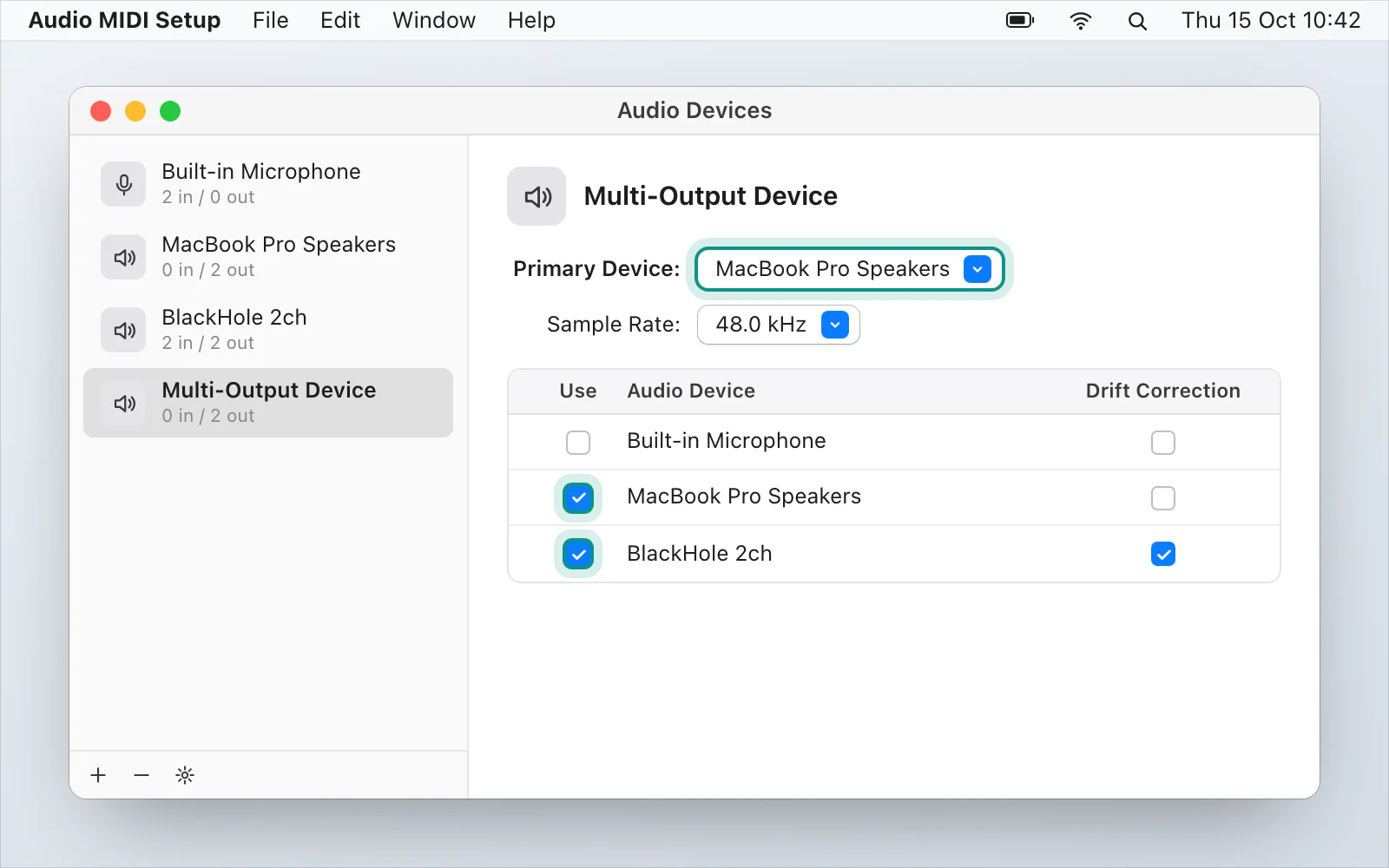
Open Audio MIDI Setup: press CommandSpace and type its name. In the Audio Devices window, click the Add button (+) at the bottom of the sidebar and choose Create Multi-Output Device.
Tick Use for BlackHole and for your speakers or headphones, and make the speakers or headphones the primary device. BlackHole's page recommends turning on Drift Correction for every device except the primary one.
Control-click the Multi-Output Device and choose Use This Device For Sound Output. BlackHole's page says macOS doesn't support changing the volume of a Multi-Output Device, but you can set the volume of each device in Audio MIDI Setup.
Press ⌘⇧5 and choose what to record.
Click Options and, under Microphone, choose BlackHole. Apple describes that choice as the way to record "your voice or other audio", and BlackHole's page says to set BlackHole as the input in the app that records.
Click Record.
BlackHole's pages also list a longer route for your voice and your Mac's sound together. It adds an Aggregate Device and a digital audio workstation.
Why is my recording silent?
Look at Options before you press Record. On macOS 27 or later, check that Include System Audio is chosen if you wanted your Mac's sound, and that a microphone is chosen if you wanted your voice. On macOS 26 or earlier, check that a microphone is selected. Apple also says some apps, such as the Apple TV app, might not let you record their windows. The longer list of fixes is in screen recording with no sound.
Why do I hear an echo?
Apple's advice, given for QuickTime Player's microphone choice, is to lower the volume or use headphones with a microphone if you get audio feedback.
A faster way, if you do this every day
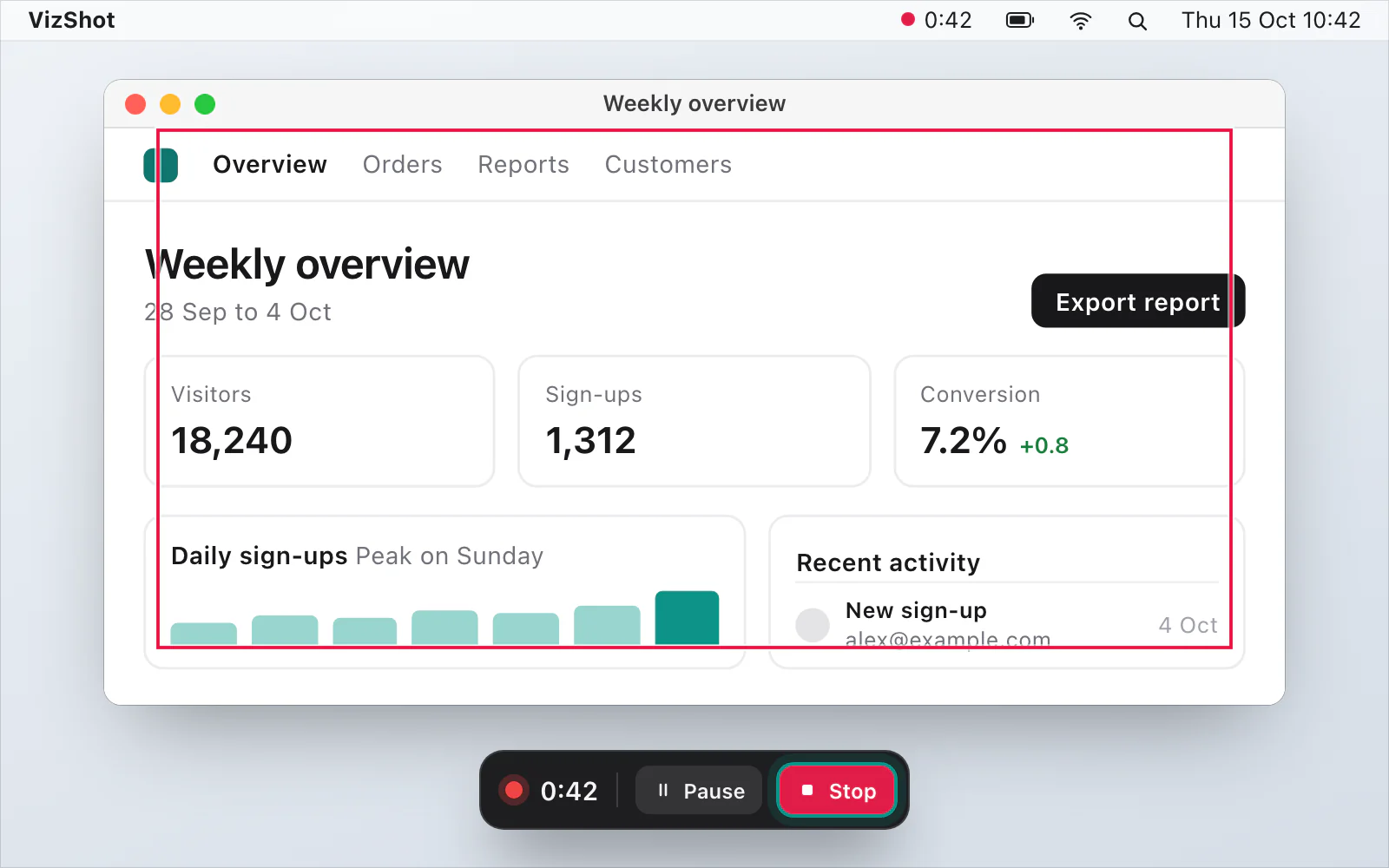
VizShot records your computer's sound by default, on every Mac it runs on (macOS 14 Sonoma or later), so the gap on macOS 26 doesn't come up. Your microphone is off until you switch it on in Settings › Recording, and it needs macOS 15 or later. Both go into one sound track in an MP4, which opens in VizShot's own player when you stop. One click there uploads it to storage you own and copies a link, once you've set that storage up. After the 14-day free trial, recording needs a key. Record sound and your microphone explains the switches, and you can download VizShot.
Questions
Can QuickTime Player record my Mac's sound?
Apple's page doesn't say it can. For QuickTime Player's own recording window it describes a microphone choice and a volume slider, and nothing for your Mac's own sound. If File › New Screen Recording opens the Screenshot toolbar instead, that toolbar has Include System Audio on macOS 27 or later.
How do I record just my voice?
Choose a microphone in Options and leave Include System Audio unchosen. That works on any of the macOS versions above.
How do I stop the recording?
Click the Stop button in the menu bar, or press CommandControlEsc. If it won't stop, how to stop a screen recording on a Mac has more.
Where does the recording go?
From the Screenshot toolbar, to your desktop, unless you choose another Save to place in Options before you start. The file is named Screen Recording followed by the date and time. QuickTime Player's own window opens the recording when you stop. Where do screenshots and recordings go on a Mac? has the details.
Is the file a MOV or an MP4?
Apple's pages say the built-in recorder saves .mov files. MOV or MP4 explains what that means when you share one.
Checked against
- Apple: How to record the screen on Mac, read 14 October 2026
- Apple: Take screenshots or screen recordings on Mac, read 14 October 2026
- Apple: Find out which macOS your Mac is using, read 14 October 2026
- Existential Audio: BlackHole, route audio between apps, read 14 October 2026
- Existential Audio: BlackHole support, read 14 October 2026
- Existential Audio: BlackHole wiki, Multi-Output Device, read 14 October 2026
- Apple: Play audio through multiple devices at once in Audio MIDI Setup on Mac, read 14 October 2026