Where do screenshots go on a Mac?

Screenshots go to your desktop on a Mac. By default, every one you take with a shortcut or with the Screenshot app saves there. To pick another folder, press ⌘⇧5 (Shift-Command-5), click Options and choose one under Save to.
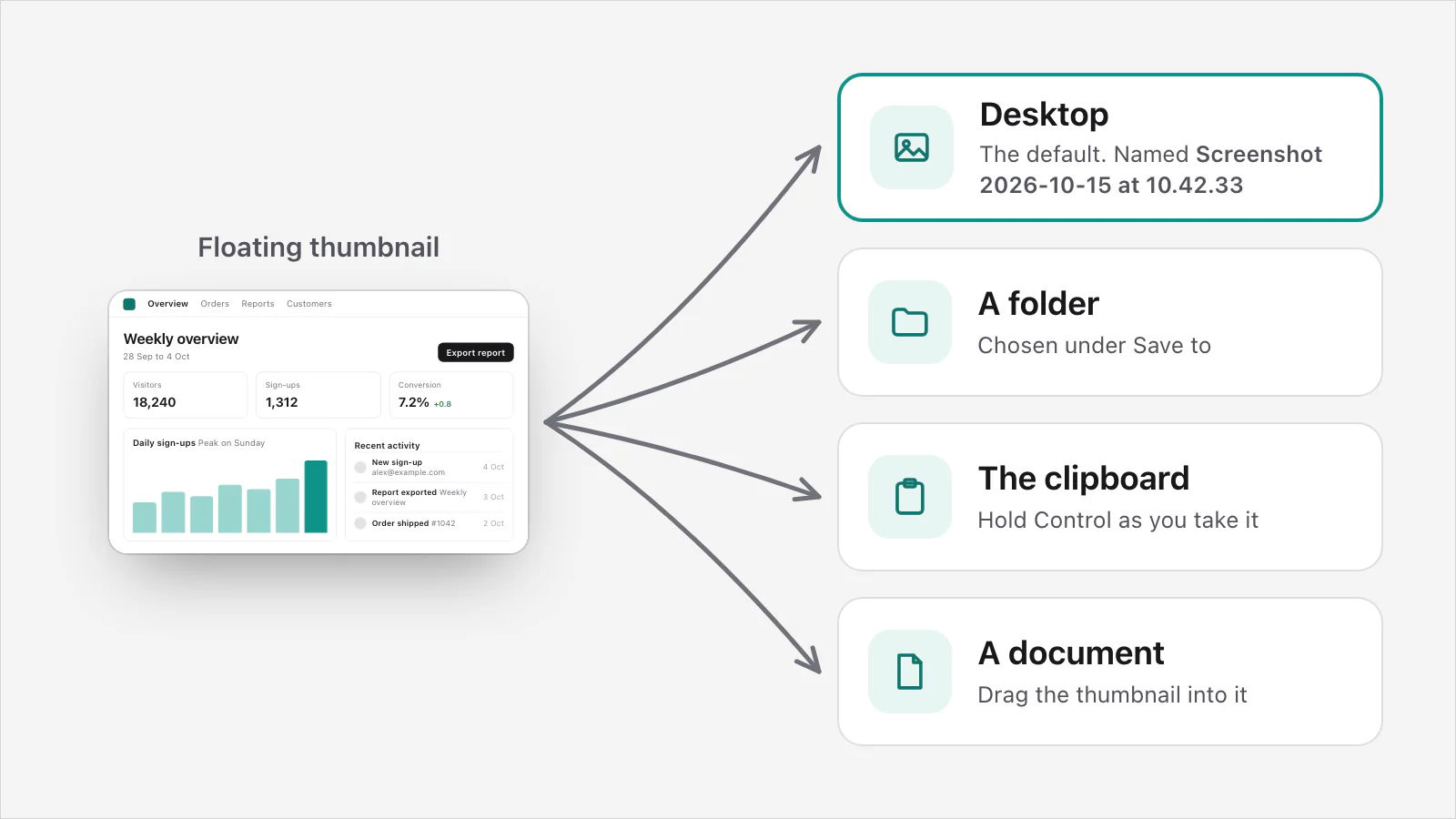
The places a Mac screenshot can go
The desktop. The default. A whole-screen shot (Shift-Command-3) and a portion (Shift-Command-4) both save there unless you've changed it.
A folder you choose. Set it once under Save to. The steps are in the next section.
The clipboard. Hold Control with the shortcut, for example ControlShiftCommand3. The picture goes to the clipboard instead of the desktop, and you paste it where you want it. You can also Control-click the thumbnail and choose Save to Clipboard.
Straight into a document. Drag the thumbnail in the corner of the screen into a document, an email, a note or a Finder window before it saves.
How to change where screenshots go
Press ShiftCommand5 to open the Screenshot toolbar.
Click Options.
Under Save to, choose one of the preset places, or click Other Location and choose a folder.
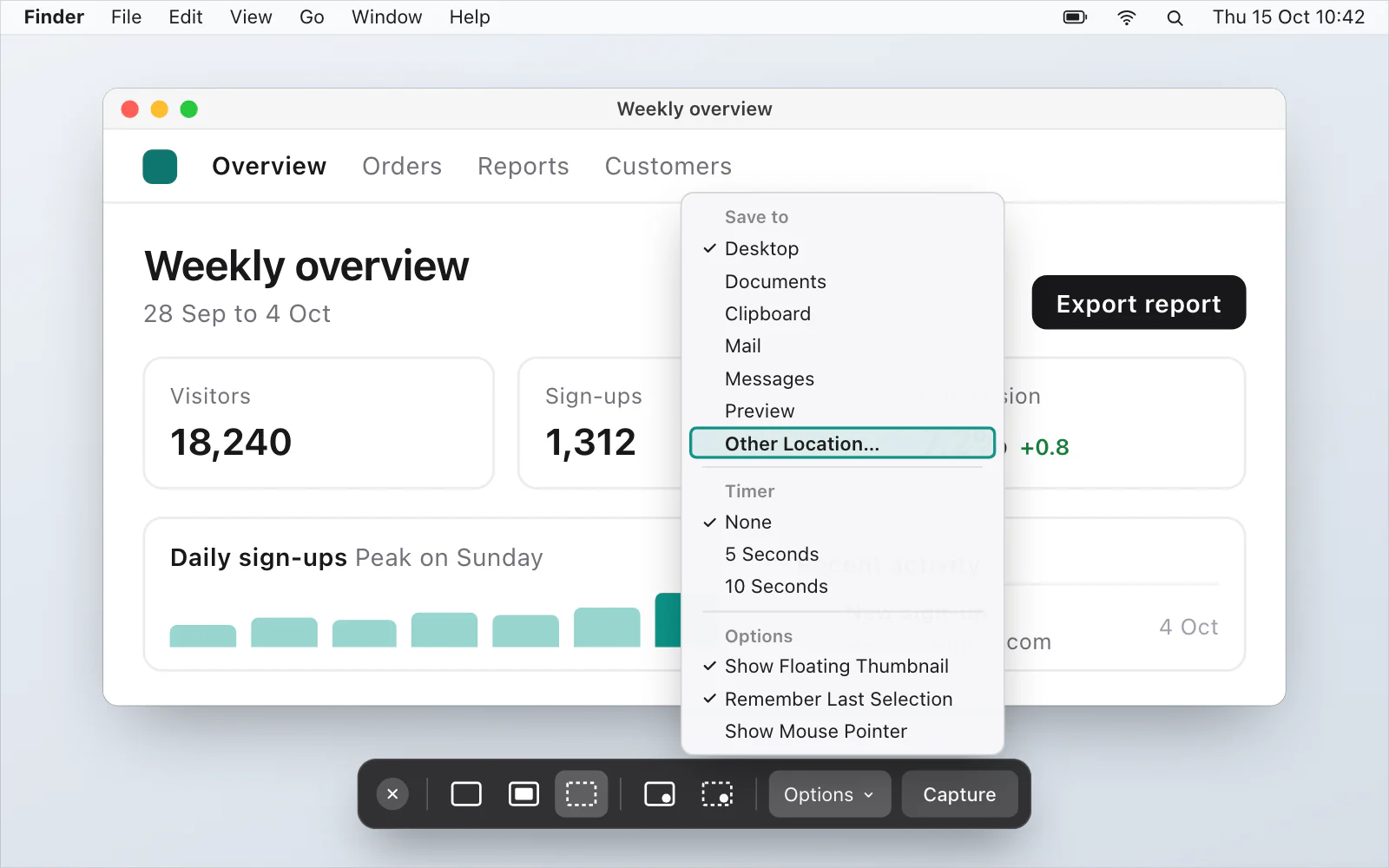
That sets the default, so the next screenshot goes there too. Apple's page on taking a screenshot on a Mac says the default save location is changed in the Options menu of the Screenshot app.
Where do screen recordings go on a Mac?
To your desktop as well, named Screen Recording followed by the date and time, as a .mov file. To change that, open Options in the Screenshot toolbar before you start recording and choose another Save to place. Apple's page on recording the screen has the steps. If you want sound in the recording, how to screen record on a Mac with sound goes through it.
What file do you get?
Apple's page on screenshots and recordings says screenshots are .png files. On supported Macs with macOS Tahoe 26 or later, Options also has a capture format. SDR (Most Compatible) saves a PNG, and HDR saves a HEIF picture instead. HDR captures more brightness and colour, but Apple says it needs an HDR display to see the difference.
The name begins with Screenshot or Screen Shot, then the date and time. Apple's pages write it both ways, so try both when you search.
Can't find a screenshot? Check these in order
The desktop. It's the default, so look there first.
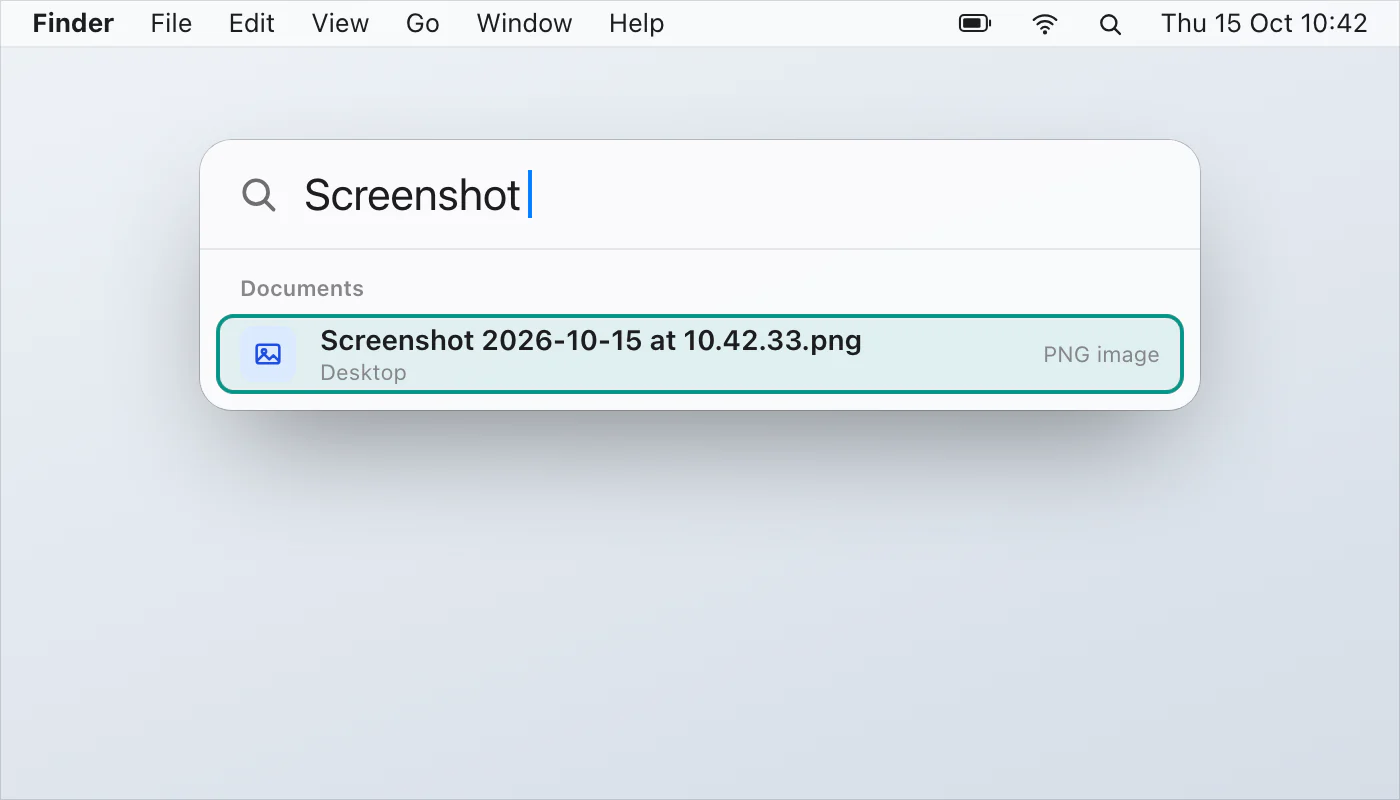
Spotlight. Press CommandSpace and type Screenshot, then try Screen Shot. To see where a result lives, select it and hold Command.
Your Save to folder. Open Options in the Screenshot app and see which place is chosen. It may have been changed.
The clipboard. If you held Control, the picture went to the clipboard instead of the desktop, so paste it somewhere.
iCloud Drive. If Desktop & Documents Folders is on, your desktop is stored in iCloud Drive. In macOS Tahoe 26 or later it's in the Finder sidebar under Favorites, and in earlier versions under iCloud. Apple explains it here.
A faster way, if you take a lot of screenshots
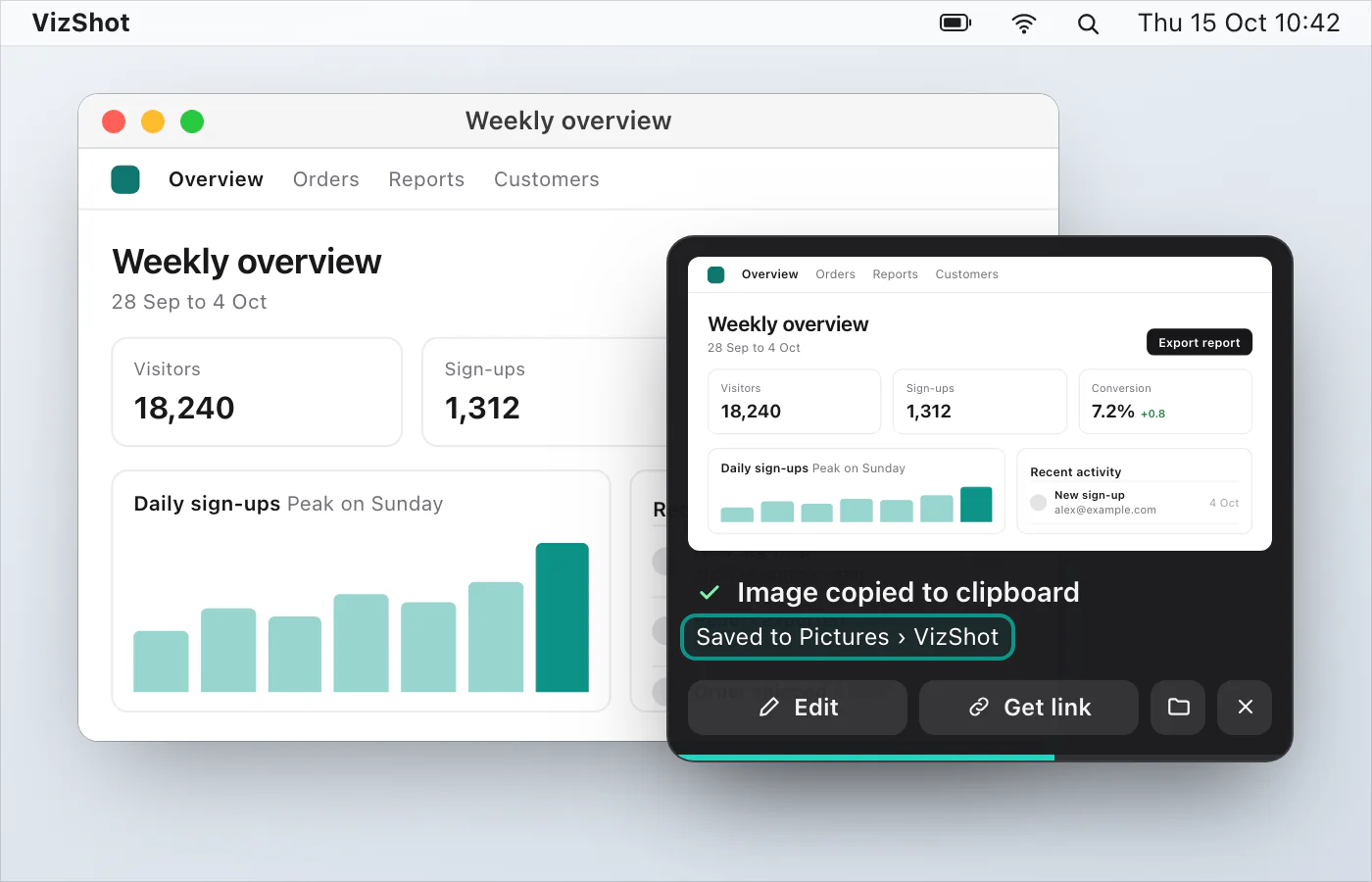
VizShot puts every screenshot on your clipboard and saves it in a folder called VizShot inside Pictures, both at once, so there's no hunting. Recordings are saved in the same folder, as MP4 files. Recent Captures in the menu bar shows your latest 40, and the card after a capture has a Show in Finder button. You can pick another folder in Settings › Capture. After the 14-day free trial a screenshot is still copied to the clipboard, but saving needs a key. Where do my screenshots go? has the details, and you can download VizShot.
Questions
How do I save a screenshot to the clipboard instead?
Hold Control with the shortcut, or Control-click the thumbnail and choose Save to Clipboard. How to copy a screenshot to the clipboard goes through it.
Can I stop the little thumbnail appearing?
Yes. In Options, choose Show Floating Thumbnail so the checkmark goes. Mac screenshot settings covers the other options too.
Do screenshots go somewhere else on a MacBook?
No. On a MacBook, a MacBook Air or a MacBook Pro it's the same default, the desktop, that Apple's page gives for a Mac.
Which shortcuts take a screenshot?
Shift-Command-3 for the whole screen, Shift-Command-4 for a portion and Shift-Command-5 for the Screenshot app. All the Mac screenshot shortcuts are on one page.
Checked against
- Apple: Take a screenshot on Mac, read 14 October 2026
- Apple: Take screenshots or screen recordings on Mac, read 14 October 2026
- Apple: How to record the screen on Mac, read 14 October 2026
- Apple: Find what you need with Spotlight on Mac, read 14 October 2026
- Apple: Add your Desktop and Documents files to iCloud Drive, read 14 October 2026