Mac screenshot shortcuts

On Windows? The Windows screenshot shortcuts have their own page.
On a Mac, press ⌘⇧3 (Shift-Command-3) for the whole screen, ⌘⇧4 (Shift-Command-4) to drag over part of it, and ⌘⇧5 (Shift-Command-5) to open the Screenshot toolbar. Add Control to ⌘⇧3 or ⌘⇧4 and the picture goes to the clipboard instead of the desktop.
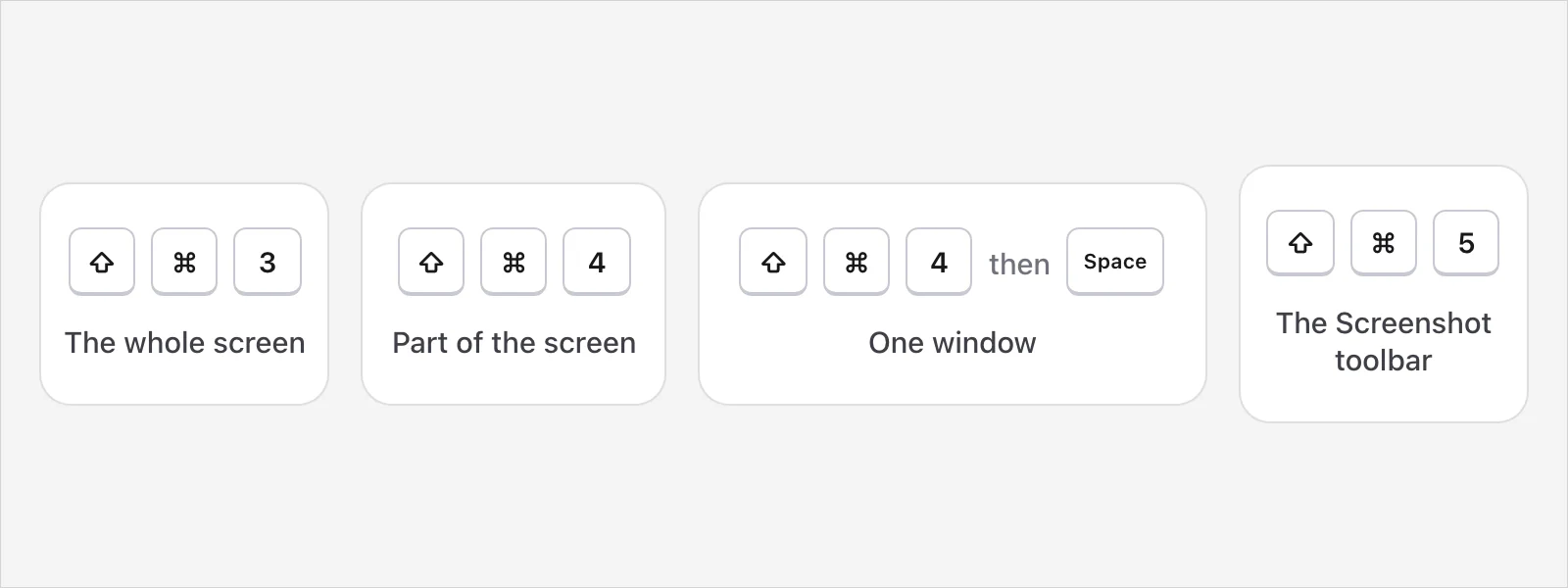
Every Mac screenshot shortcut
| Press | It captures | Where it goes |
|---|---|---|
| ⌘⇧3 | The whole screen | The desktop |
| ControlShiftCommand3 | The whole screen | The clipboard |
| ⌘⇧4 | The part you drag over | The desktop |
| ControlShiftCommand4 | The part you drag over | The clipboard |
| ⌘⇧4, then the Space bar | One window or menu, by clicking it | The desktop |
| ⌘⇧5 | Opens the Screenshot toolbar, for a screenshot or a recording | Wherever Save to says, which is the desktop until you change it |
| ⌘⇧6 | The Touch Bar, on a Mac that has one | The desktop |
Every row comes from Apple's own pages: take a screenshot on Mac and the Mac User Guide. Together they list no other screenshot shortcut.
On macOS 27 Golden Gate or later with Siri AI (Beta) turned on, Apple's pages give ⌘⇧6 a different job, asking Siri about the selected area, and ⌘⇧Space bar asks about the active window.
How do I screenshot the whole screen?
Press ⌘⇧3. If you see a thumbnail in the corner of the screen, click it to edit the screenshot, or wait and it saves to your desktop.
How do I screenshot part of the screen?
Press ⌘⇧4. The pointer turns into a crosshair.
Click and hold, then drag over the area you want.
Let go to take the screenshot. Press Esc instead if you change your mind.
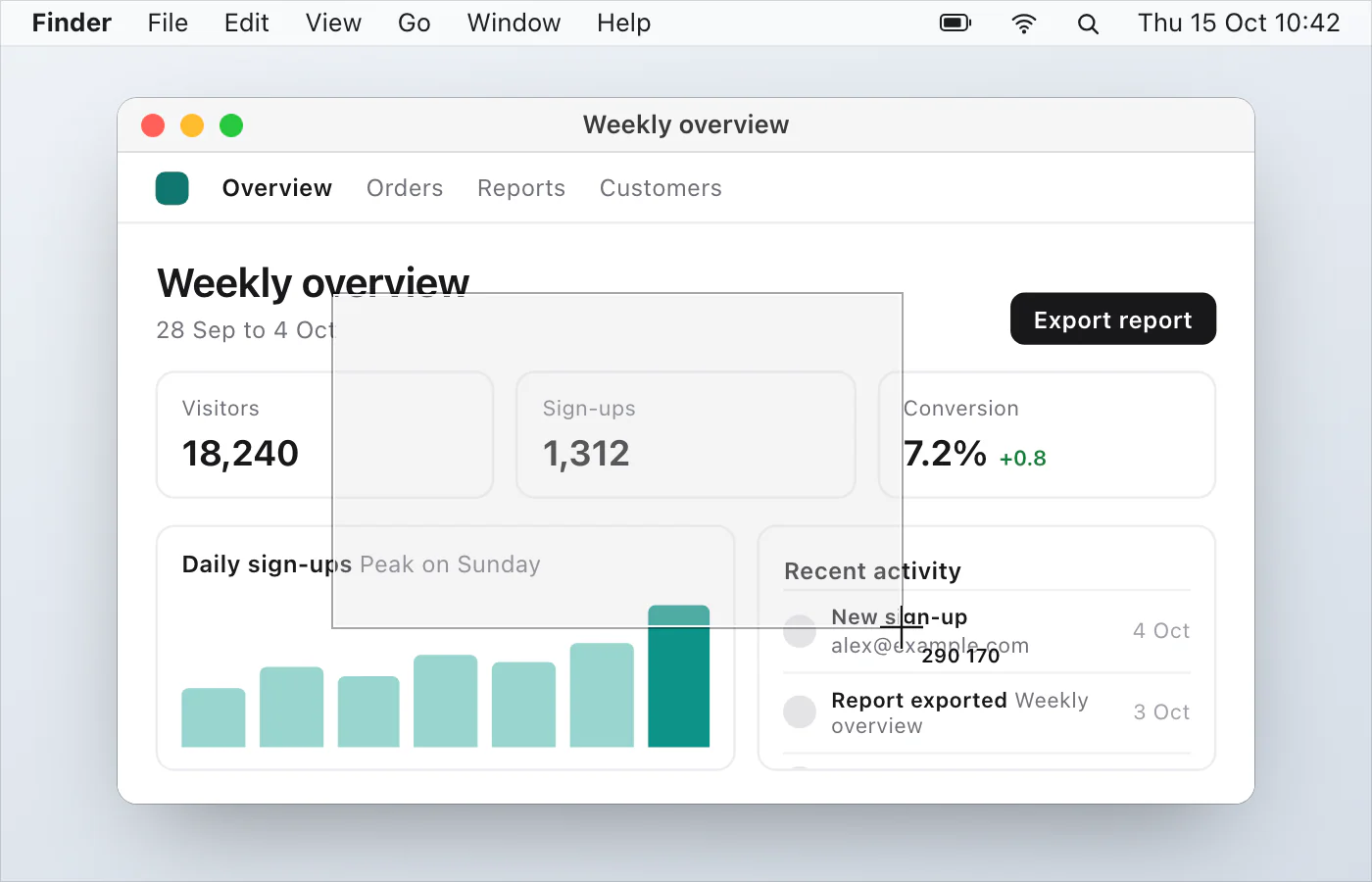
To move the area without changing its size, hold the Space bar while you drag.
How do I screenshot one window or a menu?
For a window, open it, press ⌘⇧4, then press the Space bar. The pointer turns into a camera icon. Click the window. Hold Option while you click to leave out the window's shadow. Press Esc to cancel.
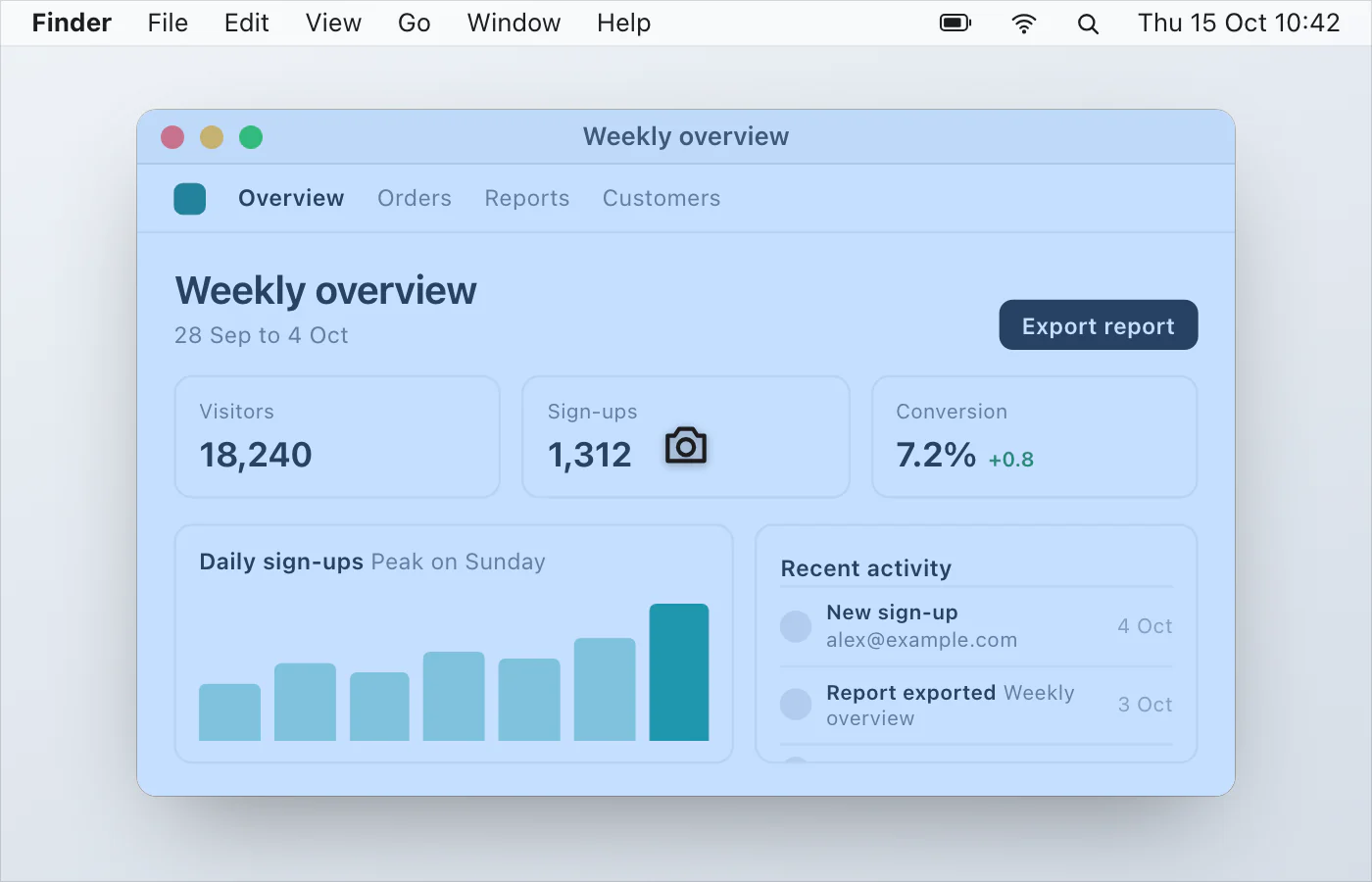
For a menu, Apple gives two ways. With the menu open, press ⌘⇧4 and drag over the menu items. Or press ⌘⇧4, then the Space bar, and click the menu.
What does Shift-Command-5 do?
It opens the Screenshot toolbar, which Apple's pages say is in macOS Mojave 10.14 or later. You can also find Screenshot through Spotlight. The toolbar has buttons to capture the entire screen, a window or a portion of the screen, and to record the entire screen or a portion. On macOS Tahoe 26 or later it can record a selected window too. Click Options and you can:
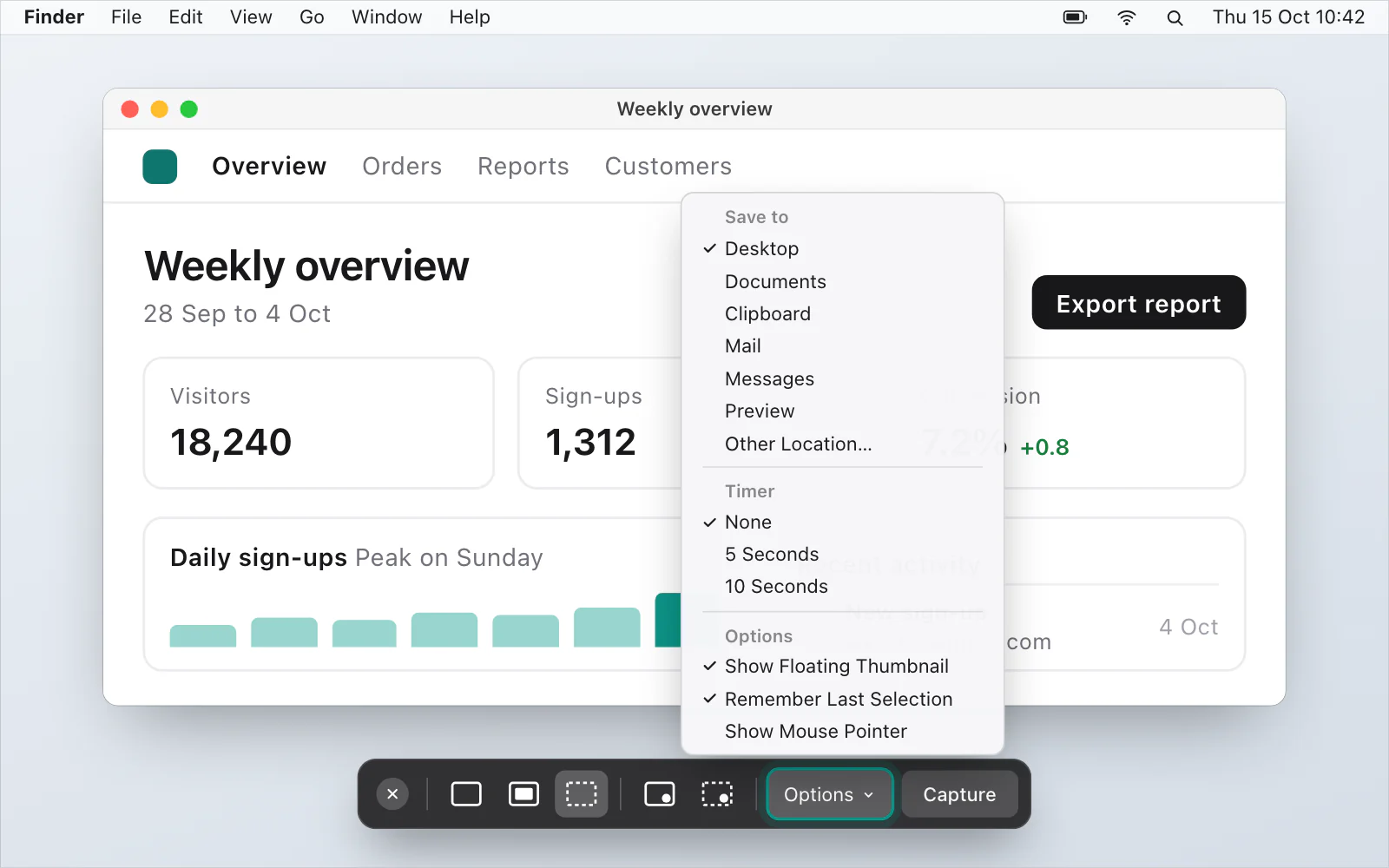
Choose where the file goes under Save to.
Set a delay under Timer.
Show or hide the floating thumbnail with Show Floating Thumbnail.
Include the mouse pointer with Show Mouse Pointer.
Keep a selected portion for next time with Remember Last Selection.
On supported Macs with macOS Tahoe 26 or later, choose a capture format.
The same toolbar records the screen. How to stop a screen recording on a Mac has the keys for ending one.
Where do the screenshots go?
To the desktop by default. To copy instead, hold Control with the keys, or Control-click the thumbnail and choose Save to Clipboard. To save somewhere else, change Save to in the toolbar's Options, or drag the thumbnail where you want it. Where do screenshots go on a Mac? covers every place and how to move them.
Can I use a Windows keyboard?
Yes. Apple's Mac keyboard shortcuts page says that on a keyboard made for Windows PCs you press the Alt key instead of Option, and the Ctrl key or the Windows logo key instead of Command. So the whole-screen shortcut is Shift, Ctrl (or the Windows logo key) and 3. If you came looking for a Print Screen key, print screen on a Mac answers that.
What if a shortcut does nothing?
Press the three keys together, then let go.
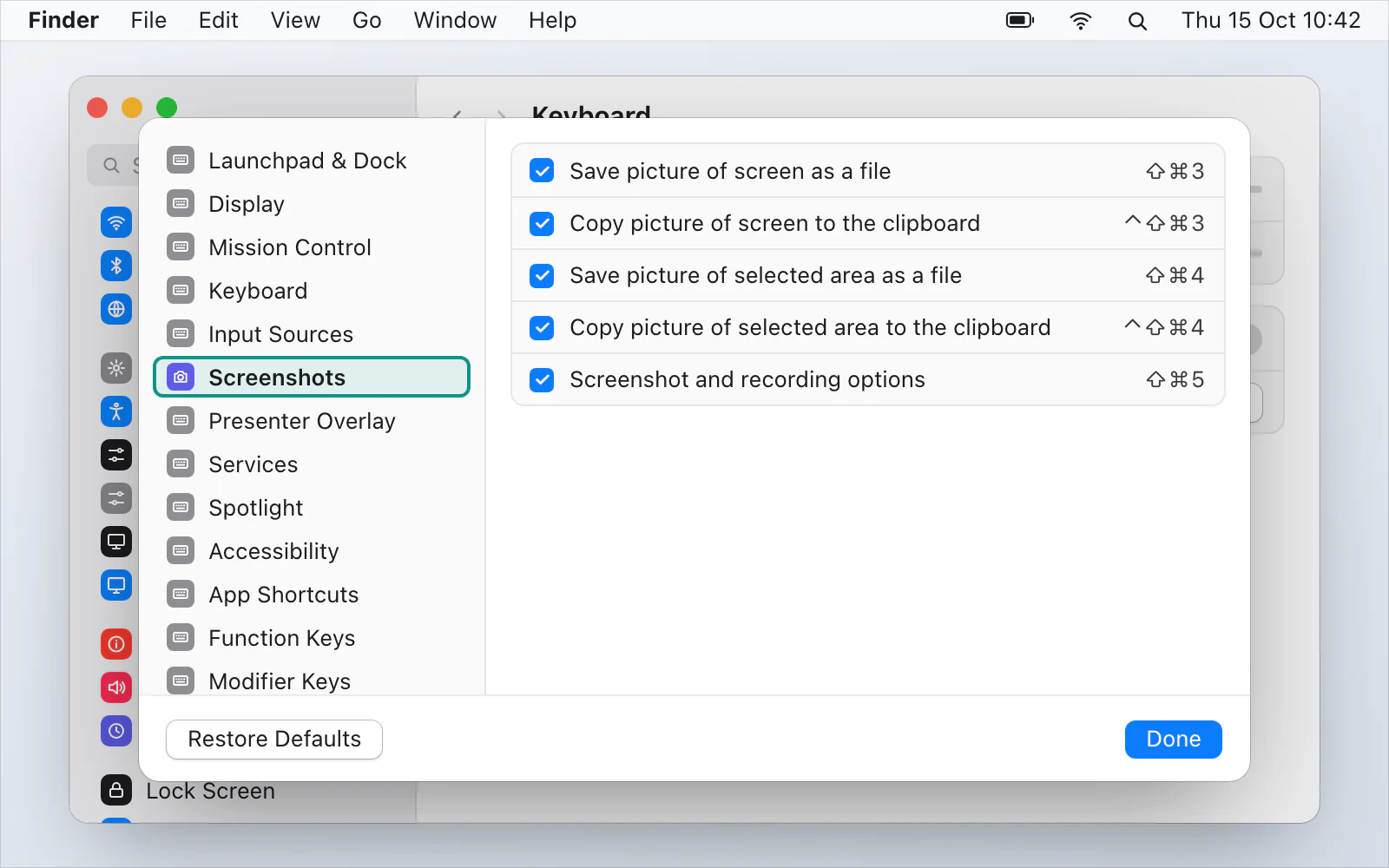
Check that the shortcuts haven't been changed. In Apple menu › System Settings, click Keyboard, then Keyboard Shortcuts, then Screenshots.
Open the Screenshot toolbar with ⌘⇧5, or from Spotlight, and use its buttons.
Try a different app. Apple says some apps, such as the Apple TV app, might not let you take screenshots of their windows.
For more, see screenshot not working on a Mac.
A faster way, if you take a lot of screenshots
VizShot has its own shortcuts, and it leaves ⌘⇧3, ⌘⇧4 and ⌘⇧5 to macOS. ⌘⇧2 captures an area and ⌘⇧7 the whole screen, and the picture is on your clipboard and saved in Pictures › VizShot by default the moment you let go. After the 14-day free trial a screenshot is still copied to the clipboard, but saving needs a key. Take your first screenshot has the steps, and you can download VizShot.
Questions
Can I change a screenshot shortcut?
Yes. Apple's User Guide says you can change them in Apple menu › System Settings: click Keyboard in the sidebar (you may need to scroll down), click Keyboard Shortcuts, then click Screenshots in the sidebar. Mac screenshot settings covers the other options too.
Is there a shortcut for a screen recording?
⌘⇧5 opens the Screenshot toolbar, and you start from there. To stop, click the Stop button in the menu bar or press CommandControlEsc.
How do I take a screenshot with a timer?
Open the toolbar with ⌘⇧5, click Options, and choose a delay under Timer.
What kind of file do I get?
Apple's User Guide says screenshots are .png files. On supported Macs with macOS Tahoe 26 or later, the toolbar's Options also let you capture in HDR, which saves a HEIF picture.
Where is Print Screen on a Mac?
Apple's page on Windows keys lists ⌘⇧3 and ⌘⇧4 where a Windows keyboard has Print Screen. Print screen on a Mac goes through it.
Checked against
- Apple: Take a screenshot on Mac, read 14 October 2026
- Apple: Take screenshots or screen recordings on Mac, read 14 October 2026
- Apple: Mac keyboard shortcuts, read 14 October 2026
- Apple: How to record the screen on Mac, read 14 October 2026
- Apple: Windows keys on a Mac keyboard, read 14 October 2026