VizShot 1.0 can copy the words, not just the picture
VizShot 1.0 can copy the text on your screen as text, read on your own computer. What it does, what it doesn't, and the smaller changes that came with it.

VizShot 1.0 is out. The big new thing is small to describe: you drag over some text on your screen, and the words go on your clipboard. Not a picture of the words. The words.
More people go looking for a way to get the text out of a screenshot than for almost any other screenshot job. An error message, an address, a table of numbers: until now you took the picture and then typed it all out again. That's why it came first.
Capture text
On a Mac, press ⌘⇧0, or choose Capture Text (OCR) from VizShot's menu. On Windows it's Ctrl+Shift+0, or Capture text (OCR) in the tray menu. The screen freezes the way it does for a screenshot, and you drag over the words you want. Let go, and they're on your clipboard, ready to paste.
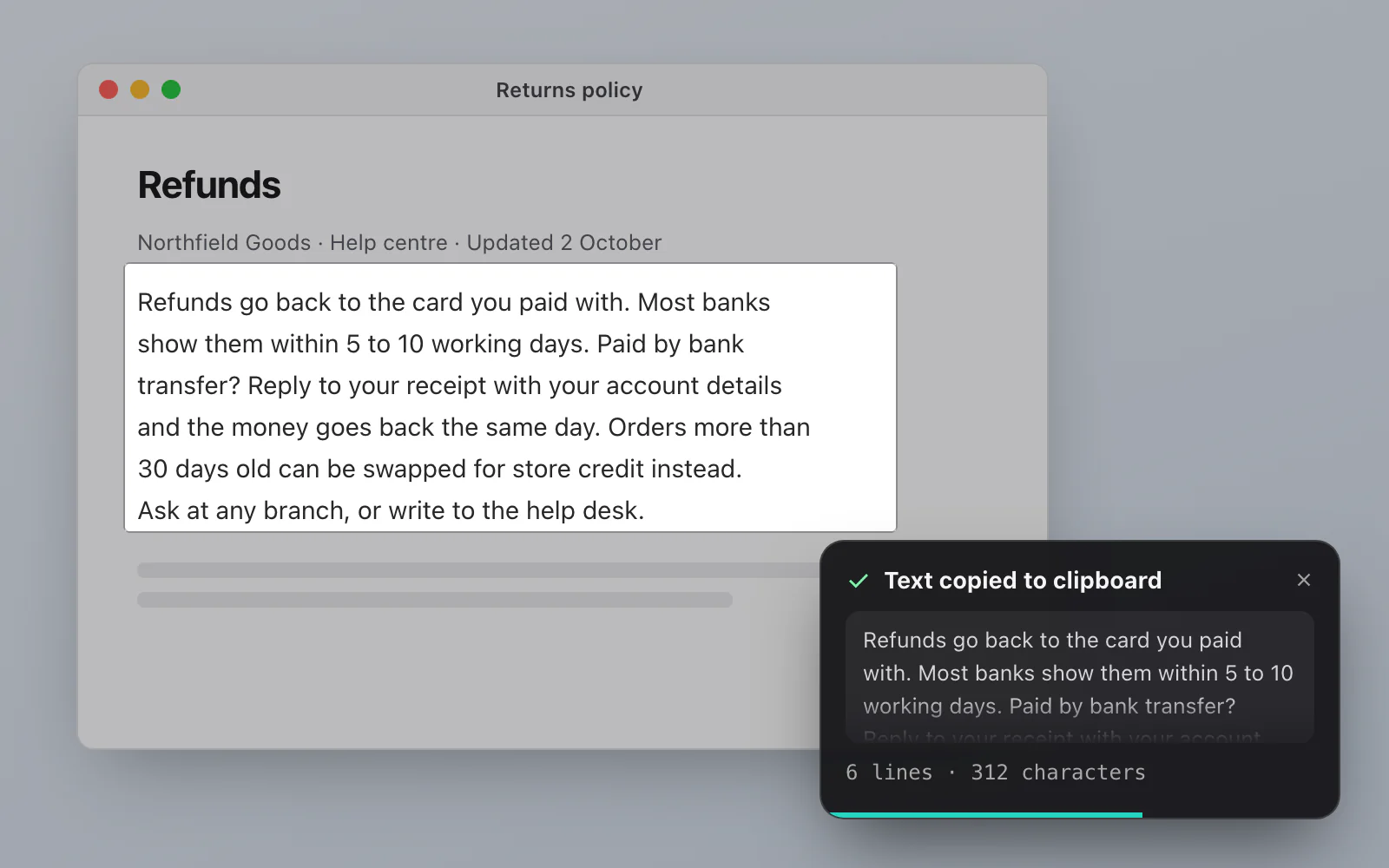
A small card in the corner shows what it read: the first few lines, how many lines and characters there were, and two buttons, Edit and Copy again. It goes away by itself after a few seconds, and it waits while your pointer is over it.
It's the same drag you already know, with a different result. Every detail is in the help article Copy text from your screen.
It reads on your computer
This is the part I cared about most. The reading is done by the reader your system already has: Apple's Vision on a Mac, and Windows' own text recognition on a PC. VizShot doesn't download anything for it and doesn't send your picture anywhere. I tried it with the Wi-Fi off, and it reads just the same.
Whatever is on your screen when you press the shortcut stays on your computer. That's how it should be.
Nothing is saved, either. A text capture doesn't make a file, doesn't appear in Recent Captures, and isn't uploaded, even if you've told VizShot to upload after every capture. Your shortcut for "capture the same area again" still means the last screenshot you took, not the last text.
Tables paste as tables
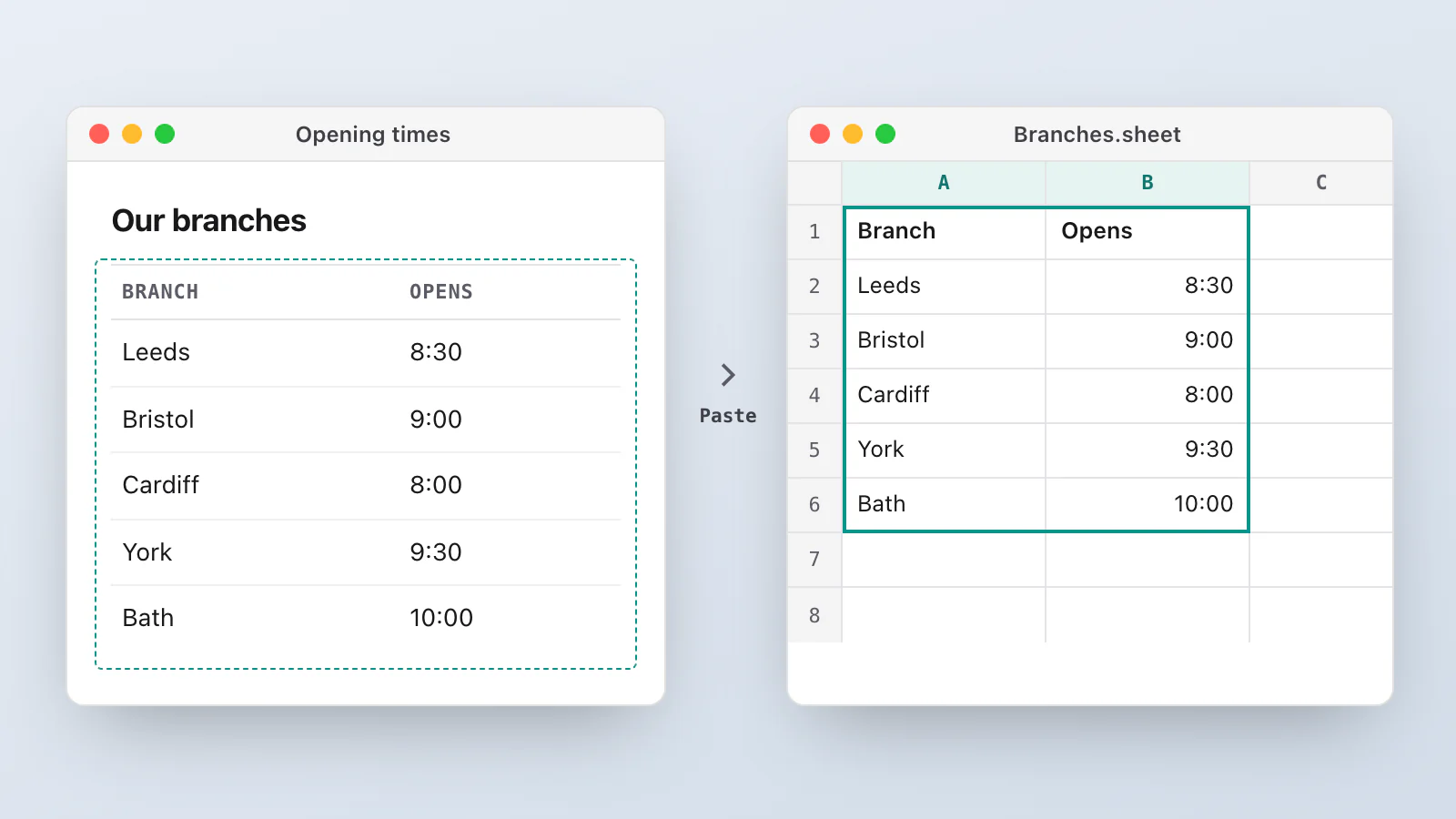
Rows are read from top to bottom, and the pieces of a row are joined with a tab. So when you drag over a table, say a list in Activity Monitor or a spreadsheet in a browser, and paste into a spreadsheet, each column lands in its own cells.
In the editor, too
The editor has a Copy text button beside Copy. It reads the picture as it looks now, marks and all. That's deliberate: if you've drawn a Redact over a word, the word isn't in the text you copy.
What it won't do
It's only as good as the reader behind it. Small, low-contrast or very stylised text can come out wrong, so look at what you paste before you rely on it. If the area has no words, the card says "No text found in that area" and offers Try again. The clipboard keeps what it had.
On Windows, text recognition needs a reader for your display language. If yours isn't installed, VizShot tells you, and says where in Windows Settings to add it.
On a Mac, the very first read after you install a new copy of VizShot can take about half a minute, while macOS prepares its reader. VizShot starts that when it launches, so by the time you use it, it's done.
The smaller changes
1.0 also carries a long list of smaller fixes and changes. The ones you'll feel:
Settings save as you change them. There's no Save button for most things any more. Storage, where a typo can break your connection, keeps its own Save and Revert.
Move or grow a selection as you drag. Hold Space and the selection moves with the pointer. Hold Option (Alt on Windows) and it grows from the middle. The size shown while you drag is the size of the file you'll get, even if you've turned on half-size Retina captures.
Esc cancels on every display. With two displays, it didn't always.
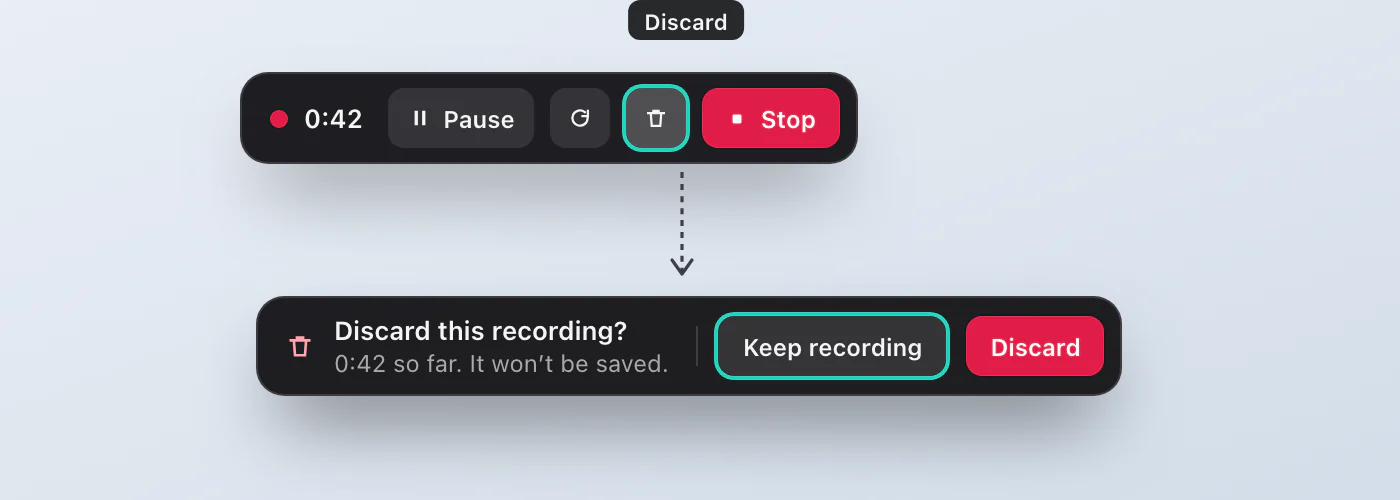
Start again and Discard when recording. Two new buttons on the recorder bar. Start again throws the take away and begins the same area again at 0:00. Discard throws it away. If the take is longer than ten seconds, the bar asks first. Pause and Resume are in the menu now too.
The editor zooms from 25% to 400%, and marks you've drawn have handles you can drag to resize. Duplicate a mark with ⌘D (Ctrl+D), nudge it with the arrow keys. Esc no longer closes the editor; ⌘W (Ctrl+W) does.
Recent Captures from the keyboard. Arrow keys to move, Return to open, Space for a large preview, ⌘C to copy, and a delete you can undo for a minute.
In the player, the comma and full stop step a frame, and J, K and L go back, play and pause, and forward.
Buttons don't jump when you press them. They just get a little darker.
On Windows, the capture card no longer ends up in the capture, and the little white edge some of VizShot's windows had is gone.
None of these is big on its own, and that's the point. Most of the work in 1.0 went into how VizShot feels: what you see, what you don't, and what happens the moment you let go of the mouse. That's the direction from here. A small app that does the everyday job well, looks good doing it, and stays out of your way. Making it better will usually mean making it simpler.
Get it
VizShot is $8 once, for two computers, and it has a 14-day free trial with every feature and no account. If you already have it, the Mac app updates itself, and the Microsoft Store updates the Windows one.
The full list of what changed is on the changelog. If something doesn't work the way I've described, tell me from Settings, or write to [email protected].
Try VizShot free for 14 days. Then $8 once, and one key covers two of your computers.