A screenshot setup for people who answer customers all day
Seven moves for support work: paste a marked-up picture into a reply, hide a customer's details, catch a menu that closes, and find yesterday's picture again.

I don't answer tickets for a living. I answer VizShot's, which is a smaller thing, but it's enough to know how often a reply is one picture away.
So this isn't a day in my life. It's the setup I'd choose for somebody whose day is: a customer writes, you look, you reply with a picture that makes the problem small. Seven moves. Each one is a shortcut you already have in VizShot, and none of them needs you to open a window.
1. Take the picture and paste it
Press ⌘⇧2 (Ctrl+Shift+2 on Windows) and drag over the part of the screen that matters. The picture is already on your clipboard when you let go, as a full-size PNG, so paste it straight into your reply. It's also saved in Pictures › VizShot, in case you need it later.
Drag over less than you think. A customer can't read a full screen shrunk into a chat window, and a tight picture answers the question before they've looked for it.
2. Number the steps, dim the rest
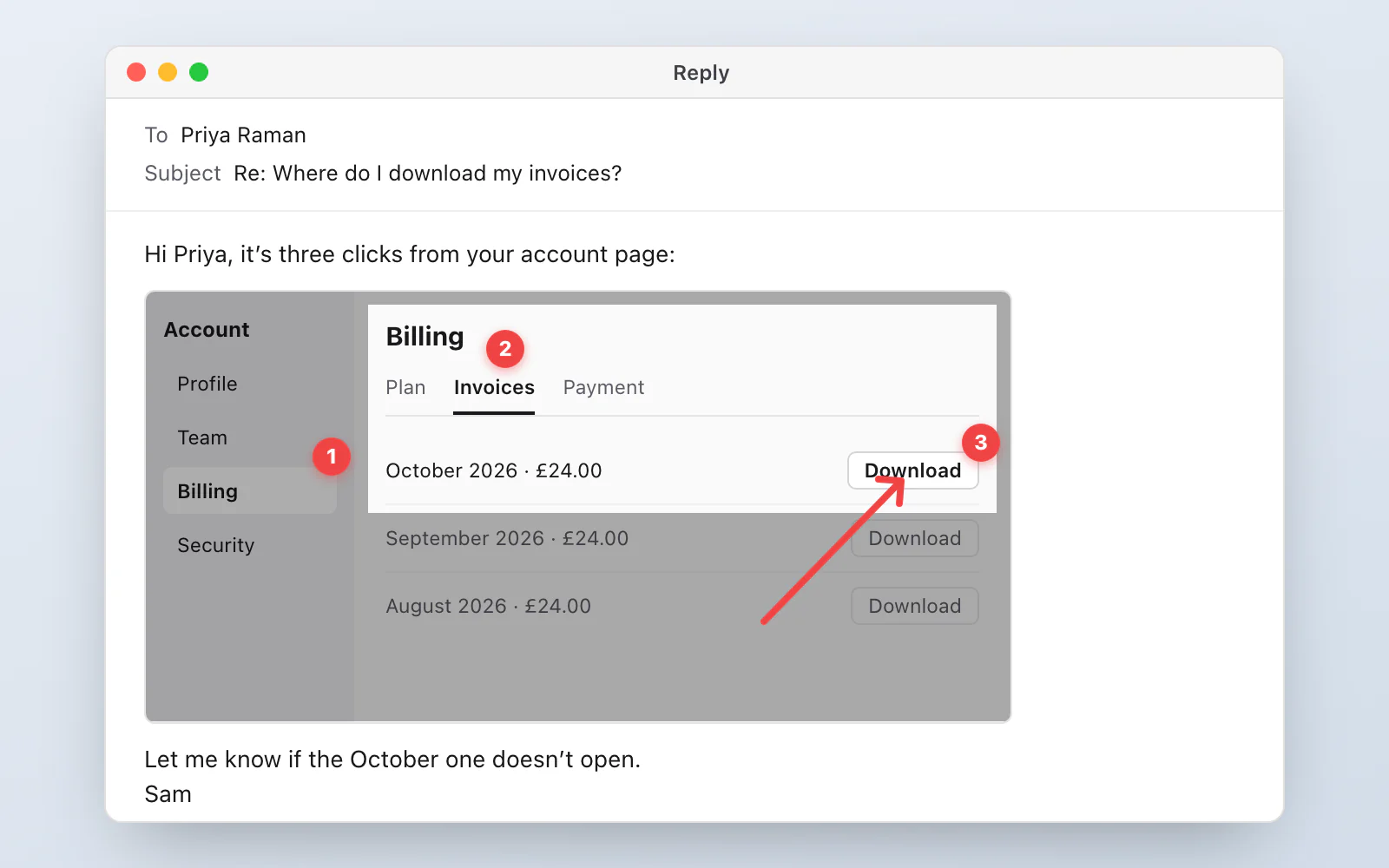
If the answer is "go here, then here, then here", don't write it as a paragraph. Open the editor from the card (or press Edit), pick Numbered step (S) and click 1, 2, 3 where the person should click. Add an Arrow (A) where a number isn't enough. Spotlight (F) keeps one area bright and dims everything around it, which is the nicest way I know to say "ignore the rest of this screen."
Then Copy, and paste. The marks stay movable until you save, so you can nudge a number that landed a little off.
3. Hide what isn't yours to show
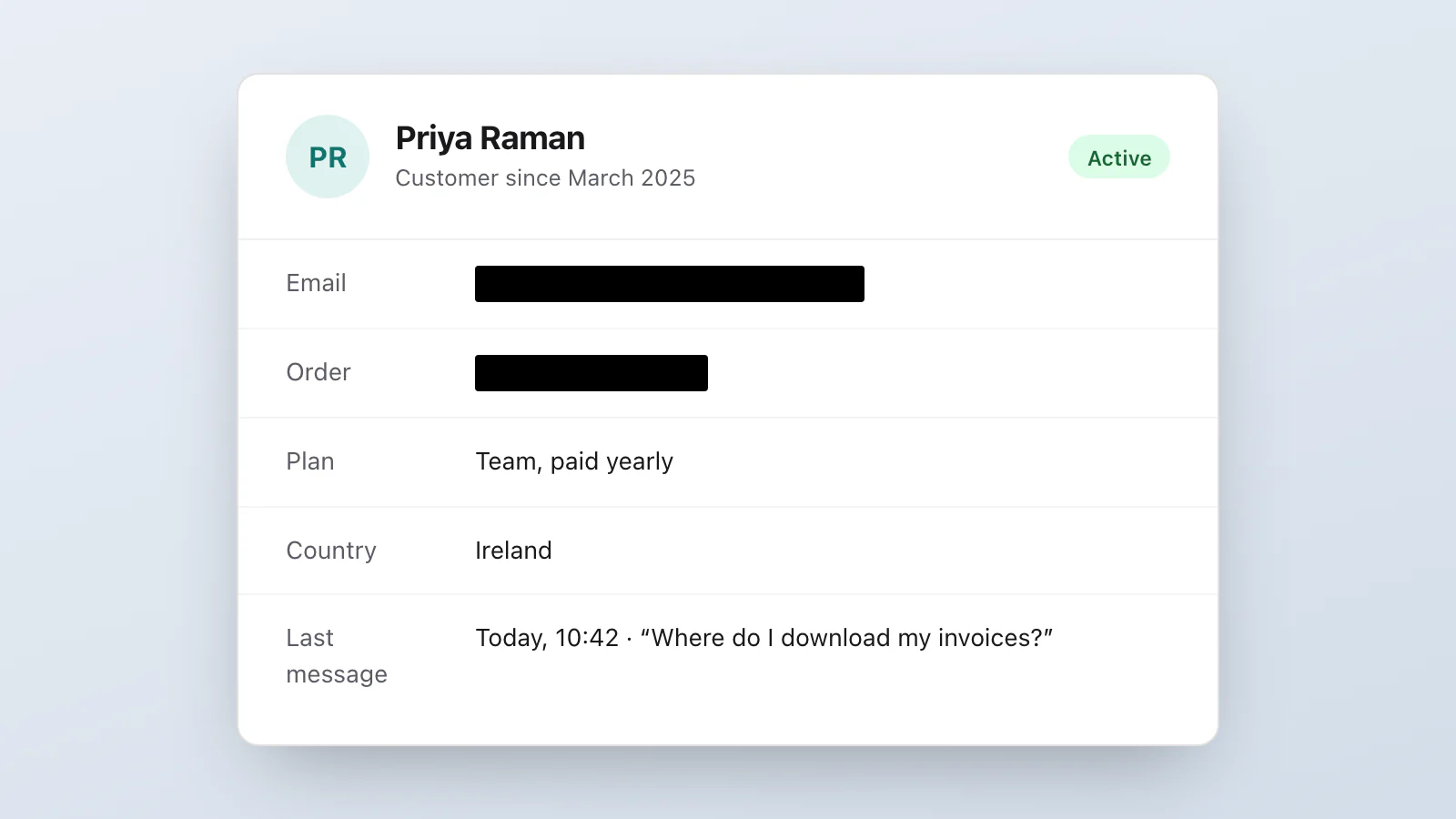
Your own screen is full of other people's details: the customer's name, their email, an order number, the last four digits of a card. Cover them with Redact (E) before the picture leaves your computer. It's a solid block, and once you save, nothing underneath it can be recovered from the picture.
Use Redact, not Pixelate, for anything private. VizShot's own editor tells you Pixelate is reversible, because someone with the right tools can sometimes undo it. (There's more on that in how to redact a screenshot.)
4. Menus that close when you click away
You can't screenshot a drop-down if pressing the shortcut closes it. Use the timer instead: ⌘⇧8 (Ctrl+Shift+8) starts a countdown, five seconds by default, and you have that long to open the menu. You can change it to anything from one to sixty seconds in Settings. See capture after a delay.
5. Before and after
When you're telling someone "this is what you should see after you change that", the two pictures should be the same size and in the same place. ⌘⇧9 (Ctrl+Shift+9) captures the same area again, so your second picture lines up with your first with no dragging.
6. Find yesterday's picture
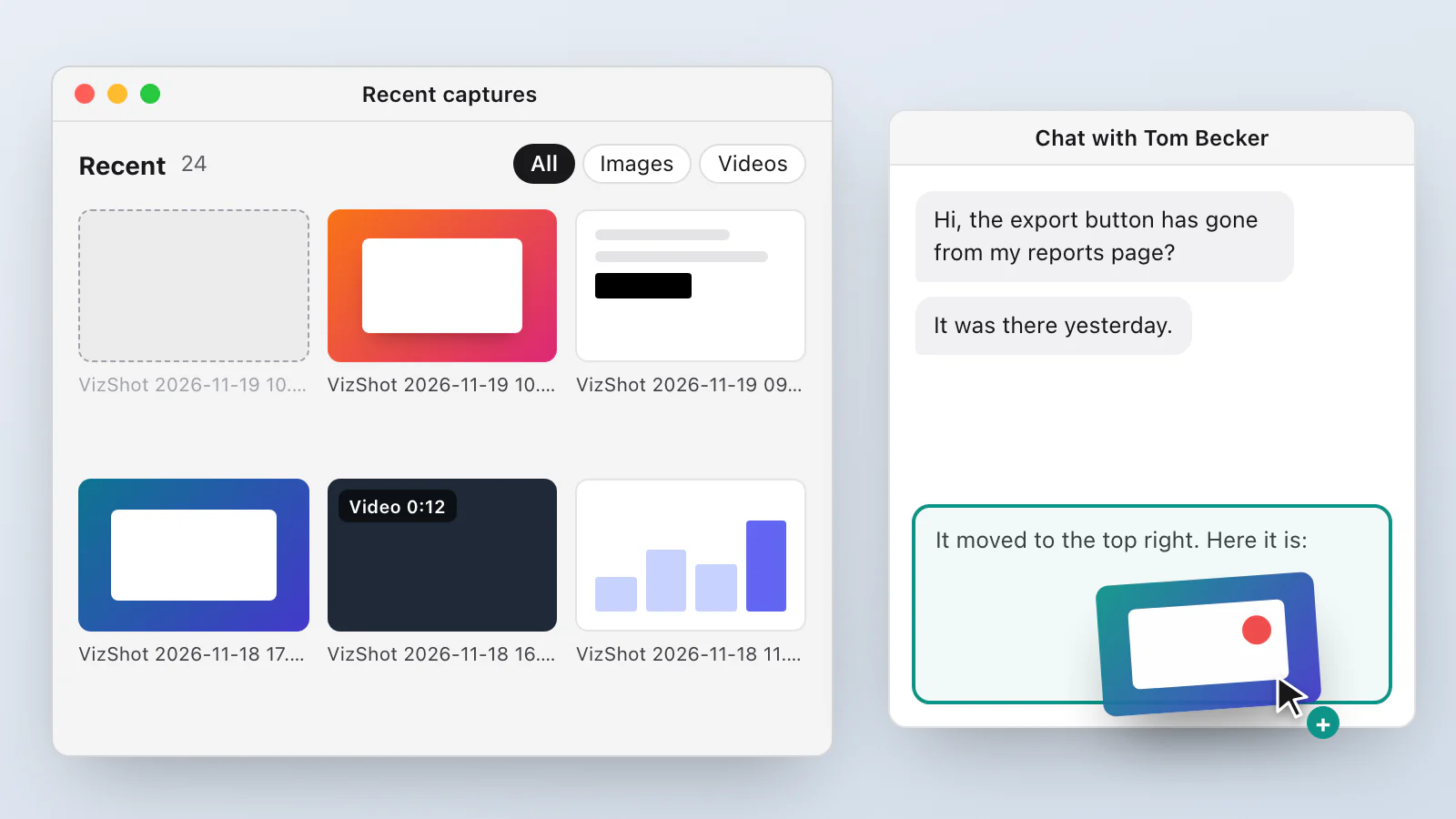
You sent it yesterday, and now the same question has come back. Open Recent Captures from VizShot's menu. Your latest 40 are there as tiles, with a search box, and you can drag any tile straight into a chat, an email or a document. See find an earlier capture.
7. When a picture isn't enough, record ten seconds
⌘⇧1 (Ctrl+Shift+1) records an area. Your computer's sound is recorded, and your microphone is off until you switch it on. Stop, and the recording opens in VizShot's player, saved as an MP4. If you've set up storage, one click uploads it and copies a link. That's one way to share a recording; an attachment works too, and it's the one I'd use when the file is small.
What I'd leave off
Upload after every capture is off by default, and for this kind of work I would leave it off. It's a good setting for a lot of people, but a share link can be opened by anyone who has it, and a customer's details shouldn't be on anybody's storage by accident. (If you do turn it on and the editor opens after each capture, VizShot waits for you to press Save and uploads the picture as you edited it, so a redacted capture isn't published before you've redacted it.) Read are my links private and decide for yourself.
And one for after 1.0: read the error out loud
[This section waits for the release; delete it to publish earlier.]
When a customer sends you an error code, or the screen shows one, you often want it as text so you can search for it. In VizShot 1.0, press ⌘⇧0 (Ctrl+Shift+0) and drag over the code. The words go on your clipboard, read on your computer, and nothing is uploaded or saved. The editor's Copy text leaves out anything you've redacted. Check the characters before you search: the reader can mistake a zero for a letter O in small text.
The setup, in one breath
Capture with ⌘⇧2, number it, redact it, paste it. Timer for menus, same area again for before and after, Recent Captures for yesterday, a short recording when a picture isn't enough. VizShot is $8 once for two computers, with a 14-day free trial. Download it and try the seven on your next ticket.
Try VizShot free for 14 days. Then $8 once, and one key covers two of your computers.