Print screen on a Mac

Looking for the Windows shortcuts? Print Screen and the others on Windows have their own page.
On a Mac, press ⌘⇧3 (Shift-Command-3) to capture the whole screen, or ⌘⇧4 to capture just the part you drag over. Apple's page on Windows keys on a Mac keyboard lists those two where a Windows keyboard has Print Screen.
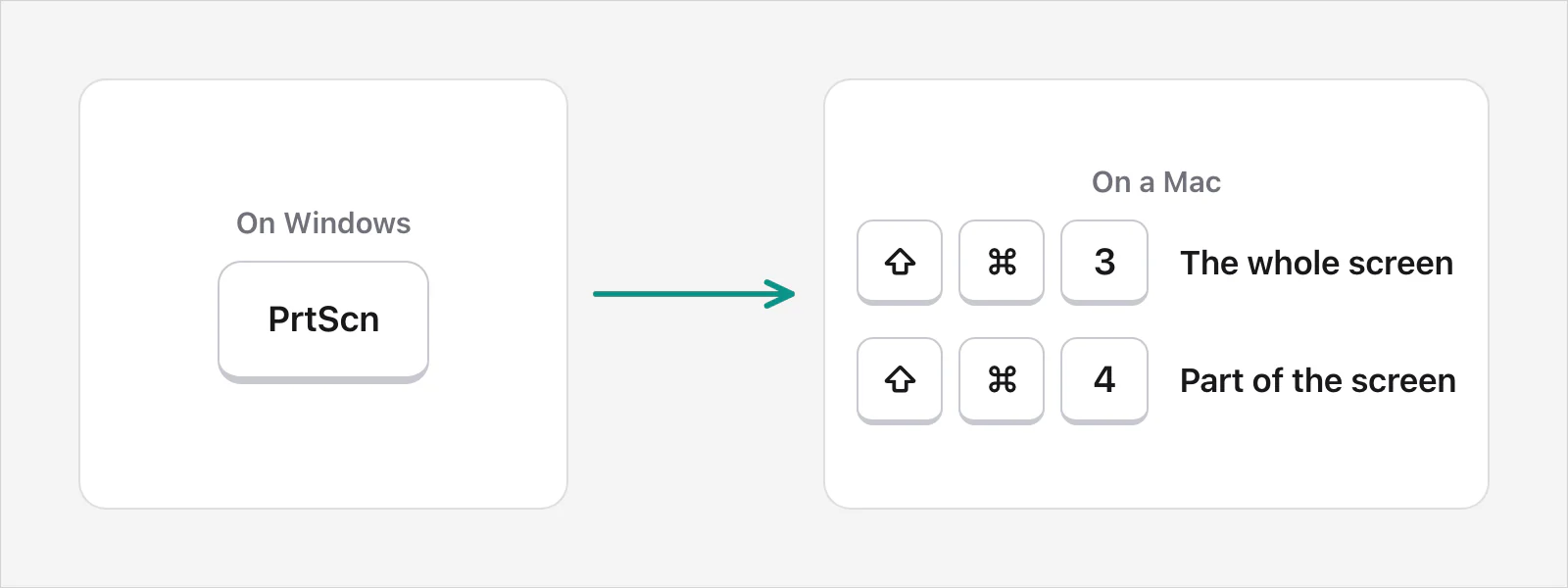
What do I press instead of Print Screen?
Here is how the Windows keys line up with the Mac's.
| You want | On Windows | On a Mac |
|---|---|---|
| The whole screen | Windows keyPrtScn saves a file, and PrtScn copies it on Windows 10 | ⌘⇧3 |
| Part of the screen | Windows keyShiftS | ⌘⇧4, then drag |
| One window | AltPrtScn | ⌘⇧4, then the Space bar, then click the window |
The Windows side comes from Microsoft's keyboard shortcuts page, and the Mac side from Apple's. On Windows 11, Microsoft's pages describe the PrtScn key two ways, one as picking a region and one as capturing the whole screen, so Screenshot shortcuts for Windows has the details. Every other Mac shortcut, including the Screenshot toolbar on ⌘⇧5, is in Mac screenshot shortcuts.
What's different from Print Screen?
One difference matters most. On Windows, Microsoft's pages say Print Screen copies the screenshot to the clipboard. On a Mac, Apple's page says the file is saved to your desktop by default, and a thumbnail can show in the corner of the screen. To paste a Mac screenshot straight into a message instead, add Control to the keys: ControlShiftCommand3 or ControlShiftCommand4. Apple's page also says you can Control-click the thumbnail and choose Save to Clipboard.
If you pressed ⌘⇧3 and nothing seemed to happen, look on the desktop. Where do screenshots go on a Mac? has the rest.
What do I press on a Windows keyboard?
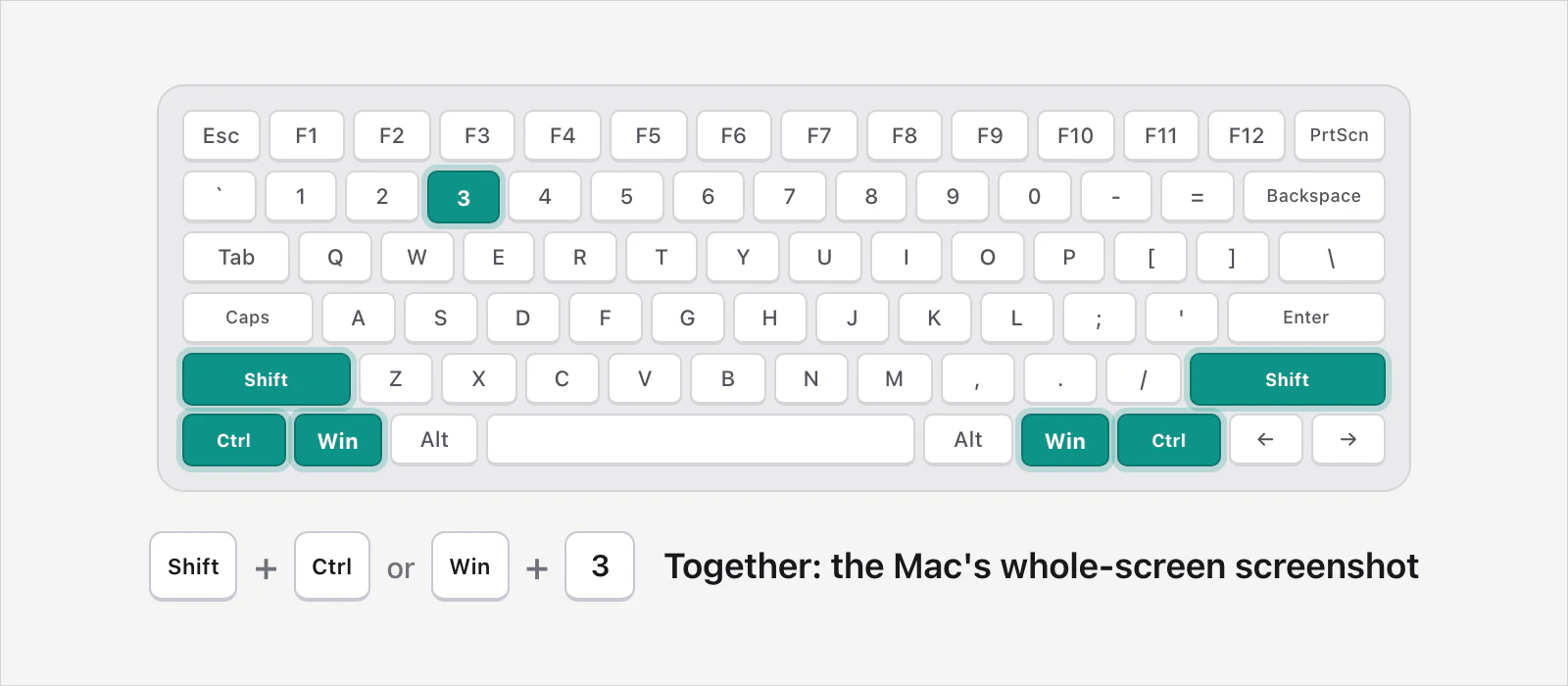
The same shortcuts, with different keys for the modifiers. Apple's Mac keyboard shortcuts page says that on a keyboard made for Windows PCs you press the Alt key instead of Option, and the Ctrl key or the Windows logo key instead of Command. So the whole-screen screenshot is Shift, Ctrl (or the Windows logo key) and 3.
Can I do it without any keys?
Yes. Apple's User Guide says to press ⌘⇧5 or use Spotlight to open Screenshot. Its toolbar has a button each for the entire screen, a window and a portion of the screen. Click the one you want, then click Capture, or click the window for a window. Press CommandSpace and type Screenshot if you'd rather not use ⌘⇧5.
Is it different on a MacBook?
No. A MacBook is a Mac, and Apple's pages give one set of shortcuts for it. Apple's User Guide also lists ⌘⇧6 for capturing the Touch Bar, on a Mac that has one.
What if I meant printing it on paper?
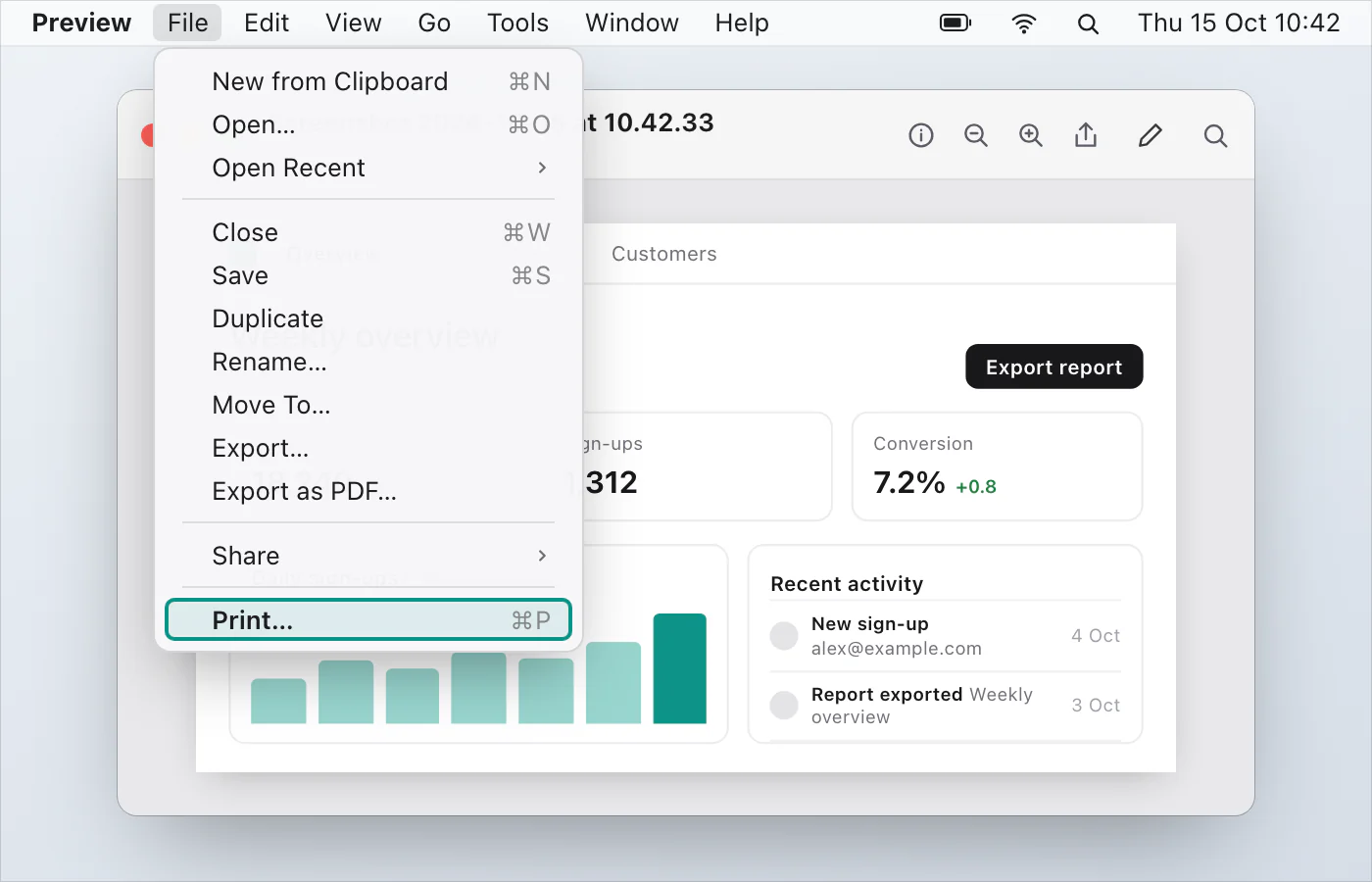
First take the screenshot, then open the file in Preview and choose File › Print. Apple's page on printing PDFs and images in Preview lists the choices, such as fitting the image to the paper.
What if the shortcut does nothing?
Press all three keys together and let go. If that doesn't help, screenshot not working on a Mac goes through the fixes.
A faster way, if you miss the clipboard
VizShot puts every capture on your clipboard the moment you let go of the mouse, and saves a file as well. ⌘⇧2 captures an area and ⌘⇧7 the whole screen. They sit beside the Mac's own keys and never use ⌘⇧3, ⌘⇧4 or ⌘⇧5. After the 14-day free trial a screenshot is still copied to the clipboard, but saving needs a key. Take your first screenshot has the steps, and you can download VizShot.
$8, once, for two computers.
Questions
Is there a Print Screen key on a Mac keyboard?
Not one that Apple's pages mention. They give ⌘⇧3 and ⌘⇧4 for the job.
How do I copy the screenshot instead of saving it?
Add Control to the shortcut, for example ControlShiftCommand3. Apple's page says the picture goes to the clipboard instead of the desktop.
What file do I get?
A .png file on your desktop, named with the date and time, according to Apple's User Guide. On supported Macs with macOS Tahoe 26 or later you can choose HDR in the toolbar's Options, and Apple's page says that saves a HEIF picture instead.
How do I screenshot just one window?
Press ⌘⇧4, then the Space bar, then click the window. The pointer turns into a camera icon first.
How do I screenshot a part of the screen?
Press ⌘⇧4, then drag over the area and let go. Press Esc to cancel.
Checked against
- Apple: Windows keys on a Mac keyboard, read 14 October 2026
- Apple: Mac keyboard shortcuts, read 14 October 2026
- Apple: Take a screenshot on Mac, read 14 October 2026
- Apple: Take screenshots or screen recordings on Mac, read 14 October 2026
- Apple: Print PDFs and images in Preview on Mac, read 14 October 2026
- Microsoft: Keyboard shortcuts in Windows, read 14 October 2026
- Apple: Find what you need with Spotlight on Mac, read 14 October 2026