Screenshot shortcuts for Windows

On a Mac? The Mac screenshot shortcuts have their own page.
On Windows, press Windows keyShiftS to pick the part of the screen you want. The picture goes to the clipboard, and a notification opens it in the Snipping Tool. For a file, press Windows keyPrtScn, which saves one in Pictures › Screenshots.
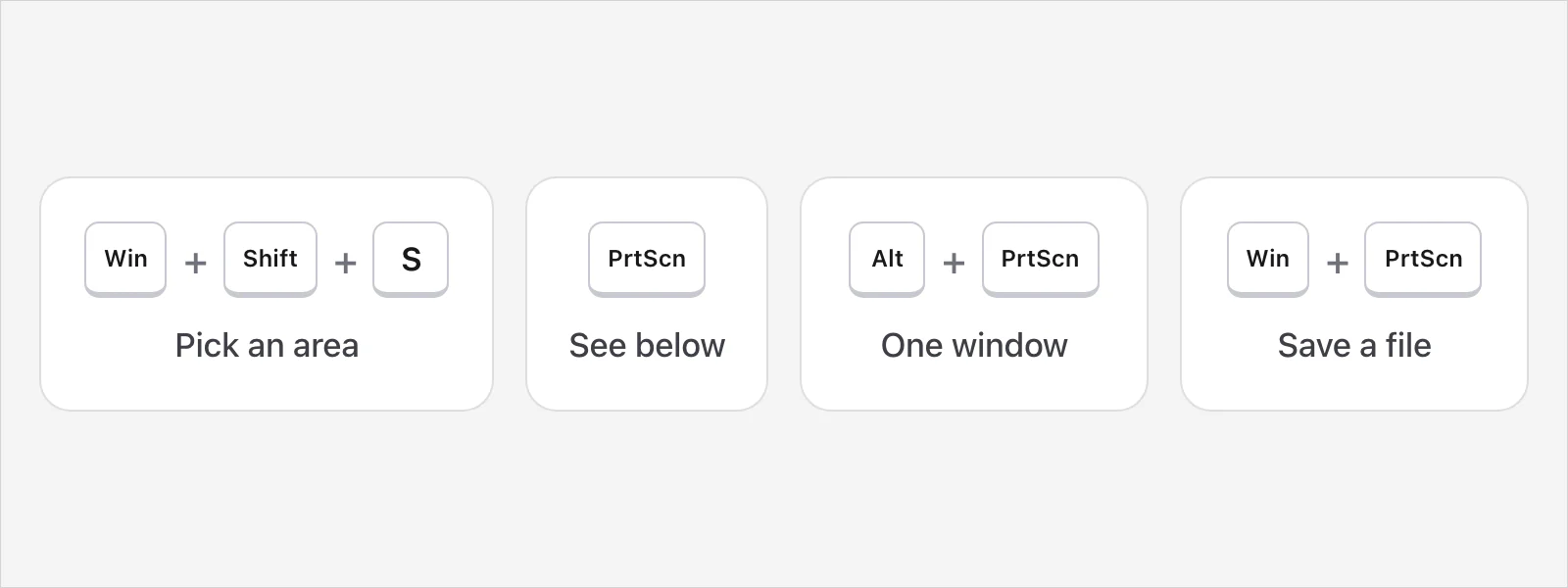
The Windows screenshot shortcuts
| Press | It captures | Where it goes |
|---|---|---|
| Windows keyShiftS | The part you pick (rectangle, freeform, window or the whole screen) | The clipboard, with a notification that opens it in the Snipping Tool |
| PrtScn | A region or the whole screen, depending on your Windows (see below) | The clipboard |
| AltPrtScn | The active window | The clipboard |
| Windows keyPrtScn | The whole screen | A file in Pictures › Screenshots |
| Windows keyShiftR | A video of a region, on Windows 11 | A file, by default in Videos › Screen Recordings, as MP4 |
| Windows keyAltPrtScn | A screenshot from the Xbox Game Bar | An image in Videos › Captures |
| Windows keyAltR | Starts and stops a Game Bar recording | An MP4 in Videos › Captures |
| CtrlPrtScn, with the Snipping Tool open | A menu you've opened, on Windows 10 | The Snipping Tool |
| FnWindows keySpace bar | A screenshot, on a device with no PrtScn button | A file in Pictures › Screenshots |
Every row comes from Microsoft's own pages: its keyboard shortcuts page, its page on the Snipping Tool, its page on the print screen shortcut and its page on the Xbox Game Bar. Surface devices have a few of their own. Microsoft's Surface page lists a Snipping key and, on some models, Power plus Volume Up.
How does Windows key + Shift + S work?
Set the screen up the way you want it.
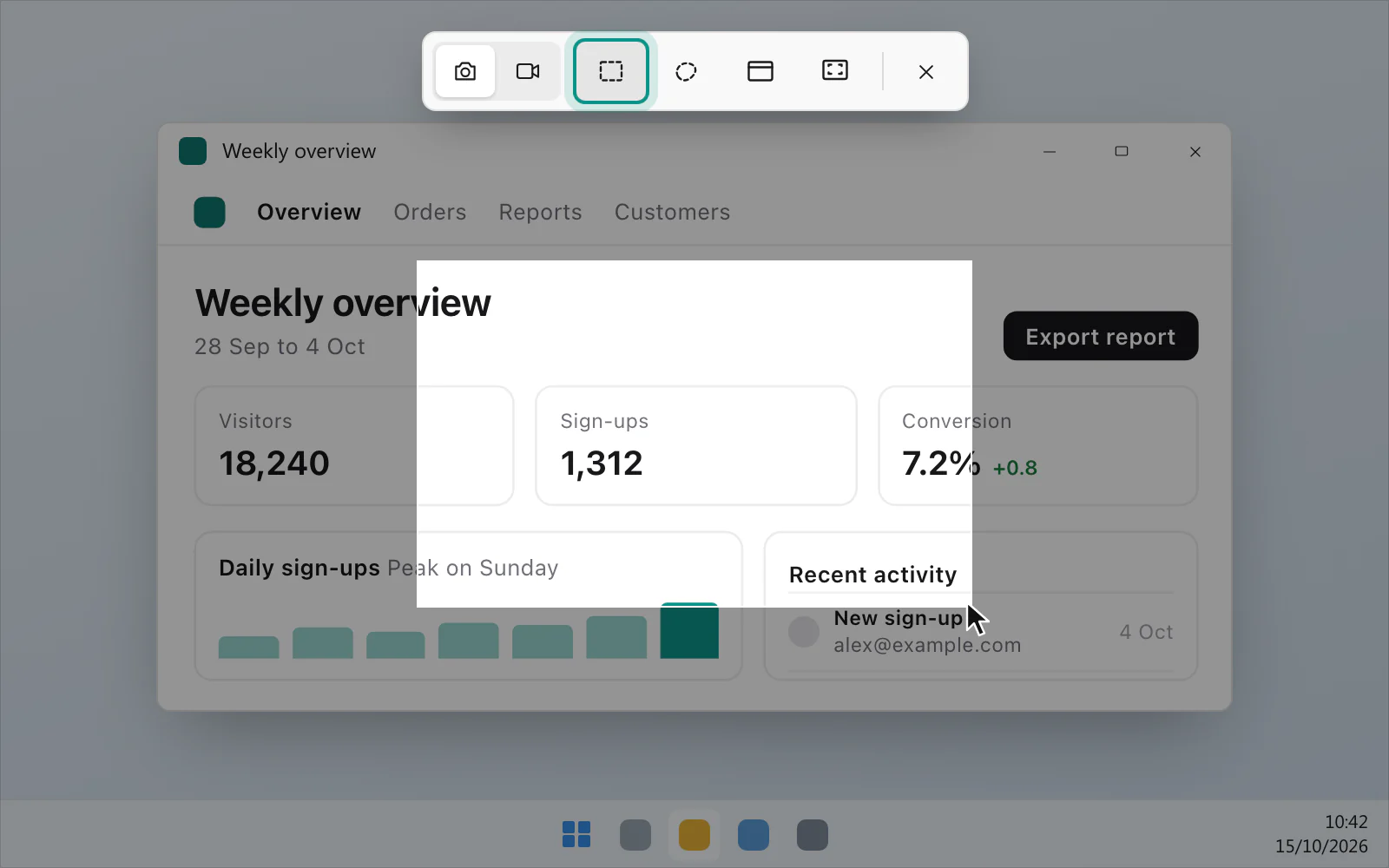
Press Windows keyShiftS. The desktop darkens.
If a small toolbar appears, choose rectangular, free-form, window or full-screen mode.
For rectangular or free-form, click and drag around what you want. For window or full screen, the capture happens at once.
The screenshot is on your clipboard. Select the notification that appears to open it in the Snipping Tool, where you can mark it up and save it.
What does Print Screen do?
It depends on your version of Windows, and Microsoft's pages don't agree with each other. Its keyboard shortcuts page says that on Windows 11 PrtScn lets you select a region of the screen and copies the screenshot to the clipboard, and that you can turn that off. Its Snipping Tool page says Print Screen takes a picture of your entire screen and places it on the clipboard. On Windows 10 they differ as well: the keyboard shortcuts page says PrtScn copies the whole screen to the clipboard, while the Snipping Tool page lists Print Screen as one of three ways to open the Snipping Tool.
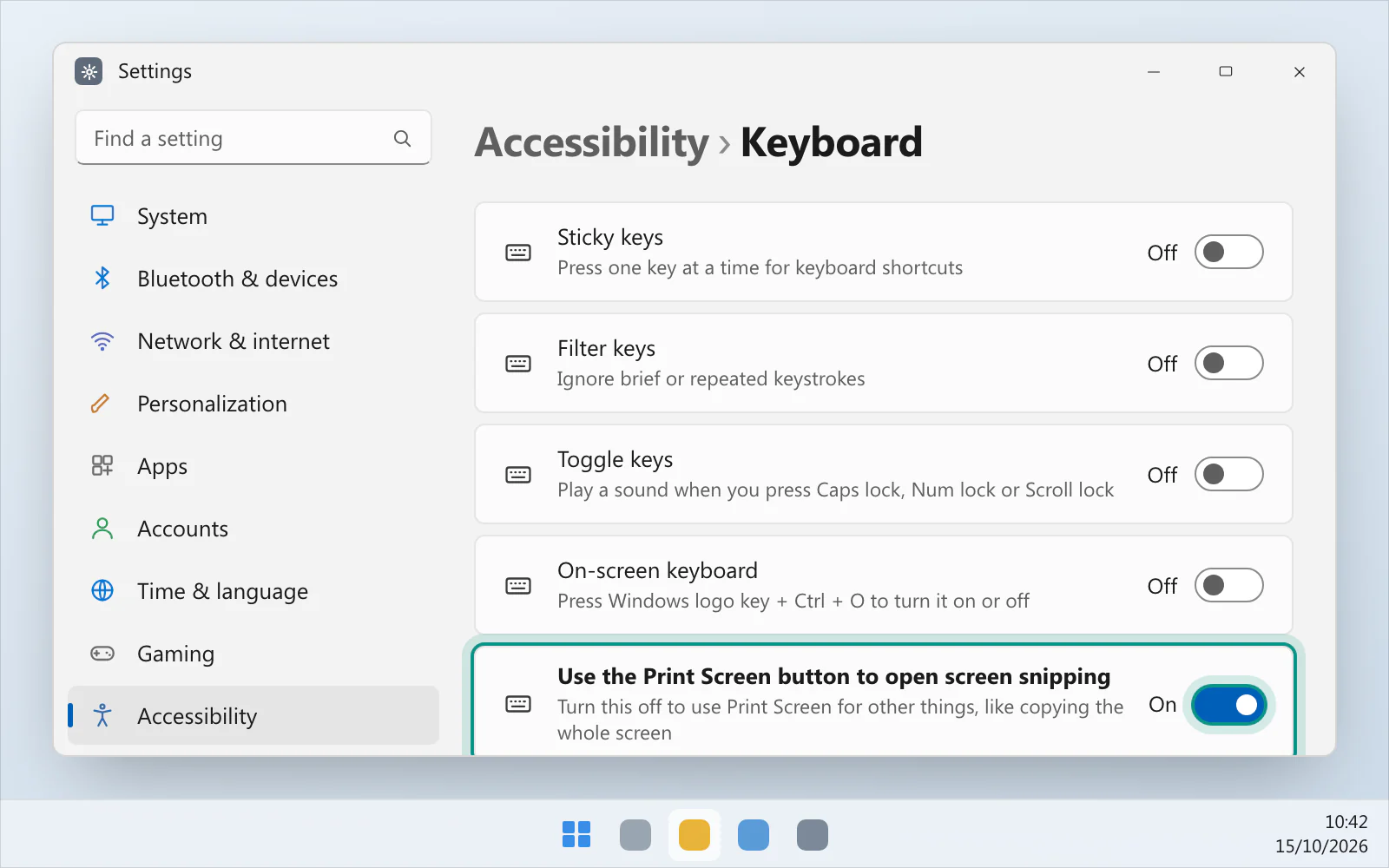
The quickest way to know is to press it. If the screen darkens and you can select an area, your Windows is set to open screen snipping.
To change it on Windows 11, open Start › Settings › Accessibility › Keyboard and set Use the Print Screen button to open screen snipping to On or Off. On Windows 10 the same switch is under Settings › Ease of Access › Keyboard, as Use PrtScn key to open screen snipping. If the key does nothing at all, Print Screen not working on Windows 11 goes through it.
The key may be printed PrtSc, PrtScn or PrntScrn, and it's usually near the top right of the keyboard.
How do I screenshot one window?
Click the window, then press AltPrtScn. Only that window is copied to the clipboard, so paste it with CtrlV. Or press Windows keyShiftS and choose the window mode.
How do I save a screenshot as a file?
Press Windows keyPrtScn. Microsoft's page says it saves the whole screen in the Screenshots folder inside Pictures. The Snipping Tool also saves a snip to its Screenshots folder by itself, and See more › Settings inside it changes that. Where are screenshots saved on Windows 11? has the details.
How do I screenshot a menu that closes?
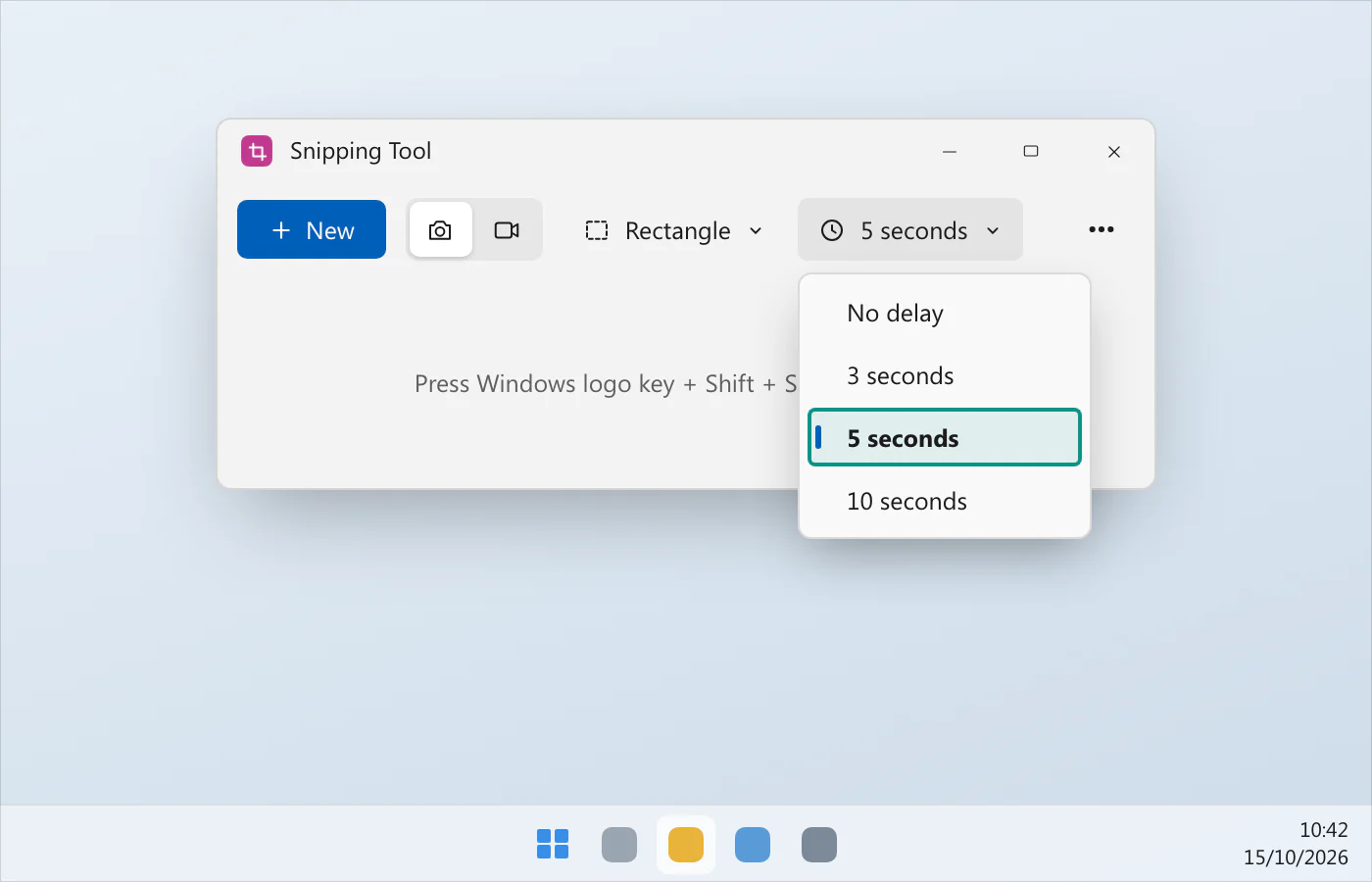
Use the Snipping Tool's delay. Open the Snipping Tool, choose Delay and a time, such as 5 seconds, and pick a snipping mode. Microsoft's page says to select New on Windows 11, and Mode on Windows 10, to start the countdown. You then have that long to open the menu. When the screen turns grey, drag around the area. The delay is AltD from the keyboard. On Windows 10, Microsoft's page also gives another way: open the Snipping Tool, open the menu, press CtrlPrtScn, then choose the kind of snip and the area.
How do I record the screen?
On Windows 11, press Windows keyShiftR, pick a region and start. On Windows 10 and 11, the Xbox Game Bar records with Windows keyAltR. The Windows 10 screen recorder goes through what Windows 10 offers.
What if a shortcut does nothing?
For Print Screen, see Print Screen not working on Windows 11. If the Snipping Tool itself won't open or capture, see Snipping Tool not working.
A faster way, if you take a lot of screenshots
VizShot has its own shortcuts on Windows, and they use Ctrl + Shift. CtrlShift2 captures an area and CtrlShift7 the whole screen, and the picture is on your clipboard and saved in Pictures › VizShot by default the moment you let go. After the 14-day free trial a screenshot is still copied to the clipboard, but saving needs a key. Take your first screenshot has the steps, and you can download VizShot.
$8, once, for two computers.
Questions
What is the Snipping Tool shortcut?
Windows keyShiftS. Microsoft's page lists it for both Windows 11 and Windows 10.
Is Windows 11 different from Windows 10?
A little. The Windows key + Shift + S shortcut is on Microsoft's pages for both. Windows 11 adds Windows keyShiftR for a video snip, and the two versions describe the Print Screen key differently.
What if my keyboard has no Print Screen key?
Windows keyShiftS doesn't need it. Microsoft's page on the print screen shortcut says that if your device doesn't have the PrtScn button, you may use FnWindows keySpace bar to take a screenshot. On a Surface, its page also lists a Snipping key.
Where do the pictures go?
For most of the screenshot keys, to the clipboard, so paste with CtrlV. Windows keyPrtScn saves a file by itself, and so do the Game Bar's keys and the recording shortcuts, as the table shows. The Snipping Tool also saves a snip to its Screenshots folder by itself.
Checked against
- Microsoft: Keyboard shortcuts in Windows, read 14 October 2026
- Microsoft: Use Snipping Tool to capture screenshots, read 14 October 2026
- Microsoft: Copy the window or screen contents, read 14 October 2026
- Microsoft: Use a screen reader to record your screen with Xbox Game Bar, read 14 October 2026
- Microsoft: Take a screenshot or record your screen on Surface, read 14 October 2026
- Microsoft: Keyboard shortcut for print screen, read 14 October 2026