Snipping Tool not working

If the Snipping Tool won't open, or won't take a snip, work down the list below and stop when it works: close it and open it again, run Windows Update, update the Microsoft Store, then repair it, reset it and, last, uninstall and reinstall it. Every step is from a Microsoft page, in the order Microsoft gives. If only the shortcut fails, go to the section on Windows key + Shift + S.
Which problem do you have?
It won't open, or says "This app can't open". Start with the steps below.
The shortcut does nothing, or the screen never dims. See the section on Windows key + Shift + S.
It takes the snip, but you can't find the file. Where are screenshots saved on Windows 11? has the places.
Print Screen does nothing. That has its own page: Print Screen not working on Windows 11.
Fix it in this order
Microsoft's page on fixing problems with apps from the Microsoft Store gives a short order to work through. It's written for Store apps, and Microsoft's Snipping Tool pages don't say whether yours came from there, so treat it as the usual order to try. Step 6 comes from Microsoft's Snipping Tool page. Steps 4 and 5 come from Microsoft's general page on repairing apps, which doesn't name the Snipping Tool.
Close it and open it again. Select the Close (X) button in the top-right corner of the window, then open it again: select Start, enter snipping tool and select it. Microsoft lists this first.
Run Windows Update. Select Start › Settings › Windows Update › Check for updates and install what it offers. On Windows 10 it's Start › Settings › Update & Security › Windows Update. Microsoft's pages say free Windows 10 updates ended on 14 October 2025.
Update the Microsoft Store. Open the Microsoft Store, go to Library and select Get updates. Microsoft's page says that installs an update for the Store itself if there is one. On Windows 10 it's See more › Downloads and updates › Get updates. A separate Microsoft page on updating apps and games says to open the Microsoft Store and select Check for Updates to make sure your apps have the latest updates.
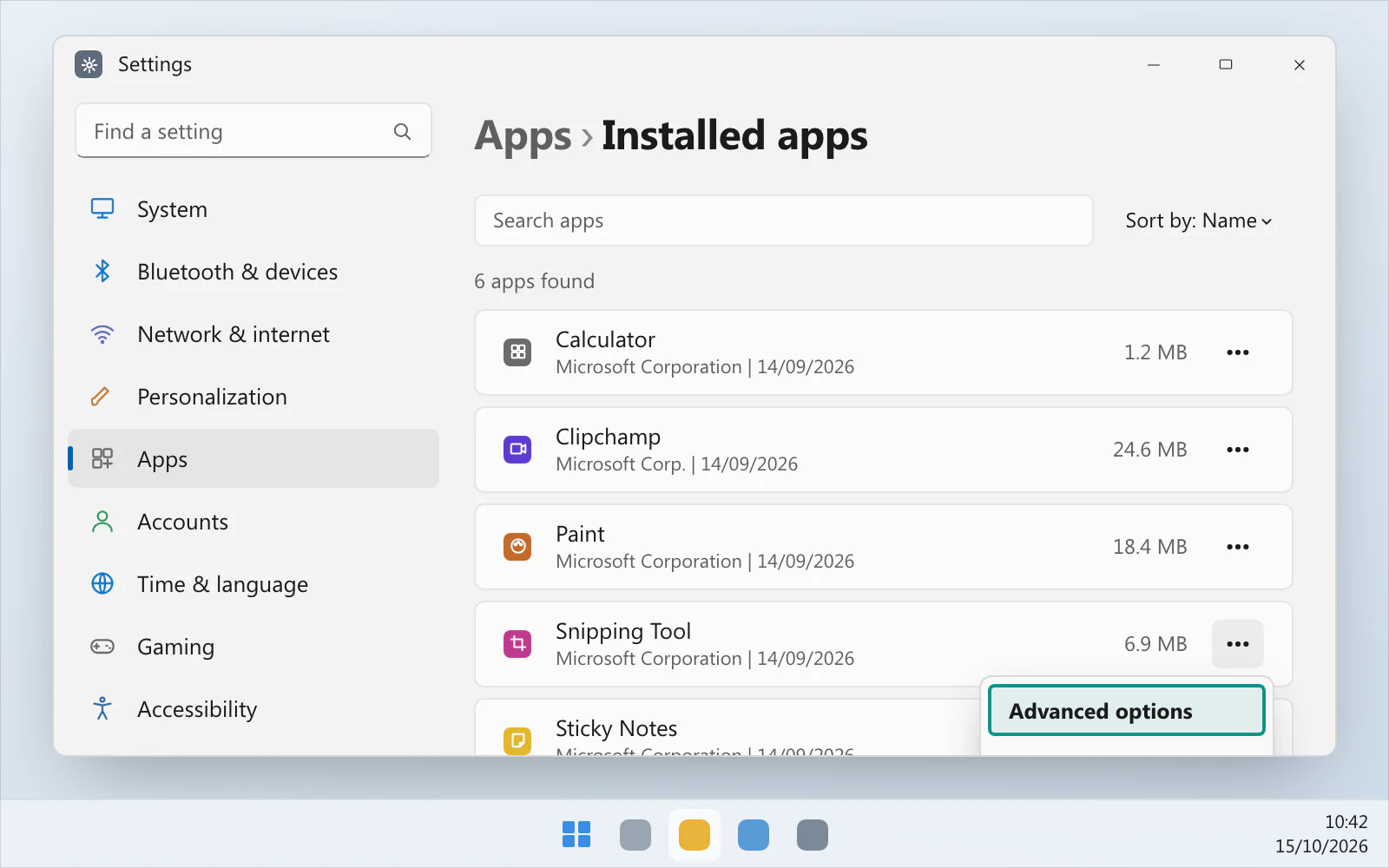
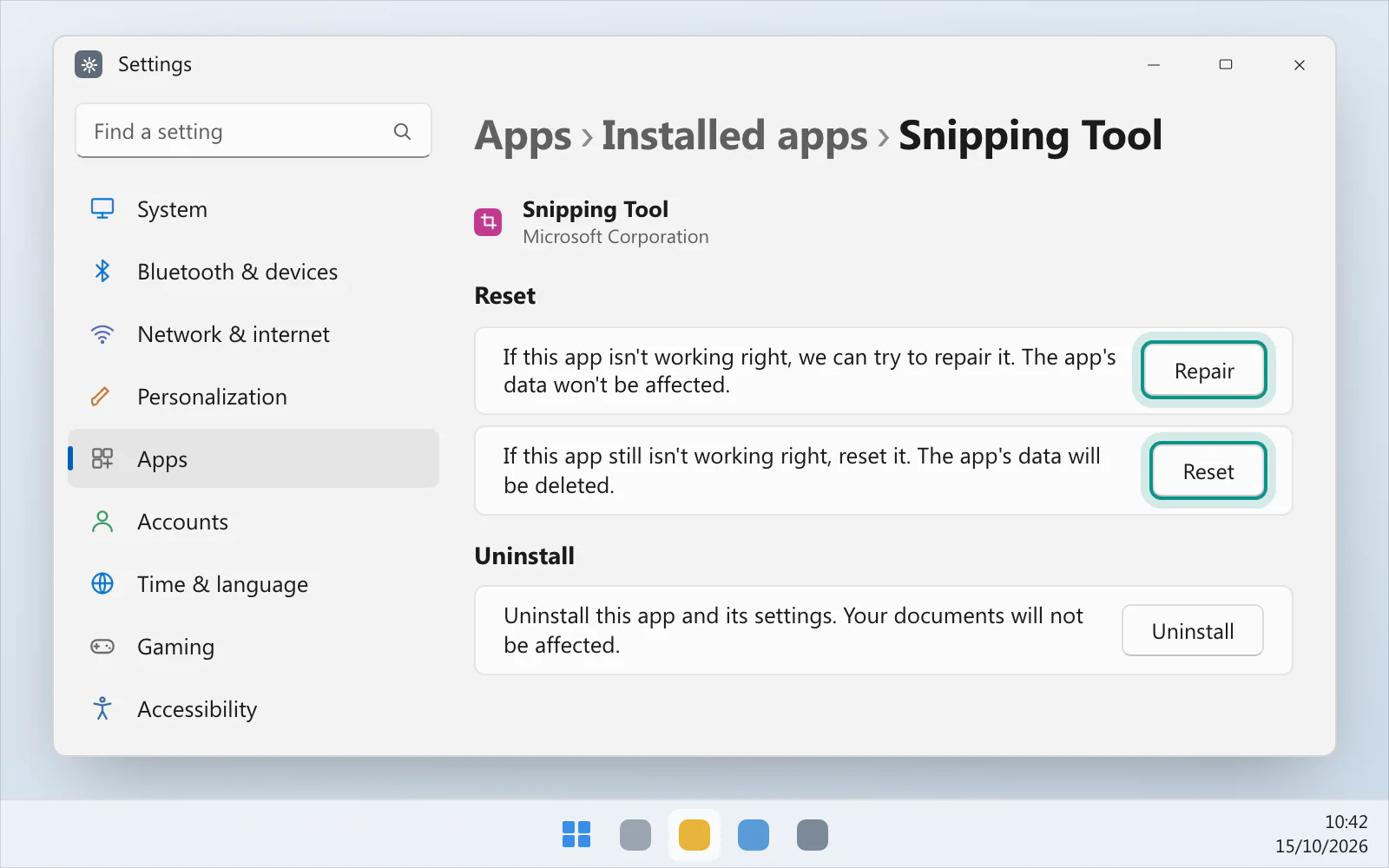
Repair it. Microsoft's page on repairing apps says to select Start › Settings › Apps › Installed apps, select the More icon next to the Snipping Tool, choose Advanced options and select Repair. On Windows 10 it's Apps › Apps & features, then the app, then Advanced options.
Reset it. In the same place, select Reset. Microsoft says to use it if Repair isn't there or doesn't fix the problem.
Uninstall it and reinstall it. Microsoft's page on uninstalling and reinstalling the Snipping Tool says to open Settings › Apps › Installed apps, select the three dots next to Snipping Tool and choose Uninstall. To put it back, download the installer from that page (64-bit, 32-bit or ARM64 Windows), open it and follow the instructions. The page says you need Windows 10 version 22H2, build 19045.3758, or later.
On Windows 10, Microsoft's order for Store apps also has a troubleshooter: Start › Settings › Update & Security › Troubleshoot, then Windows Store apps › Run the troubleshooter.
If Windows key + Shift + S does nothing
Microsoft's Snipping Tool page says Windows logo key + Shift + S opens the snipping tool overlay. Its Microsoft 365 page says the desktop darkens so you can select an area. So watch the screen as you press it: if it dims, the overlay opened.

The screen dims. The shortcut is working. Drag over what you want. A snip made this way is copied to the clipboard, and Microsoft's page for Microsoft 365 says a notification appears afterwards, which you select to open the editor. If you missed the notification, press CtrlV in Paint to see whether the snip is on the clipboard.
Nothing happens. Open the Snipping Tool from the Start menu and select New. Microsoft's page says to choose a kind of snip under Snipping Mode first, that the screen changes slightly to grey when you're ready to capture, and that AltN makes a new snip in the same mode as the last one. If New works and the shortcut doesn't, work through the steps above and then look at the keyboard, which Print Screen not working on Windows 11 covers.
New does nothing, but the shortcut works. Use the shortcut. Microsoft's page lists both, and the steps above still apply.
After a System Restore
Microsoft's page on KB5023152 describes a "This app can't open" message after a System Restore, for some Windows apps that use the MSIX package format. It names Notepad, Paint, Office, Cortana and Terminal and says the list isn't complete. Its workaround is to try starting the app again, reinstall it from the Windows Store or from where you first got it, or run Windows Update. It doesn't name the Snipping Tool, so it may not apply to you.
Is the page you're reading from 2021?
If a page you're reading is about an expired certificate, it's about a problem from late 2021. Microsoft's page for the update KB5008295, which is written for Windows 11, says a Microsoft digital certificate that expired on 31 October 2021 might have stopped some people from opening or using certain built-in Windows apps, or parts of them, and lists the Snipping Tool among those it might affect. It says the update addresses that issue.
Did a Windows update break it?
Microsoft's known-issues pages for Windows 11 versions 26H2, 26H1 and 25H2 and for Windows 10 version 22H2 don't mention the Snipping Tool, a snip or a screenshot, so Microsoft doesn't list an update as the cause. It lists known issues for each supported version of Windows on its Windows release health page. If the trouble began after an update, look under Known issues for your version.
Is another program in the way?
Microsoft's page on a clean boot says it starts Windows with only essential drivers and startup programs, so you can tell whether background software is interfering with an app. If the app runs correctly in a clean boot, Microsoft says, the cause was another app or service. The page warns that on a computer connected to a network, policy settings might block the steps, and says to use the System Configuration utility to change the advanced boot options only with guidance from a Microsoft support engineer, because it might make the computer unusable. Read all of it before you start.
Other ways to take a screenshot
Microsoft's keyboard shortcuts page lists other screenshot keys. Windows keyPrint Screen saves a full-screen screenshot in the Screenshots subfolder of Pictures, and AltPrint Screen copies a screenshot of the active window to the clipboard. Screenshot shortcuts for Windows has the Windows screenshot shortcuts together.
Tips that aren't on Microsoft's pages
Microsoft's pages don't list restarting Windows Explorer or letting the app run in the background as fixes for the Snipping Tool, so they aren't in the order above.
A separate app, while you sort it out
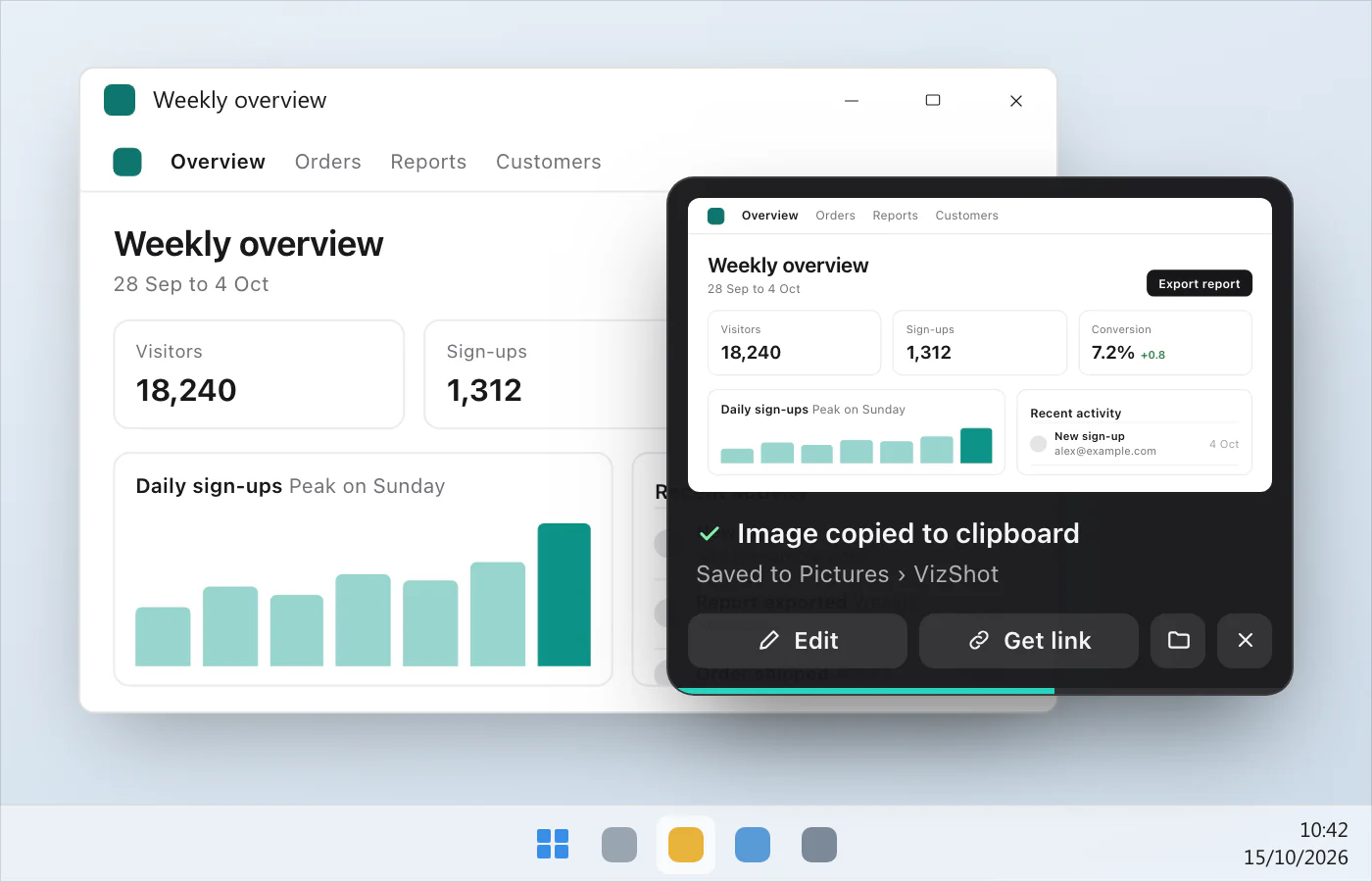
VizShot is a separate screenshot app for Windows 10 version 1903 or later and Windows 11. Press CtrlShift2 and drag over an area. The picture is on your clipboard at once and saved in Pictures › VizShot. After the 14-day free trial a screenshot is still copied to the clipboard, but saving needs a key. Take your first screenshot has the steps, and you can download VizShot.
$8, once, for two computers.
Questions
Why is my Snipping Tool not working on Windows 11?
Microsoft's pages don't give one cause for today's problem. Work down the order above: close and reopen it, run Windows Update, update the Store, repair it, reset it, then reinstall it.
How do I reset the Snipping Tool?
Open Start › Settings › Apps › Installed apps, select the three dots next to the Snipping Tool, choose Advanced options and select Reset. Microsoft says to use Reset if Repair isn't available or doesn't fix the problem.
How do I reinstall the Snipping Tool?
Uninstall it from Installed apps, then download the installer from Microsoft's page on uninstalling and reinstalling the Snipping Tool and open it. The steps are in step 6 above.
Where does the Snipping Tool save screenshots?
To your Screenshots folder, according to the Windows 11 tab of Microsoft's Snipping Tool page, which doesn't say where that folder is. You change that, and the automatic save behaviour, under See More › Settings in the app. Where are screenshots saved on Windows 11? goes through the places Windows uses.
Is there a Snipping Tool on a Mac?
Apple's page on taking screenshots doesn't mention one. It says ShiftCommand5 opens the Screenshot app, ShiftCommand3 captures the whole screen and ShiftCommand4 a portion. Mac screenshot shortcuts lists them together.
Checked against
- Microsoft: Fix problems with apps from Microsoft Store, read 15 October 2026
- Microsoft: Get updates for apps and games in Microsoft Store, read 15 October 2026
- Microsoft: Repair apps and programs in Windows, read 15 October 2026
- Microsoft: Uninstall and reinstall Paint and Snipping Tool, read 15 October 2026
- Microsoft: Use Snipping Tool to capture screenshots, read 15 October 2026
- Microsoft: Copy the window or screen contents, read 15 October 2026
- Microsoft: KB5023152: “This app can’t open” error message after running system restore and then starting a Windows app in Windows 10 and later versions, read 15 October 2026
- Microsoft: November 5, 2021, KB5008295 Out-of-band, read 15 October 2026
- Microsoft: How to perform a clean boot in Windows, read 15 October 2026
- Microsoft Learn: Windows release health, read 15 October 2026
- Microsoft Learn: Windows 11, version 26H2 known issues and notifications, read 15 October 2026
- Microsoft Learn: Windows 11, version 26H1 known issues and notifications, read 15 October 2026
- Microsoft Learn: Windows 11, version 25H2 known issues and notifications, read 15 October 2026
- Microsoft Learn: Windows 10, version 22H2 known issues and notifications, read 15 October 2026
- Microsoft: Keyboard shortcuts in Windows, read 15 October 2026
- Apple: Take screenshots or screen recordings on Mac, read 15 October 2026
- Microsoft Learn: Snipping Tool not working (intermittent) on our win11 AVD machines - Microsoft Q&A, read 15 October 2026