Print Screen not working on Windows 11

On Windows 11, Print Screen doesn't always do what people expect. Microsoft's keyboard shortcuts page says it lets you select a region of the screen, with a setting to turn that off, while its Snipping Tool page says it takes the whole screen. Both say the picture goes to the clipboard, so it can look as if nothing happened if you were expecting a file. Try these in order. The first three cost nothing and take a minute each.
Did it work, and you can't find the picture?
Press Print Screen, then open Paint or a chat window and press CtrlV. Microsoft's help for Windows says Print Screen copies the picture to the clipboard, so that's where it goes. If the picture pastes, the key works.
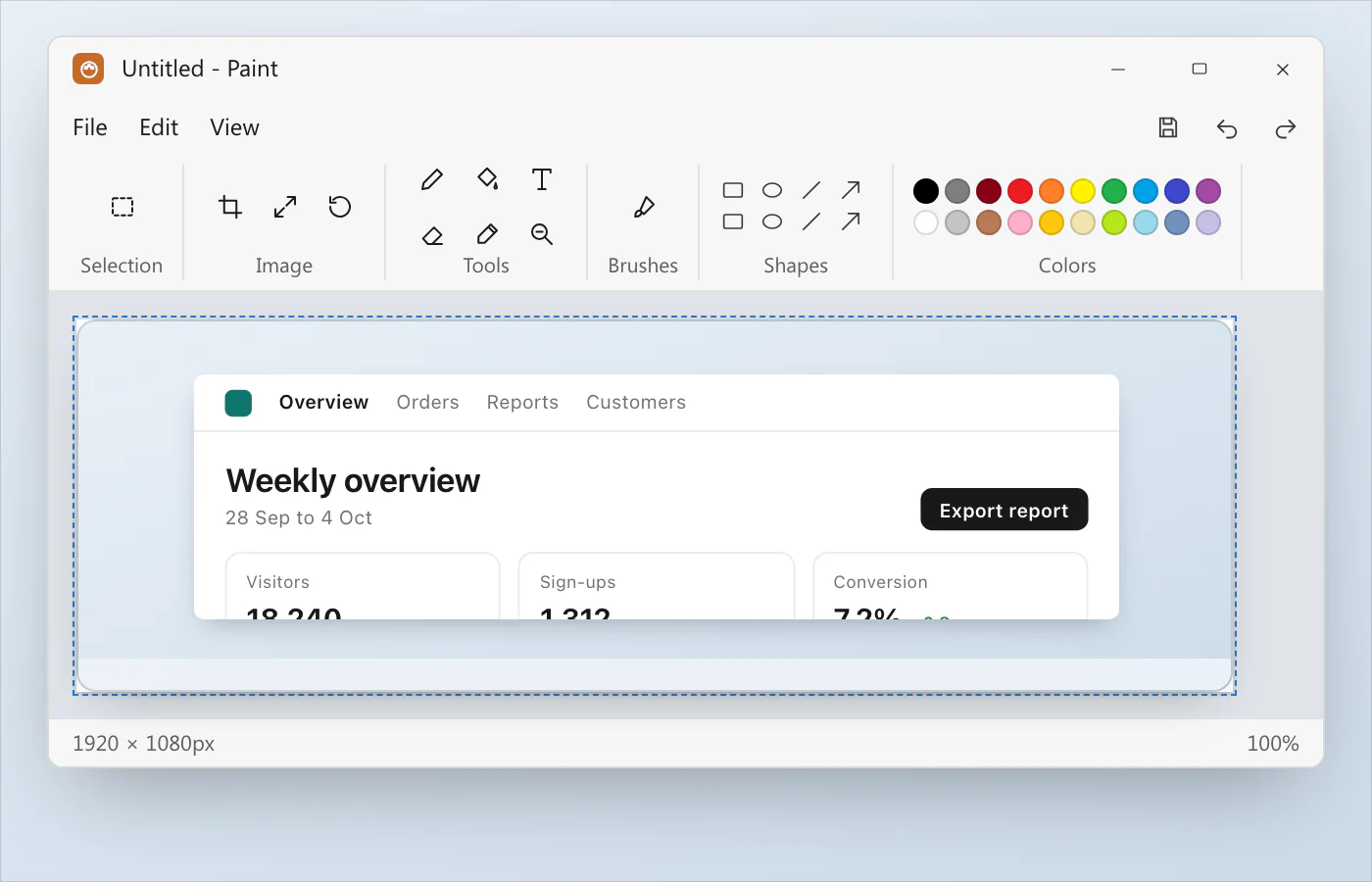
If you wanted a file, press Windows keyPrint Screen instead. Microsoft's keyboard shortcuts page says it saves the whole screen in Pictures › Screenshots, and its page on the print screen shortcut adds that this depends on your hardware. Microsoft's page says OneDrive's "Save screenshots to OneDrive" feature is no longer available in its settings, so if a guide tells you to switch it off, you may not find it. Where are screenshots saved on Windows 11? and saving them automatically cover where a file goes.
Is Print Screen set to open screen snipping?
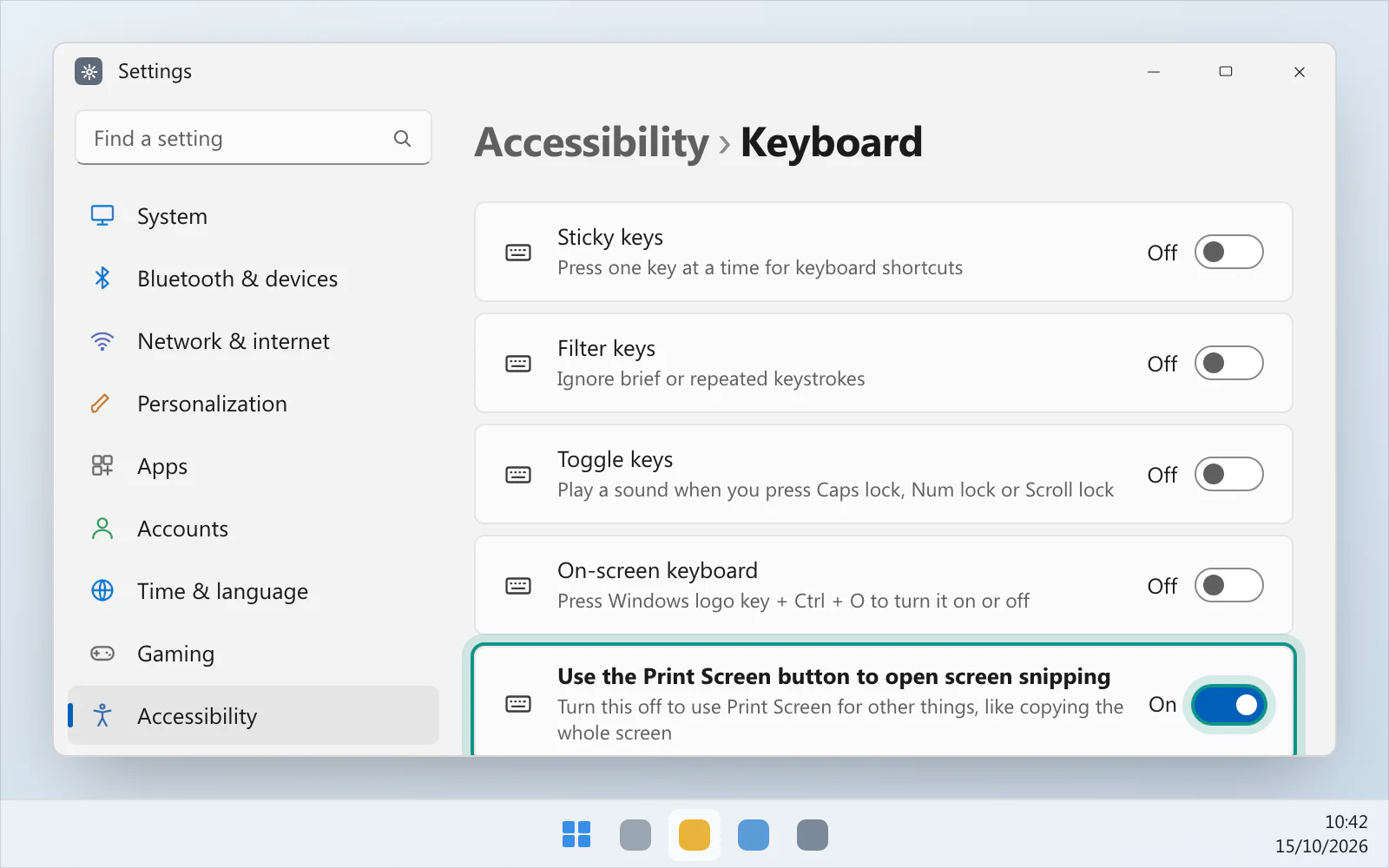
Open Start › Settings › Accessibility › Keyboard and look for Use the Print Screen button to open screen snipping. Microsoft says that on Windows 11 the key lets you select a region and copies it to the clipboard, and that you can turn that off here. Flip the switch, press Print Screen again and see which behaviour you want. Check it even if you haven't changed anything.
Does your laptop need the Fn key?
Dell's page on the Print Screen key says that on a laptop the key is commonly on the function-key row and often needs Fn with F10 or another function key. It says laptops with illuminated function rows may need the function layer switched on first, and that some laptops use Fn + Insert when they have no Print Screen key. Dell adds that if its instructions don't seem to apply to your keyboard, you should refer to your device's user guide for model-specific key layouts.
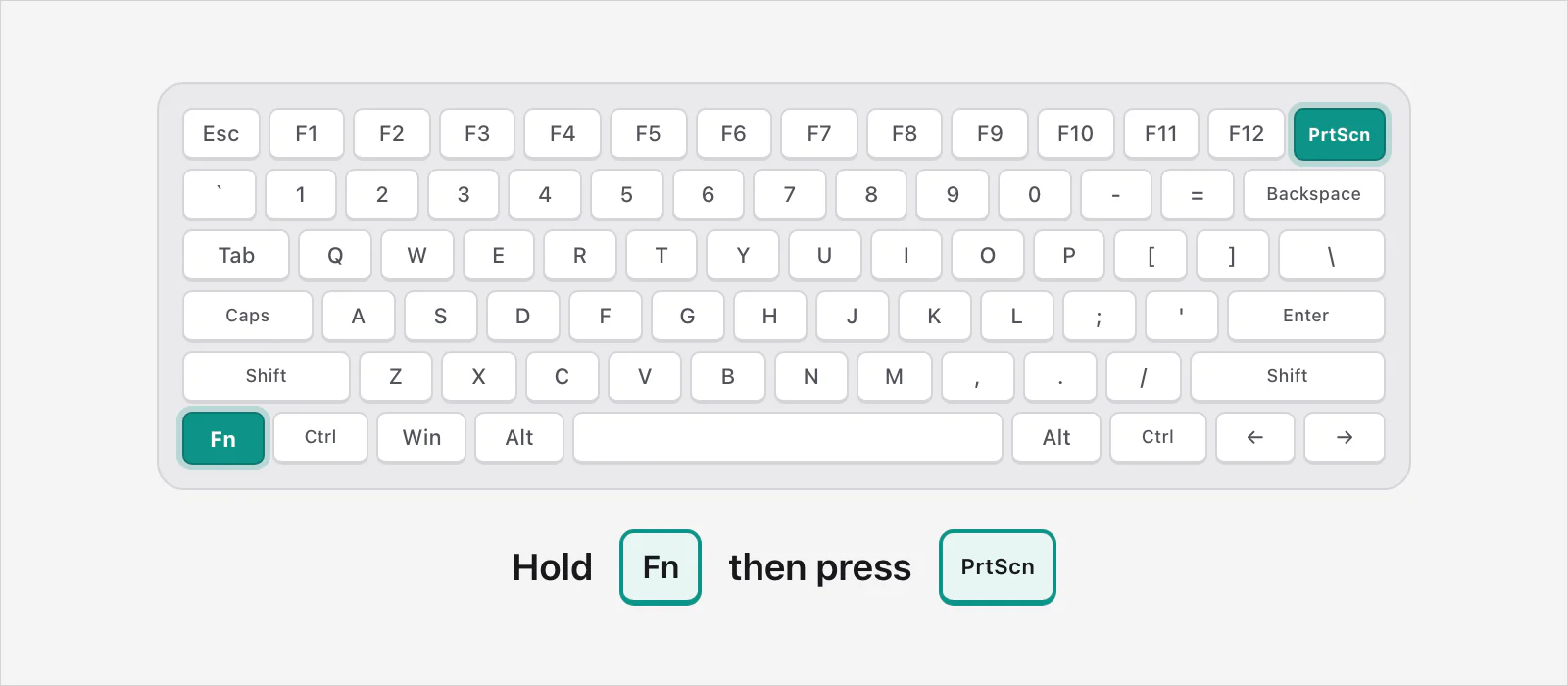
Microsoft's page on the print screen shortcut says that, depending on your hardware, if your device doesn't have a Print Screen button you may use Fn + Windows logo key + Space Bar to take a screenshot.
Is another program using the key?
Other software can change what Print Screen does. Dropbox's help page says its screenshot saving works with Print Screen or Control-Print Screen on Windows, and tells you to turn off the Windows setting that opens the Snipping Tool when you press the key. Logitech's page on Print Screen in Logi Options+ says that from version 1.86 the app's Screen Capture action no longer works like the Print Screen key, and a separate Print Screen action does. To use it, open Logi Options+, click your device, click Keys or Buttons, select the key and choose the Print Screen action. If you run a screenshot app of your own, check which keys it has set.
Does Windows key + Shift + S do nothing?
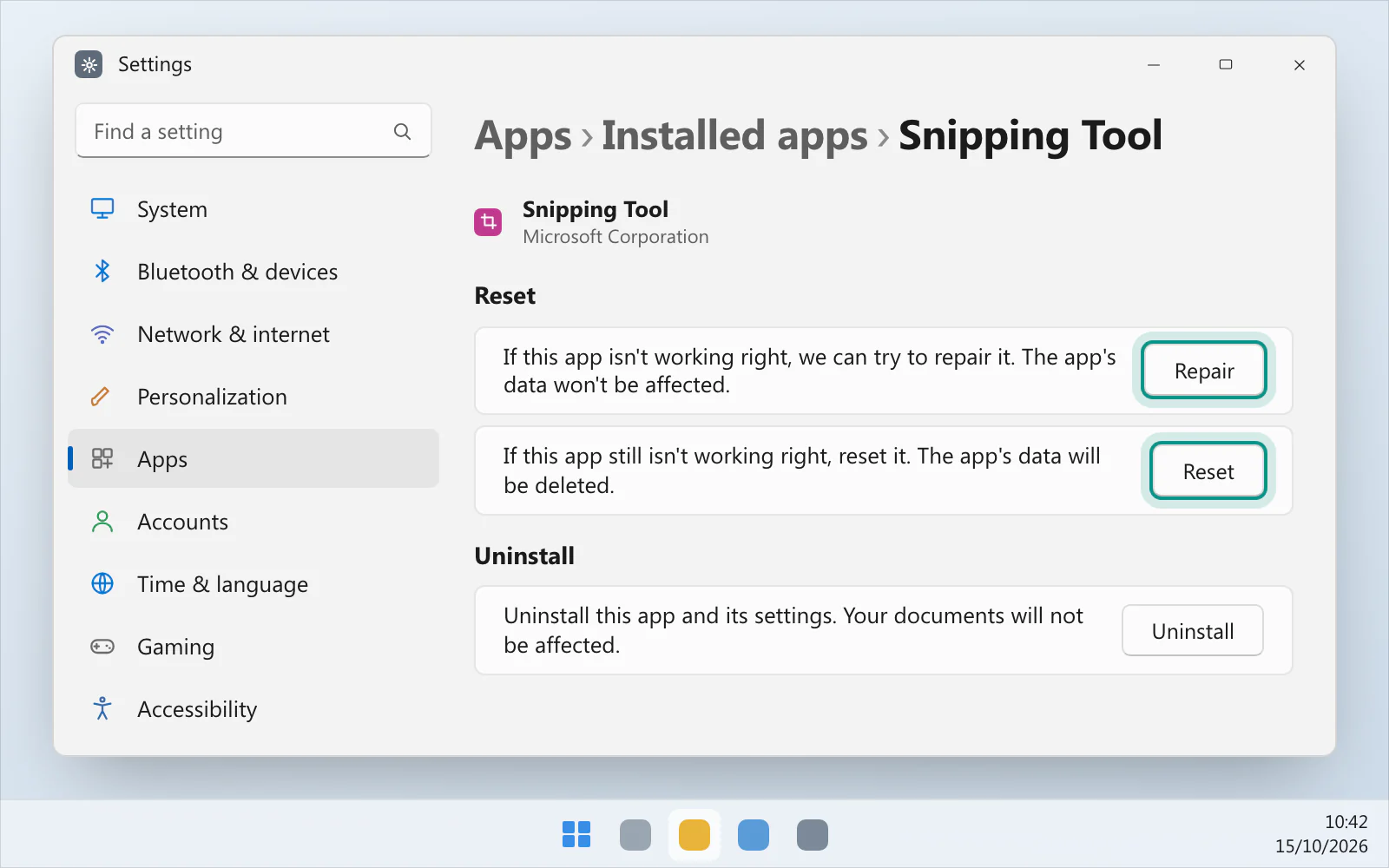
Microsoft lists that shortcut under the Snipping Tool, so the app is the next suspect. Its page on repairing apps says to open Start › Settings › Apps › Installed apps, select the More icon (the three dots) next to the app, choose Advanced options, and select Repair if it's there, or Reset if it isn't or Repair doesn't help. If that fails, Microsoft's page on uninstalling and reinstalling the Snipping Tool has installers to download for 64-bit, 32-bit and ARM64 Windows. Snipping Tool not working goes through it in more detail.
Is it the keyboard?
Here's a test that needs no second PC. Press Windows keyShiftS. If that works and Print Screen doesn't, look at the Print Screen switch and the other programs above before you blame the keyboard.
Microsoft's page on mouse and keyboard problems says to check the connection, try another USB port, check the batteries and make sure no dirt is blocking the keys. For a device that doesn't seem to work, it says to try it on another PC, and that if it doesn't work there you might need to replace it. It also says to check Windows Update for a driver, or to use Update Driver on the Driver tab in Device Manager.
Until it's fixed
Windows keyShiftS doesn't use the Print Screen key, and neither does opening the Snipping Tool from the Start menu and choosing New. The full list is in Screenshot shortcuts for Windows.
A way that doesn't depend on the key
VizShot's own shortcuts don't use the Print Screen key. CtrlShift2 captures an area and CtrlShift7 the whole screen. The picture is on your clipboard and saved in Pictures › VizShot by default the moment you let go, and you can change the keys if another program uses them. After the 14-day free trial a screenshot is still copied to the clipboard, but saving needs a key. Take your first screenshot has the steps, and you can download VizShot.
$8, once, for two computers.
Questions
Why is Print Screen not working on my laptop?
It may need another key pressed with it. Dell's page says that on a laptop it's often Fn with F10 or another function key, and that some laptops use Fn + Insert. Check your laptop maker's support page for your model.
Where does a Print Screen screenshot go on Windows 11?
To the clipboard, according to Microsoft, so paste it with CtrlV. Windows keyPrint Screen saves a file in Pictures › Screenshots.
Why does Print Screen open the Snipping Tool?
A Windows setting does that: Use the Print Screen button to open screen snipping, under Settings › Accessibility › Keyboard. Turn it off to stop it, then press the key again to see what it does instead.
What about Print Screen in a game?
Try Windows keyAltPrint Screen. Microsoft's page says the Xbox Game Bar takes a screenshot with it and saves it as a PNG in the Captures folder.
Is Windows 10 different?
A little. Microsoft's keyboard shortcuts page says that on Windows 10 PrtScn copies the whole screen to the clipboard, and that the switch for screen snipping is under Settings › Ease of Access › Keyboard, called Use PrtScn key to open screen snipping. Its Snipping Tool page lists Print Screen as one of three ways to open the Snipping Tool on Windows 10.
Checked against
- Microsoft: Keyboard shortcuts in Windows, read 14 October 2026
- Microsoft: Keyboard shortcut for print screen, read 14 October 2026
- Microsoft: Use Snipping Tool to capture screenshots, read 14 October 2026
- Microsoft: Copy the window or screen contents, read 14 October 2026
- Microsoft: Mouse and keyboard problems in Windows, read 14 October 2026
- Microsoft: Repair apps and programs in Windows, read 14 October 2026
- Microsoft: Uninstall and reinstall Paint and Snipping Tool, read 14 October 2026
- Microsoft: Save screenshots to OneDrive automatically, read 14 October 2026
- Microsoft: Use a screen reader to record your screen with Xbox Game Bar, read 14 October 2026
- Dell: How to Print Screen in Windows Using the Print Screen Key, read 15 October 2026
- Logitech: Logi Options+ 1.86 Print Screen changes, read 15 October 2026
- Dropbox: How to save screenshots & screen recordings, read 15 October 2026