Windows 10 screen recorder

Windows 10 has a screen recorder built in: the Xbox Game Bar. Open the app you want to record, press Windows keyAltR to start, and press the same keys to stop. Microsoft's page says the video is saved as an MP4 in Videos › Captures.
Turn the Xbox Game Bar on
Press Windows keyI to open Settings, type xbox, and make sure the switch for the Xbox Game Bar is on. Microsoft's page words it as "Enable Xbox Game Bar for things like recording game clips, chatting with friends, and receiving game invites".
Record an app
Go to the app you want to record.
Press Windows keyAltR. Recording starts.
Press Windows keyG if you want to see the Game Bar controls.
Press Windows keyAltR again to stop.
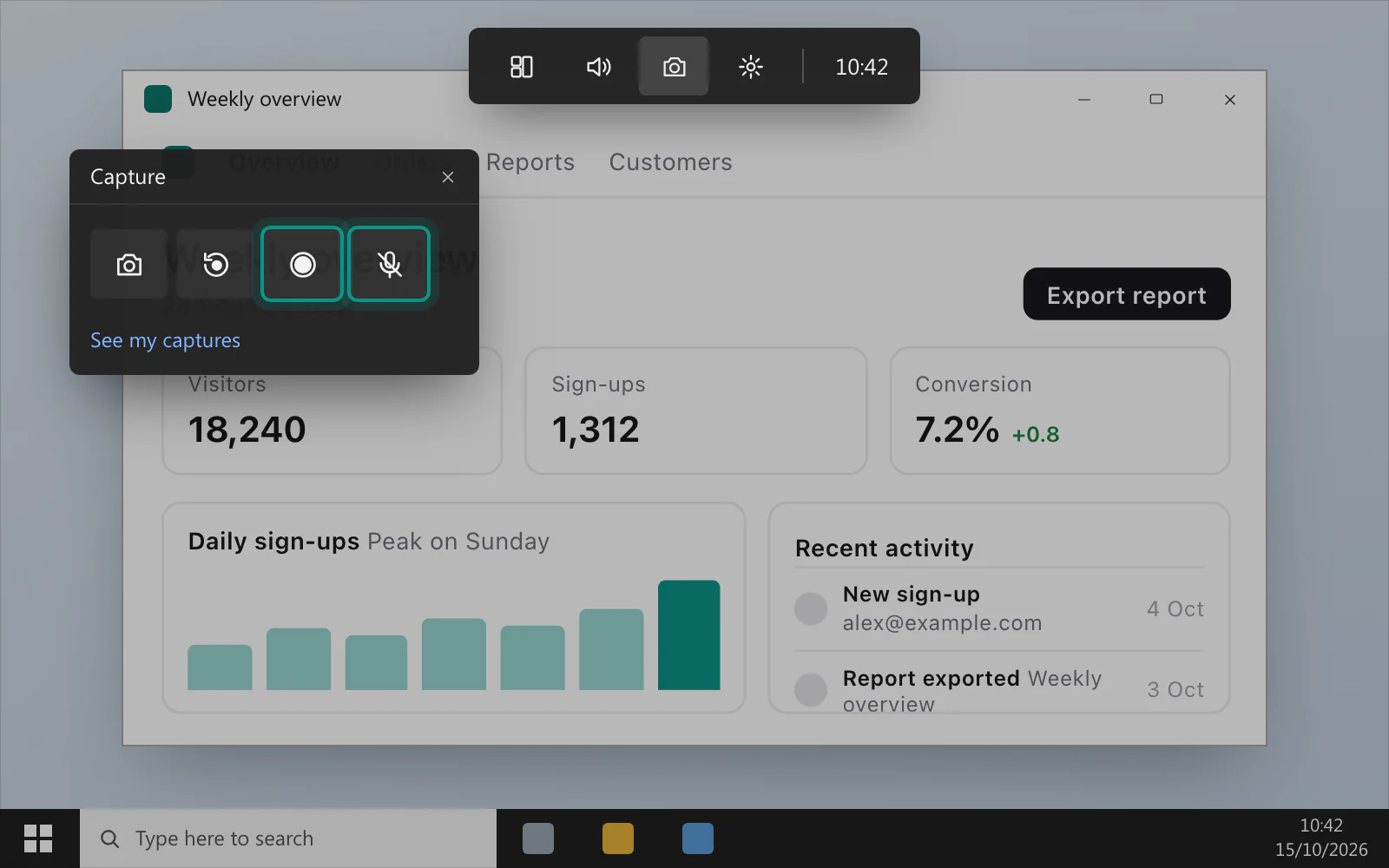
Microsoft's page on Game Bar starts the same way: go to the game or app you want to record, then press the keys.
Record sound too
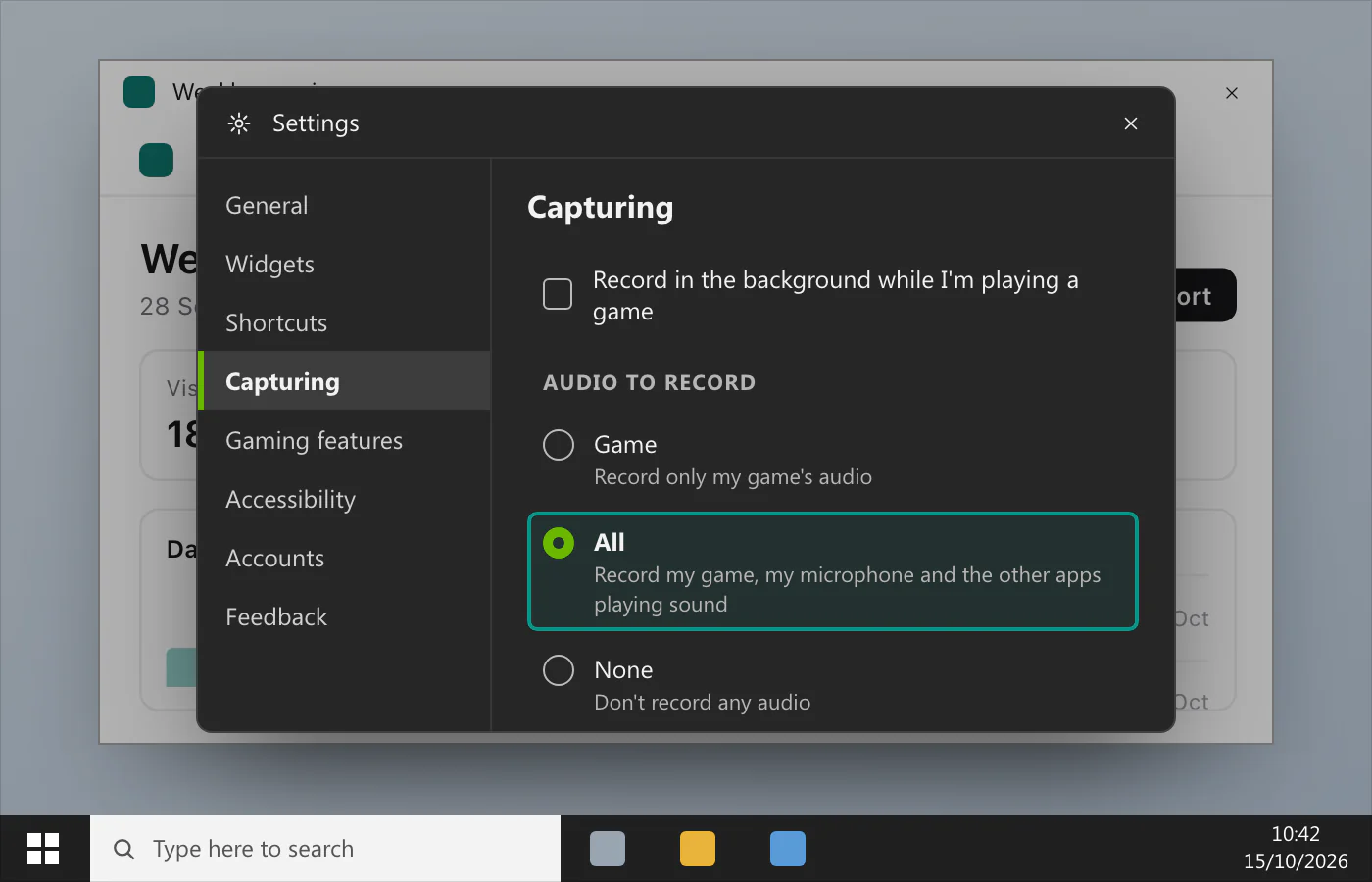
To include all the sound your computer makes, press Windows keyG, open Settings in the Game Bar, go to Capturing and choose All. Microsoft's page says that makes sure all computer sounds are included. To switch your microphone on or off while you record, press Windows keyAltM. If a recording comes out silent, screen recording with no sound goes through the causes.
Where does the video go?
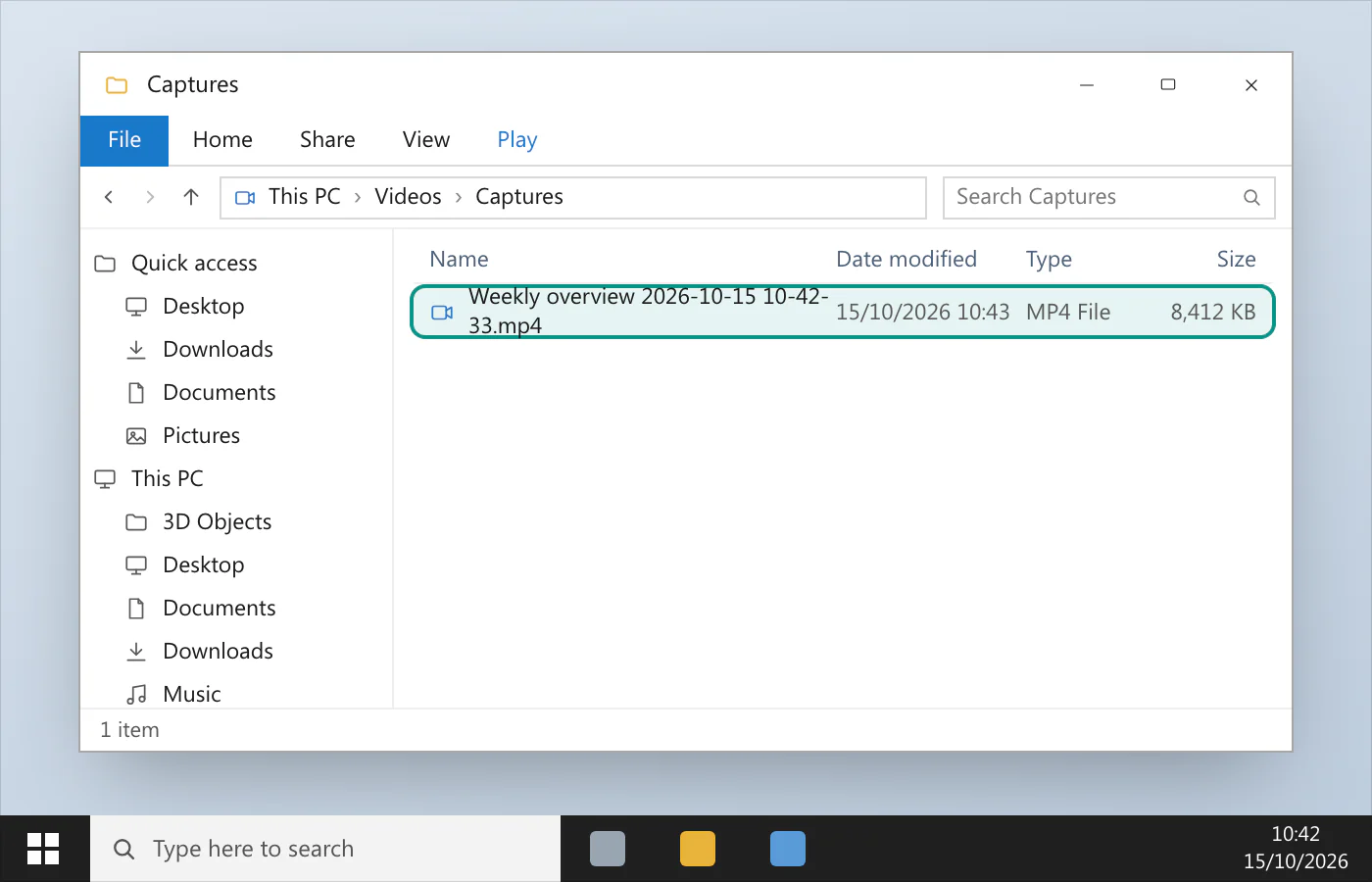
Under Videos, in a folder called Captures, as an MP4 file. Microsoft says the file name has the name of the game or app and the date and time. A screenshot you take with Windows keyAltPrint Screen goes to the same folder.
What can't it record?
Game Bar records one app window at a time. An archived TechNet Wiki article on Microsoft's Learn site says that once a recording has started you can't switch to record another window. Microsoft's support steps start from the game or app you want to record, and they don't describe recording the whole desktop.
If you need File Explorer or the desktop, try Game Bar on it before you rely on it. Microsoft's pages describe it for a game or an app and don't list File Explorer or the desktop either way.
Does the Snipping Tool record video on Windows 10?
Not according to Microsoft's Snipping Tool page. Its Windows 11 tab lists a video snip, on Windows keyShiftR. Its Windows 10 tab lists four kinds of snip, free-form, rectangular, window and full-screen, and none of them is a video. On Windows 11? Recording the screen with audio has its own page, and every Windows shortcut is in Screenshot shortcuts for Windows.
A recorder that runs on Windows 10 too
VizShot runs on Windows 10 version 1903 and later. CtrlShift1 records an area. It saves an MP4, records your computer's sound by default, and keeps the microphone off until you switch it on in Settings. On Windows 10, Windows draws a yellow line round anything an app captures, and VizShot can't switch that off. The yellow border around the screen explains why. Windows 11 has no line. After the 14-day free trial, recording needs a key. Record your screen has the steps, and you can download VizShot.
$8, once, for two computers.
Questions
Does Windows 10 have a built-in screen recorder?
Yes: the Xbox Game Bar, which you open with Windows keyG. An archived TechNet Wiki article on Microsoft's Learn site says it was first designed for recording games but can capture any video.
What's the shortcut to record the screen on Windows 10?
Windows keyAltR starts a Game Bar recording and stops it again, once the Game Bar is turned on.
How do I record my screen with sound on Windows 10?
Open the Game Bar's Settings, go to Capturing and choose All. Use Windows keyAltM to switch the microphone on or off during the recording.
Where are Windows 10 screen recordings saved?
In Videos › Captures, as MP4 files, according to Microsoft's page.
Can I record my voice too?
Yes. Windows keyAltM switches the microphone on or off during a Game Bar recording, according to Microsoft's page.
Checked against
- Microsoft: Use a screen reader to record your screen with Xbox Game Bar, read 14 October 2026
- Microsoft Learn: Inbuilt Screen Recorder in Windows 10, read 14 October 2026
- Microsoft: Use Snipping Tool to capture screenshots, read 14 October 2026