Screen recording with no sound

A screen recording is often silent because the recorder wasn't told which sound to take. On a Mac, open Options in the Screenshot toolbar before you record: choose a microphone for your voice, and on macOS 27 or later choose Include System Audio for your Mac's own sound. On macOS Tahoe 26 and earlier, Apple's Mac User Guide lists a microphone and nothing for your Mac's own sound. On Windows, the Xbox Game Bar takes your PC's sound when Capturing › All is chosen.
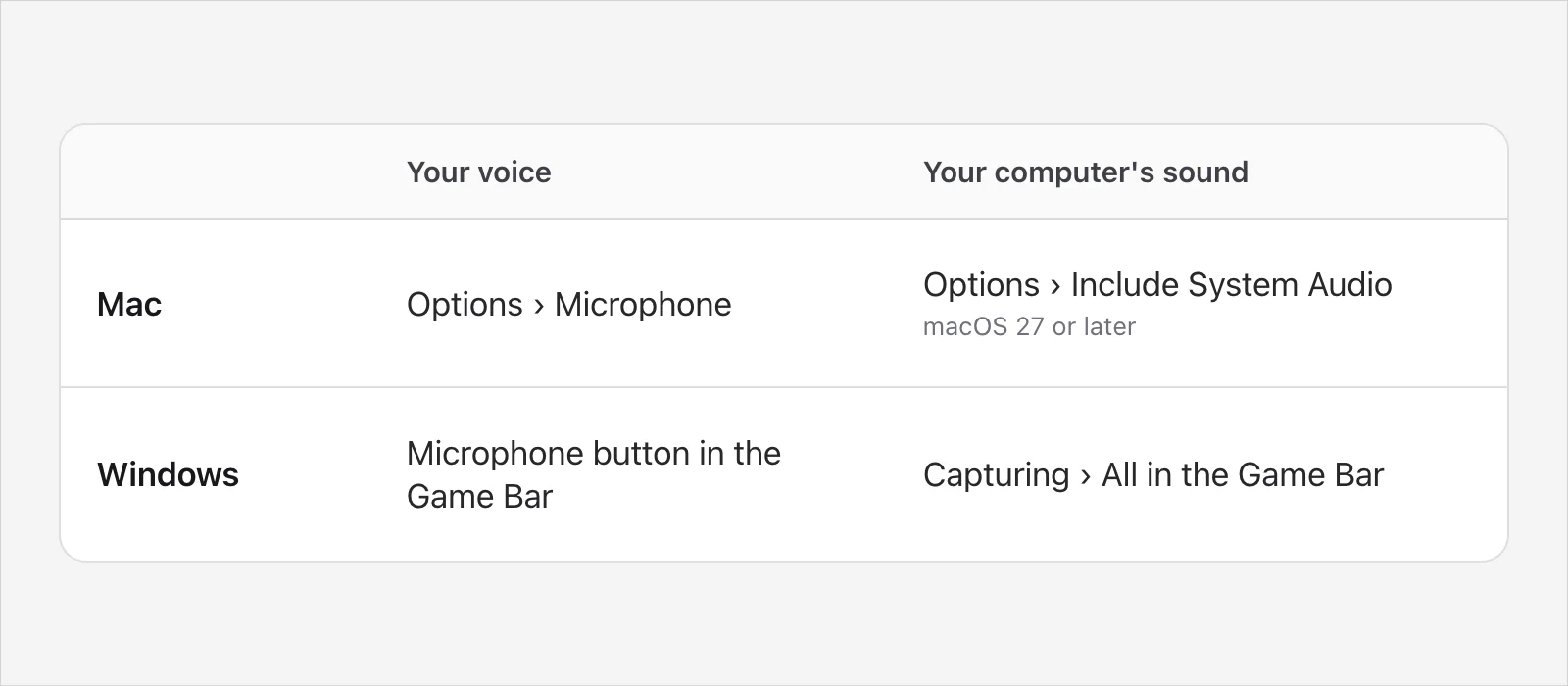
Which sound is missing?
Your voice. That's a microphone. It needs choosing, and your system has to let the recorder use it.
Your computer's own sound. A video, music or a call you're listening to. The recorder has to be able to take it.
Both. Check each one. They're separate switches.
| Mac | Windows | |
|---|---|---|
| Your voice | Choose a microphone in Options | The recorder's microphone choice; in the Game Bar, Windows keyAltM switches it |
| Your computer's sound | Include System Audio on macOS 27 or later | Capturing › All in the Game Bar |
On a Mac
Check Options before you record
Press ShiftCommand5, choose Record Entire Screen, Record Selected Window (macOS Tahoe 26 or later) or Record Selected Portion, then click Options. Apple's Mac User Guide says the options you see vary with whether you're taking a screenshot or a recording. Apple's page on recording the screen says to choose a microphone to record your voice or other audio. The Mac User Guide says a checkmark appears next to the microphone you pick and that selecting None turns the microphone off, so make sure you haven't chosen None. On macOS 27 Golden Gate or later, the page on recording the screen says to choose Include System Audio to record your Mac's sound.
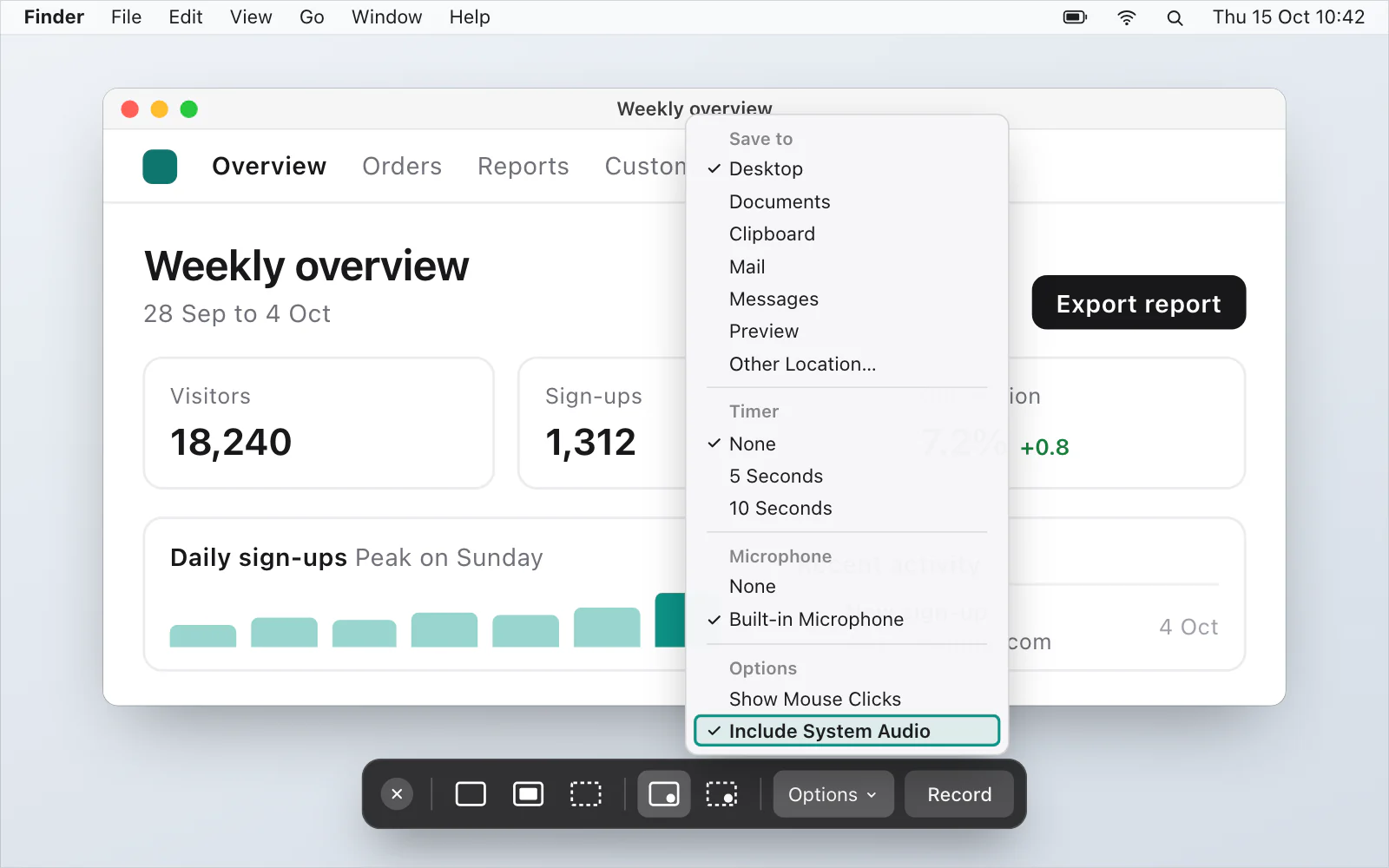
In QuickTime Player, File › New Screen Recording shows either the same toolbar or QuickTime's own window. In its own window, the arrow next to Record opens the microphone choice and a volume slider.
Your Mac's own sound is missing
How to screen record on a Mac with sound goes through this by macOS version. The short answer: on macOS Tahoe 26 and earlier, Apple's pages list a microphone and no setting for your Mac's own sound. Update to macOS 27, if your Mac can run it, or follow the longer steps in that guide.
Your voice is missing
Is a microphone chosen? In Options, make sure you've picked a microphone and not None. Apple says a checkmark appears next to the one you pick.
Is it allowed? Open System Settings › Privacy & Security › Microphone. Apple's page says you turn access on or off for each app in the list.
Is it the right one, and loud enough? Open System Settings › Sound › Input, select the device and drag the volume slider. Apple's page says that when you're recording through your computer's sound port, you can raise the input volume for a soft voice.
Test your microphone in the browser first if you're not sure it works at all.
You hear an echo
Apple's advice, given for QuickTime Player, is to lower the volume or use headphones with a microphone if you get audio feedback.
One app won't record
Apple says some apps, such as the Apple TV app, might not let you record their windows.
On Windows
The Xbox Game Bar
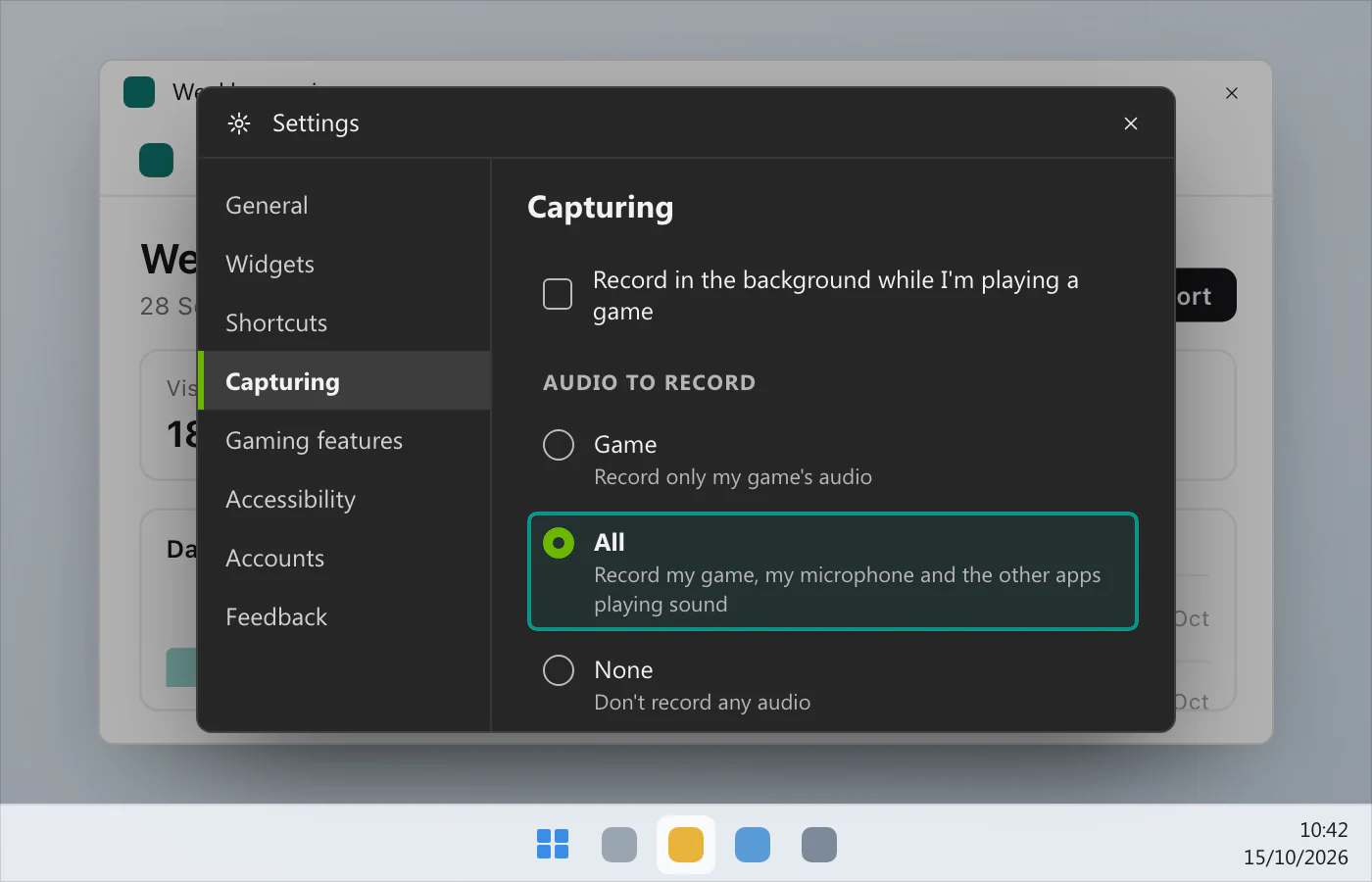
Press Windows keyG, open Settings in the Game Bar, go to Capturing and choose All. Microsoft's page on the Game Bar says that makes sure all computer sounds are included. During a recording, Windows keyAltM switches your microphone on or off, so check you didn't switch it off. The Windows 10 recorder page has the whole routine, and recording on Windows 11 with audio is the Windows 11 page.
The Snipping Tool on Windows 11
Pages disagree here, and one disagrees with itself. Microsoft's Windows Insider blog said on 31 August 2023 that a Snipping Tool update for Insiders added optional recording of your PC's audio and a microphone, with app settings for the defaults and a choice of recording device. Windows Central says in its introduction that the Snipping Tool doesn't include an audio recording feature, and then, in its own steps, says to click the Microphone menu and, optionally, a Mute system audio button. Microsoft's current Snipping Tool page describes neither: it covers the video snip on Windows keyShiftR and editing in Clipchamp. So look at the recording bar and the app's settings on your own PC before you record.
Is the microphone allowed?
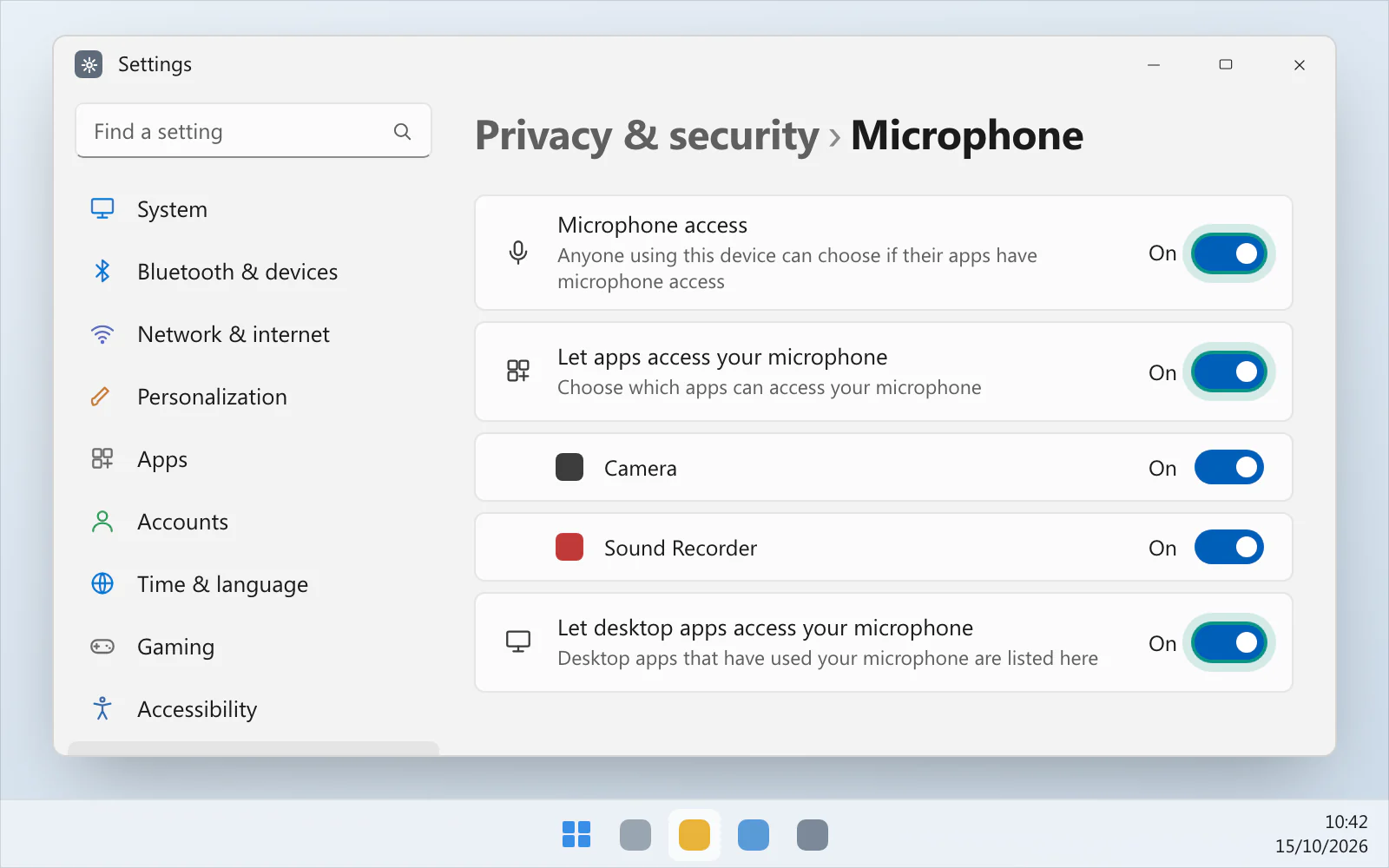
Open Start › Settings › Privacy & security › Microphone. Microsoft's page on fixing microphone problems says to make sure Microphone access is on and Let apps access your microphone is on, and that giving access to desktop apps takes Let desktop apps access your microphone being on too. The page doesn't mention the Game Bar, so it doesn't say which one covers it: check all three. On Windows 10 it's Settings › Privacy › Microphone.
Is the right microphone chosen?
Go to Start › Settings › System › Sound, find Input and choose your device. On Windows 11, Microsoft's page says to select the device, then Start test under Input settings, speak, then Stop test and Play to hear it. Its Windows 10 steps use Test your microphone instead. If your headset has a mute button, check that it isn't on.
Is your PC playing sound at all?
If nothing is playing, there's nothing to record. Microsoft's page on missing sound says the cause can be the wrong output device, muted sound, audio enhancements or the driver. Check Start › Settings › System › Sound, then Output.
Run the Recording Audio troubleshooter
On Windows 11, Microsoft's page points to Settings › System › Sound, then Advanced, then Input devices under Troubleshoot common sound problems. On Windows 10 it's Settings › Update & Security › Troubleshoot › Additional troubleshooters › Recording Audio.
A recorder with your computer's sound on by default
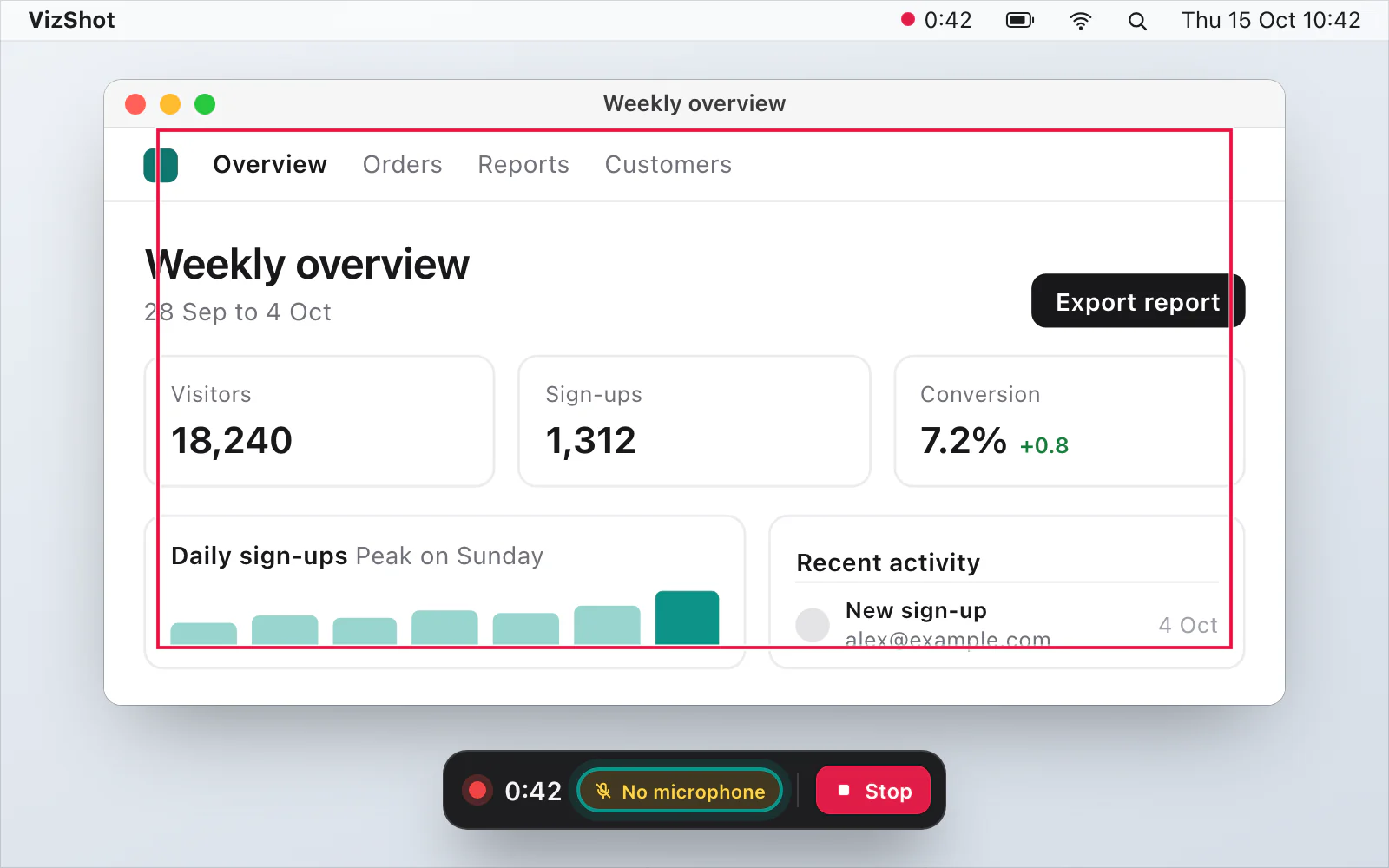
VizShot records your computer's sound by default, on every Mac it runs on (macOS 14 Sonoma or later) and on Windows. Your microphone is off until you switch it on in Settings › Recording, and on a Mac that needs macOS 15 or later. Both go into one sound track in the MP4. If a source can't be used, the control bar shows No sound or No microphone in amber while you record, and the video is still saved. After the 14-day free trial, recording needs a key. My recording has no sound is the app's own list of fixes, Record sound and your microphone explains the switches, and you can download VizShot.
$8, once, for two computers.
Questions
Why is there no sound on my screen recording?
Often because the sound wasn't chosen, wasn't allowed or isn't one the recorder can take; on Windows, a muted or wrong output device can also be the cause. Check which sound is missing at the top of this page, then the settings for your system.
Why does my Mac screen recording have no sound?
Look at Options before you record. Choose a microphone for your voice. On macOS 27 or later, choose Include System Audio for your Mac's sound. On macOS 26 and earlier, Apple's page lists no setting for your Mac's own sound.
Why does my Windows screen recording have no sound?
In the Game Bar, check Capturing › All and the microphone switch (Windows keyAltM). Then check Privacy & security › Microphone. For the Snipping Tool, see the section above.
Does the Snipping Tool record audio?
Microsoft's Insider blog said a 2023 update for Insiders added optional audio. Microsoft's current support page doesn't describe it, and Windows Central says both that it doesn't record audio and, in its own steps, how to choose a microphone and mute system audio. Check the recording bar on your PC.
Can I get the sound back in a recording that's already silent?
Not if the sound was never recorded: a recording holds only the sound the recorder was set to take, so you'll need to record again with the right settings. One exception is a recording made with an early version of VizShot, which can keep your voice as a second track that some players don't play; My recording has no sound explains.
What about iPhone or Android?
This page is for the Mac and for Windows. Phones have their own recorders and their own settings.
Checked against
- Apple: How to record the screen on Mac, read 15 October 2026
- Apple: Take screenshots or screen recordings on Mac, read 15 October 2026
- Apple: Take screenshots or screen recordings on Mac, read 14 October 2026
- Apple: Control access to the microphone on Mac, read 15 October 2026
- Apple: Change the sound input settings on Mac, read 15 October 2026
- Microsoft: Use a screen reader to record your screen with Xbox Game Bar, read 15 October 2026
- Microsoft: Fix microphone problems, read 15 October 2026
- Microsoft: Fix audio issues when no sound plays from speakers or headphones in Windows, read 15 October 2026
- Microsoft: New Updates for Snipping Tool and Notepad for Windows Insiders, read 15 October 2026
- Microsoft: Use Snipping Tool to capture screenshots, read 15 October 2026