How to copy a screenshot to the clipboard

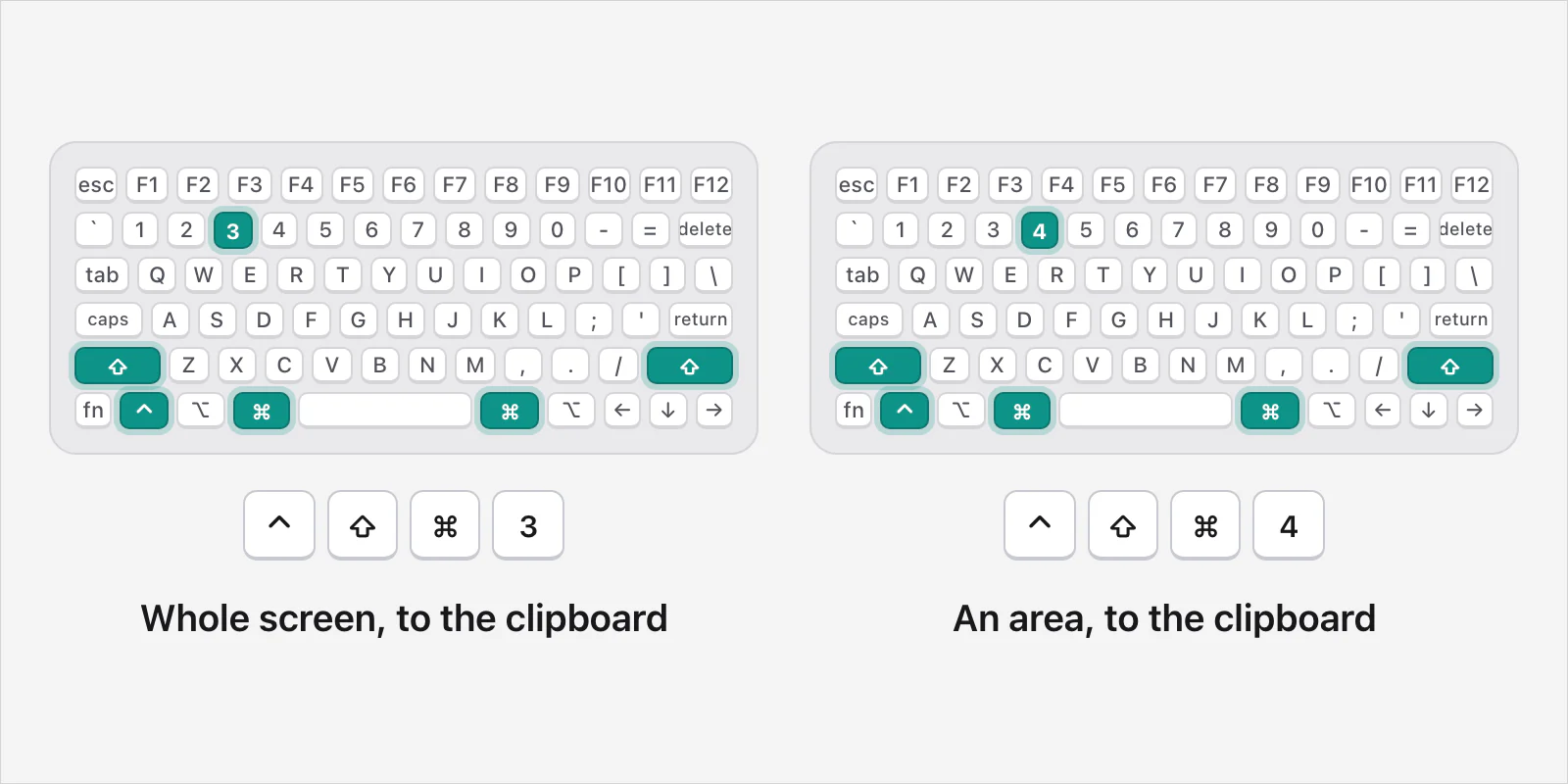
On a Mac, add Control to the usual shortcut. ControlShiftCommand3 copies the whole screen, and ControlShiftCommand4 copies an area you drag over. On Windows, Print Screen and Windows keyShiftS already copy the picture to the clipboard. Then paste it: CommandV on a Mac, CtrlV on Windows.
On a Mac
Apple's page on taking a screenshot gives the rule: press Control in addition to the other keys you press to take the screenshot. Instead of Shift-Command-3, press Control-Shift-Command-3. Nothing is saved to the desktop. The picture goes on the clipboard.
The whole screen. Press ControlShiftCommand3.
An area. Press ControlShiftCommand4, then drag over what you want.
A window. Press ControlShiftCommand4, press the Space bar and click the window.
Apple's page gives the whole-screen example. Its Mac User Guide says to hold Control while you press the other keys, which is why the area and window versions follow the same pattern.
Already took it? Copy it from the thumbnail
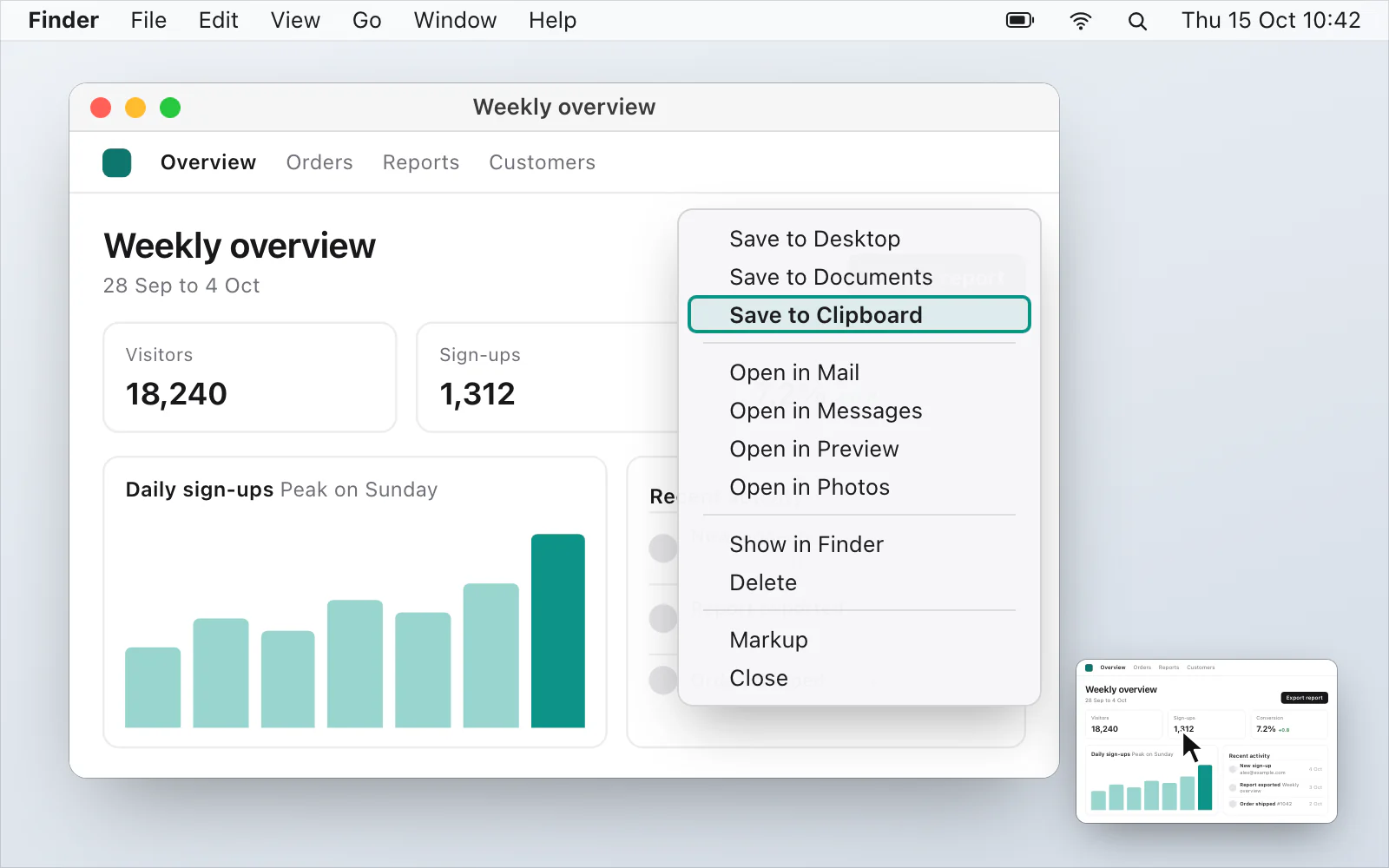
If you've just taken a screenshot the usual way, Control-click the thumbnail in the corner of the screen and choose Save to Clipboard. Apple's page says that works instead of saving to the desktop. The thumbnail only stays for a few seconds, but Apple says that if you hold the pointer over it, it stays until you act on it or move the pointer away.
The Screenshot app
ShiftCommand5 opens the Screenshot app. Its Options menu lets you choose where screenshots are saved. Apple's page doesn't say the clipboard is one of the choices there; the way it documents for the clipboard is the Control keys above.
Paste it
Click where you want the picture and press CommandV. Apple's keyboard shortcuts page says that pastes the contents of the Clipboard into the current document or app. If the app won't take a picture, save a file instead, by taking the screenshot without Control.
Check what's on the clipboard
Spotlight can search your clipboard history. Apple's page on searching your Clipboard history in Spotlight says to press CommandSpace bar, then Command4 or the Clipboard button next to the search field. The first time, Apple says, you may be asked to allow search results from the Clipboard. It warns that sensitive information may appear there, and a Clear History command erases it. Apple's page doesn't say which kinds of content the history keeps.
Preview has File › New from Clipboard. Apple's page on marking up images in Preview names it: copy part of an open image with Edit › Copy, then choose File › New from Clipboard to create a new file from it.
Paste it on your iPhone or iPad
With Universal Clipboard, Apple says, you can copy on one Apple device and paste on another that's nearby, if your devices meet the Universal Clipboard system requirements. Both need the same Apple Account, Bluetooth and Wi-Fi on, and Handoff on, which is the default. The content stays there briefly, or until you copy something else.
On Windows
Print Screen. Microsoft's page for Microsoft 365 says it copies an image of the entire screen to the clipboard. Microsoft's keyboard shortcuts page says that on Windows 11 it lets you select a region instead, with a setting to turn that off; Print Screen not working on Windows 11 goes through it.
Alt + Print Screen. Copies only the window you're working in.
Windows key + Shift + S. The desktop darkens so you can select an area. The picture is copied to the clipboard, and a notification appears. Select it to open the Snipping Tool editor.
In the Snipping Tool. Microsoft's page says CtrlC copies the snip to the clipboard.
Then press CtrlV in a document, an email or Paint. Microsoft's page for Microsoft 365 describes pasting into one of those, and into Paint to edit the picture.
If you want a file, not the clipboard, press Windows keyPrint Screen. Microsoft's keyboard shortcuts page says it saves a full-screen screenshot in Pictures › Screenshots. Where are screenshots saved on Windows 11? has where to look.
Clipboard history on Windows
Windows can keep more than the last thing you copied. Microsoft's page on using the clipboard says to select Windows keyV and then Turn on the first time. The history is cleared each time you restart your PC, except for the items you've pinned. The page also says each item can be up to 4 MB, that text, HTML and bitmap formats are supported, and that the history holds 25 entries, so a large screenshot may not be in it.

Why can't I paste it?
Something else was copied after it. Copy the screenshot again. On Windows, Windows keyV shows your clipboard history if you turned it on, but a large picture may not be in it (see the limits above).
You took a screenshot that saves a file. On a Mac, a normal screenshot is a file on the desktop, not the clipboard, unless you added Control. On Windows, Windows keyPrint Screen saves a file, and Microsoft's Snipping Tool page says a snip is saved to your Screenshots folder too.
A restart cleared it. Microsoft says Windows clipboard history is cleared on a restart, except for pinned items.
The app doesn't take pictures. Save a file and attach it.
A faster way, if you do this every day
VizShot puts the picture on your clipboard and saves it in a folder called VizShot inside Pictures, both at once, so there's no Control key to remember. On a Mac, ⌘⇧2 captures an area and ⌘⇧7 the whole screen; on Windows it's CtrlShift2 and CtrlShift7. The clipboard always gets the full-size PNG. After the 14-day free trial a screenshot is still copied to the clipboard, but saving needs a key. Take your first screenshot has the steps, and you can download VizShot.

$8, once, for two computers.
Questions
How do I screenshot to the clipboard on a Mac?
Hold Control with the usual keys: ControlShiftCommand3 for the whole screen or ControlShiftCommand4 for an area. Mac screenshot shortcuts lists them together.
How do I copy a screenshot on Windows?
Press Print Screen (the entire screen, Microsoft's page for Microsoft 365 says; a region you select on Windows 11, its keyboard shortcuts page says), AltPrint Screen for the active window, or Windows keyShiftS to pick an area. Screenshot shortcuts for Windows has them in one table.
Where does a screenshot go when I copy it?
To the clipboard. On a Mac, Apple's page says that's instead of the desktop, and where screenshots go covers the files. On Windows, Microsoft's Snipping Tool page says a snip is also saved to your Screenshots folder, so where screenshots are saved on Windows 11 lists both.
How do I paste a screenshot?
CommandV on a Mac, CtrlV on Windows.
Can I paste a screenshot from my Mac on my iPhone?
Yes, if Universal Clipboard is set up, Apple's page says. Copy the screenshot on the Mac with Control, then paste on the iPhone.
How do I see what I copied?
On Windows, Windows keyV shows the history once you've turned it on, within the size and count limits above. On a Mac, Apple says Spotlight can search your clipboard history: CommandSpace bar, then Command4.
Checked against
- Apple: Take a screenshot on Mac, read 15 October 2026
- Apple: Take screenshots or screen recordings on Mac, read 15 October 2026
- Apple: Mac keyboard shortcuts, read 15 October 2026
- Apple: Annotate an image in Preview on Mac, read 15 October 2026
- Apple: Use Universal Clipboard to copy and paste between your Apple devices, read 15 October 2026
- Apple: Search your Clipboard history in Spotlight on Mac, read 15 October 2026
- Microsoft: Copy the window or screen contents, read 15 October 2026
- Microsoft: Use Snipping Tool to capture screenshots, read 15 October 2026
- Microsoft: Keyboard shortcuts in Windows, read 15 October 2026
- Microsoft: Using the clipboard, read 15 October 2026