Screenshot not working on a Mac

First find out which half is broken. Press CommandSpace, type Screenshot, open the app from the results, and take a picture from the toolbar. If that works, your Mac can capture, and the trouble is the keys or where the file went. If it doesn't, skip to "Your Mac won't capture at all".
Step 1: does Screenshot open?
Apple's Mac User Guide says to press ShiftCommand5 to open Screenshot. Its pages for macOS 26 and 27 add "or use Spotlight", and the ones for macOS 14 and 15 say Launchpad. Spotlight finds apps, and opens with CommandSpace.
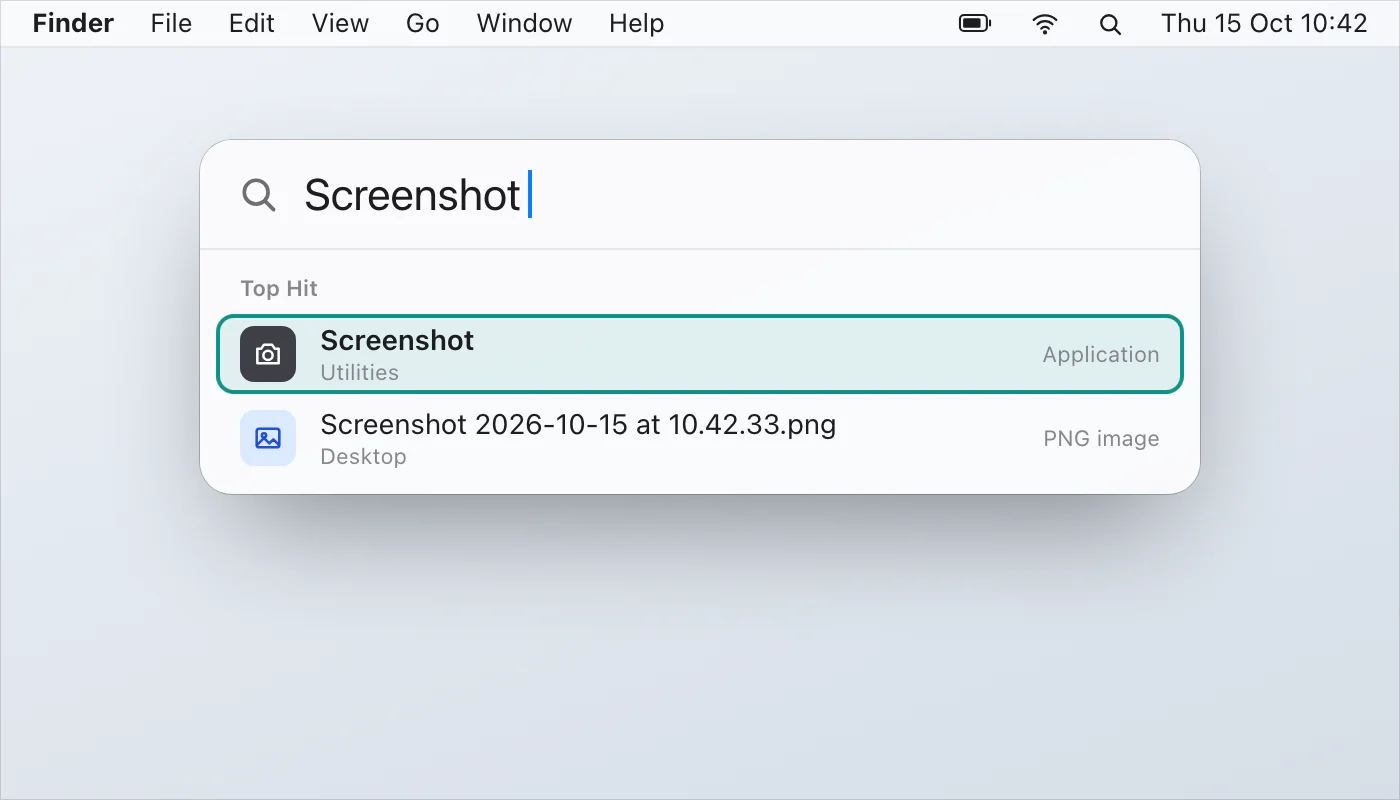
Open Screenshot. If ShiftCommand5 doesn't open it, use Spotlight.
Click a tool: the entire screen, a window or a portion of the screen.
Click Capture, or click the window if you chose a window.
Prefer the pointer? Apple says the Screenshot app is in the Utilities folder, inside Applications.
The shortcuts do nothing
If Screenshot works but ShiftCommand3, 4 or 5 doesn't, check the keys.
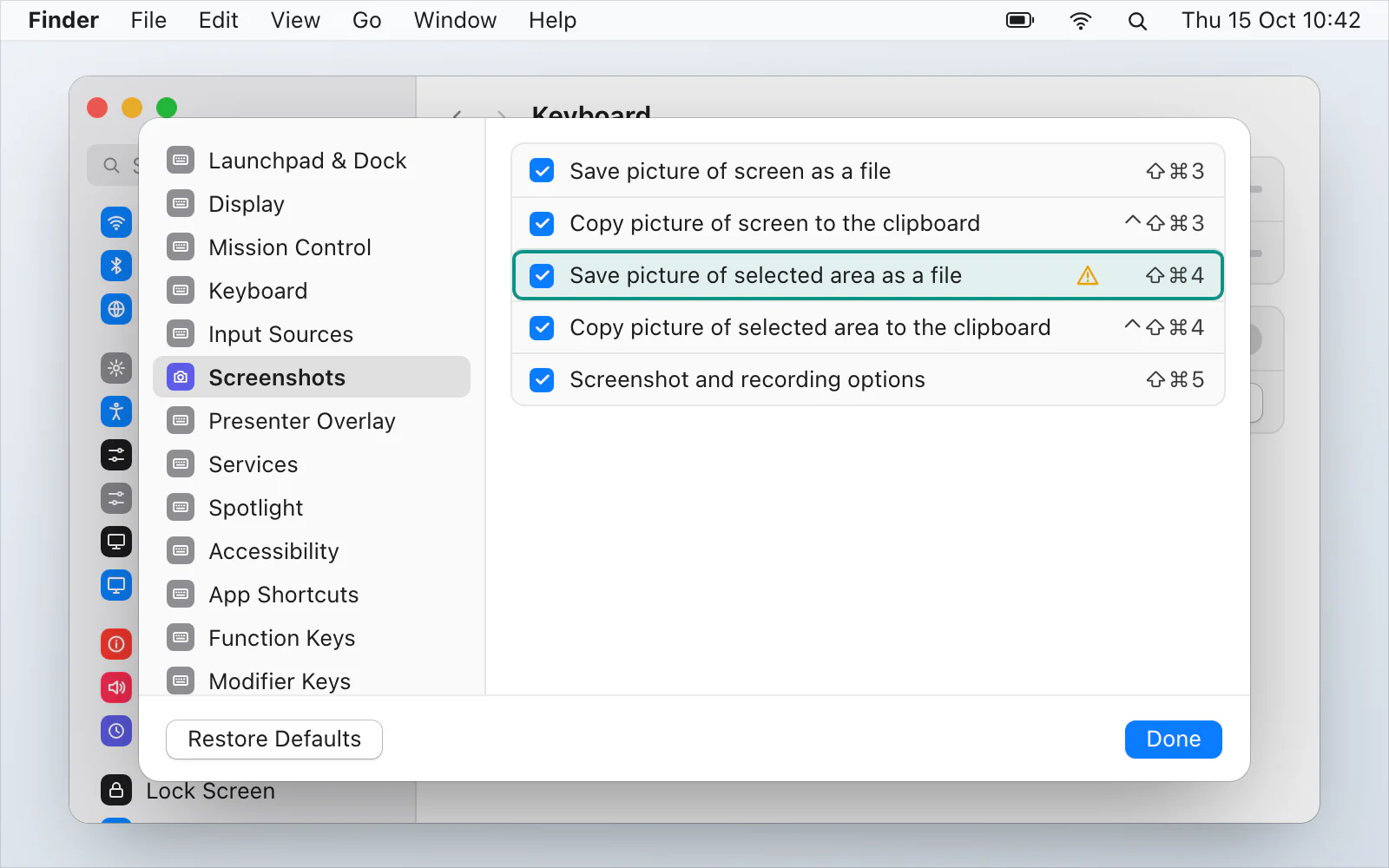
Are they switched on, and unchanged? Choose Apple menu › System Settings, click Keyboard, then Keyboard Shortcuts, then Screenshots in the sidebar. Apple's page on macOS keyboard shortcuts says each shortcut has a checkbox and that deselecting it turns the shortcut off, so make sure the screenshot ones are selected. If you've changed the keys, the old ones do nothing. Apple says Restore Defaults, at the bottom left of Keyboard Shortcuts, returns all the shortcuts to their original keys, not only the screenshot ones.
Is another app using them? Apple says a warning icon next to a shortcut means another app is already using it. To change the conflicting shortcut, double-click it and press new keys.
Is it a Windows keyboard? Apple says that on a keyboard made for Windows PCs you press Alt instead of Option, and Ctrl or the Windows logo key instead of Command. Print Screen on a Mac has the rest.
Mac screenshot shortcuts lists the standard keys.
The screenshot isn't saving, or isn't where you look
If the capture seems to happen, because a thumbnail appears, but you can't find the file:
Did you hold Control? Apple says Control with the shortcut copies the picture instead of saving it. Paste into a document to see. Copying a screenshot to the clipboard covers it.
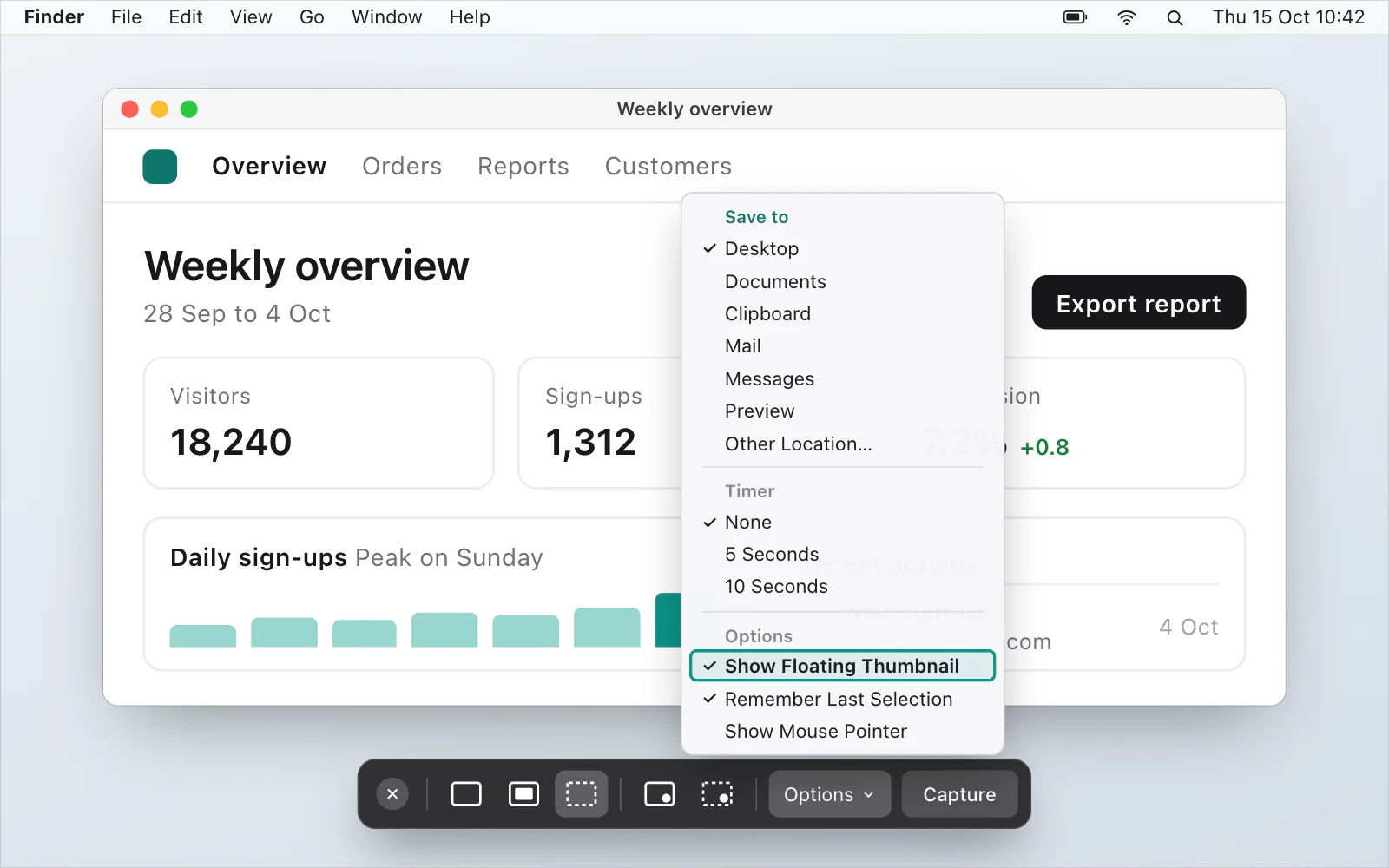
Did you wait for the thumbnail? Apple says it floats in the corner for a few seconds before the file is saved to the place you chose. Swipe it right to save at once, or hold the pointer over it to keep it on screen.
Did the save place change? Open Screenshot, click Options and look under Save to. Where screenshots go on a Mac has the full list, and Mac screenshot settings the other options.
Is the startup disk nearly full? Apple's page on freeing up storage is for a disk that's almost full or has too little room to download, install or copy. It doesn't mention screenshots, but a screenshot is a file too. Check System Settings › General › Storage.
Your Mac won't capture at all
Try another window. Apple says you may not be able to take pictures of windows in some apps, such as DVD Player, and that the Apple TV app might not allow it.
Is it a work or school Mac? An administrator can switch screenshots and screen recording off. Apple's device-management documentation lists a restriction for it, "Allow screenshots and screen recording", for macOS 10.14.4 and later. If your Mac is managed, ask the person who looks after it.
Try Preview. With a PDF or image open in Preview, choose File › Take Screenshot, then From Selection, From Window or From Entire Screen. The picture opens in Preview as Untitled. It's Apple's other way to capture the screen.
Update macOS. Open System Settings › General › Software Update.
Restart your Mac and try again.
Apple's pages don't name an update or a restart as a cause of screenshots failing. They are the general steps to try last.
A capture tool that doesn't use those keys
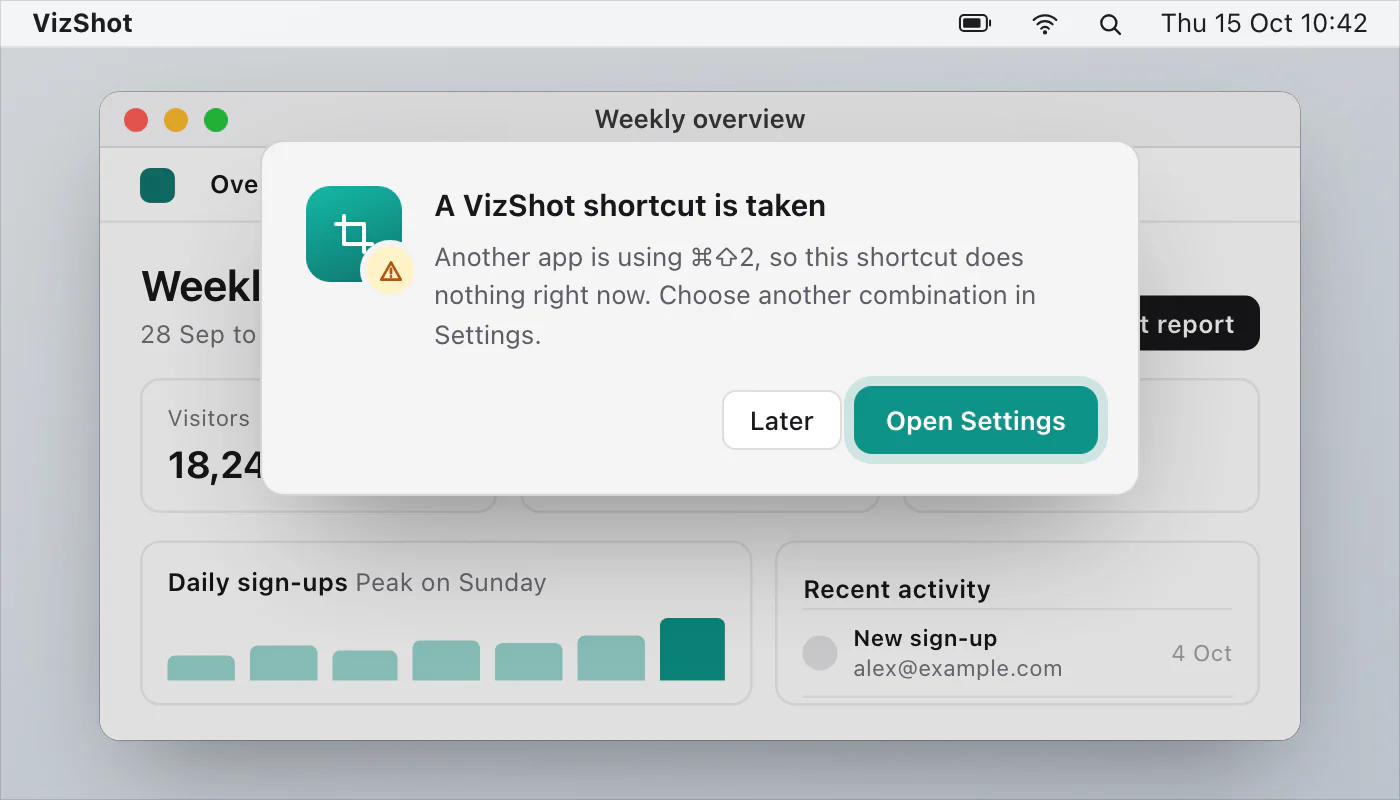
VizShot doesn't use ShiftCommand3, 4 or 5, which belong to macOS, so it isn't competing for them. Its own keys are ⌘⇧2 for an area and ⌘⇧7 for the whole screen, and you can change them in Settings › Shortcuts. If another app already holds a combination, VizShot says so at launch. Each capture goes onto your clipboard and into Pictures › VizShot together. After the 14-day free trial, saving needs a key, and the picture is still copied. A shortcut does nothing is VizShot's own checklist, and you can download VizShot.
$8, once, for two computers.
Questions
Why is Shift-Command-4 not working?
Check System Settings › Keyboard › Keyboard Shortcuts › Screenshots for a changed key, an unselected checkbox or a warning icon, then try Screenshot from Spotlight to see whether the Mac captures at all.
Why aren't my screenshots saving to the desktop?
You may have held Control, which copies instead of saving; the save place may have been changed under Options › Save to; or the disk may be too full to take a new file.
Why did my Mac screenshot stop working?
Apple's pages don't give one cause for it. Start with Step 1 above, which tells you whether the keys or the capture is at fault.
Can I take a screenshot on a Mac without a keyboard shortcut?
Yes. Open the Screenshot app from Spotlight or from the Utilities folder, or use File › Take Screenshot in Preview.
Checked against
- Apple: Take screenshots or screen recordings on Mac, read 15 October 2026
- Apple: Take a screenshot on Mac, read 15 October 2026
- Apple: Find what you need with Spotlight on Mac, read 15 October 2026
- Apple: Use macOS keyboard shortcuts, read 15 October 2026
- Apple: Change a conflicting keyboard shortcut on Mac, read 15 October 2026
- Apple: If keyboard shortcuts don’t work on Mac, read 15 October 2026
- Apple: Mac keyboard shortcuts, read 15 October 2026
- Apple: Take a picture of your screen in Preview on Mac, read 15 October 2026
- Apple: Free up storage space on Mac, read 15 October 2026
- Apple: Keep your Mac up to date, read 15 October 2026
- Apple: device-management, com.apple.applicationaccess.yaml, read 15 October 2026